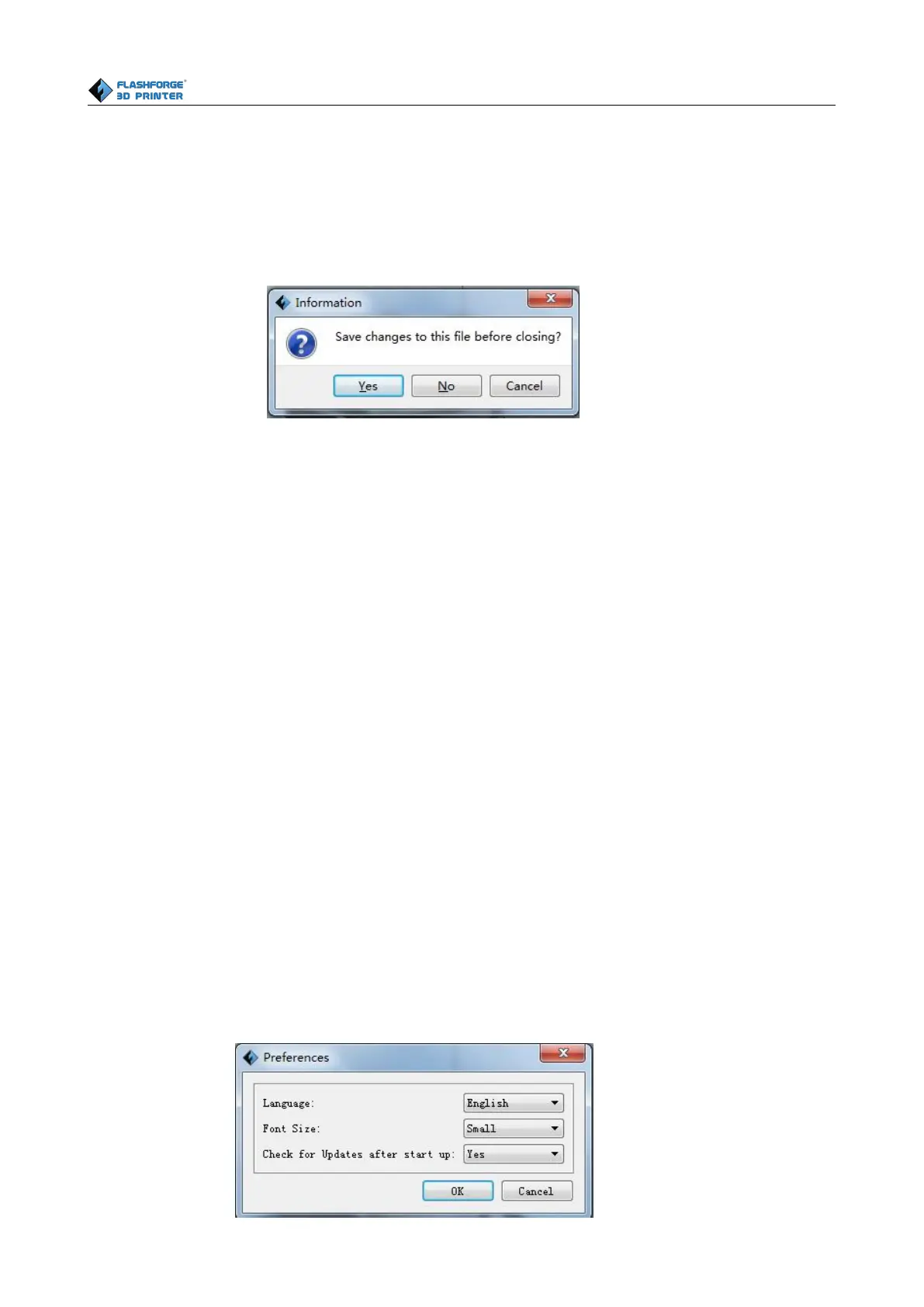
previous project, then will inform you whether the modification needs to be saved or not. Click [Yes]
will save the modification , click [No] will abandon it. If click [Cancel] or close tool tip, then will
After finishing the model edit and adjustment, there are two ways below to save all models in the
Click [File]--[Save Project] in the menu bar, can save the file as a project file which suffix is ”.fpp”
in this type of file,all models in the scene (include support) are independent .after reloading the files,
extruder configuration information and model position will be as same as the configuration during
Click on [File]--[Save as...] to save the model as project file .fpp or .stl and .obj. For .stl and .boj,
models are integrated as one(include support part). If load it again, only the position of the model
was saved, not included the printing parameters.
Click [File]--[Preferences], you can choose language and if needs detecting update when start








 To Next Page