R
Special destination in the vicin‐
ity
R
Special destination in one loca‐
tion
X
Press the à symbol.
X
Enter a name for the destination.
X
Confirm with the ÷ symbol.
The destination is saved in the Stored
destinations list.
Saving the current vehicle location as a
new destination
X
Select the Street map menu.
X
Select the ú symbol.
X
In the map view, select the â symbol.
The address of the current location is
shown.
X
Select the à symbol.
X
Enter a name for the destination location.
X
Confirm with the ÷ symbol.
The address is saved in the Stored des‐
tinations list.
Saving a destination as the new home
address
X
Enter the destination or select it using:
R
Street map
R
Free entry of destination
R
Go home
R
Last destinations
R
Special destination in the vicin‐
ity
R
Special destination in one loca‐
tion
X
Select the á symbol.
X
Press the b button to confirm.
If
you have already stored a home address,
press b to confirm that the old address
is to be overwritten.
The destination is saved as the new home
address.
Navigation (route guidance)
Once route calculation is complete, the sys-
tem
guides you to your destination using nav-
igation messages and the navigation display.
The navigation display is shown in full screen
mode. You can change this mode.
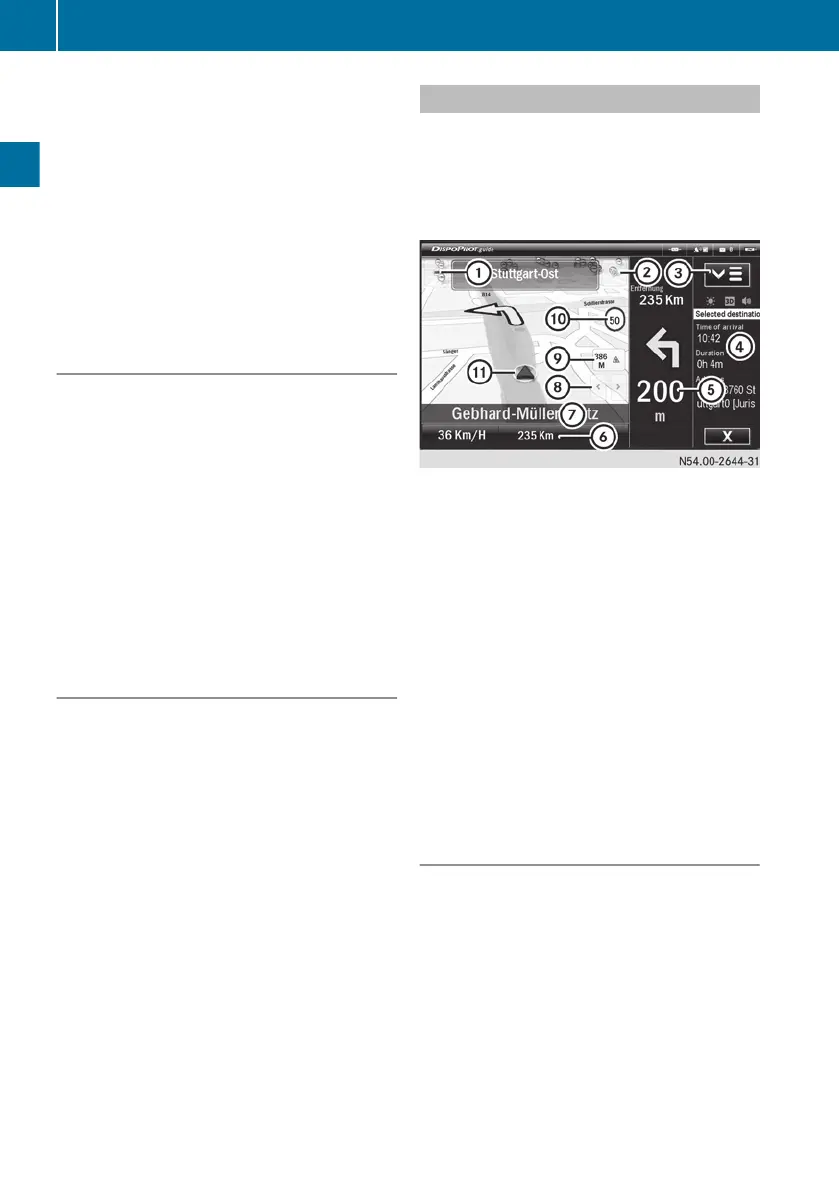
Example: route guidance in full screen mode
:
To enlarge the map section
;
To reduce the map section
=
To show the menu
?
Information on the selected route
A
Distance to junction of next turn
B
Current speed and distance remaining to
the destination
C
Road to be turned into
D
To expand/hide the menu
E
Distance to a specific incident, e.g. an
accident
F
Speed limit
G
Current location
Selecting the display information
You can set which information is shown in the
lower
section of the screen during route guid-
ance.
The following information can be shown:
R
current speed and distance remaining to
the destination
R
destination
R
road currently being driven on
R
next crossroads
22
FleetBoard
®
Navigation
FleetBoard
®
Navigation


 To Next Page