R
next main road
R
next town
X
When the menu is displayed, press the des-
tination on the screen where the informa-
tion is shown.
The menu appears.
X
Select the desired information.
Changing the display
You can change the navigation map display
during navigation.
X
Select the ú symbol.
A menu appears.
X
Select the Ï or Ñ symbol.
The
navigation map switches from 2D to 3D
map display and vice versa.
Changing the map section
You can enlarge or reduce the map section
during
navigation. You can also move the map
section around.
X
To enlarge: select the g symbol.
X
To reduce: select the f symbol.
X
To move:
slide the map section around the
screen with your finger.
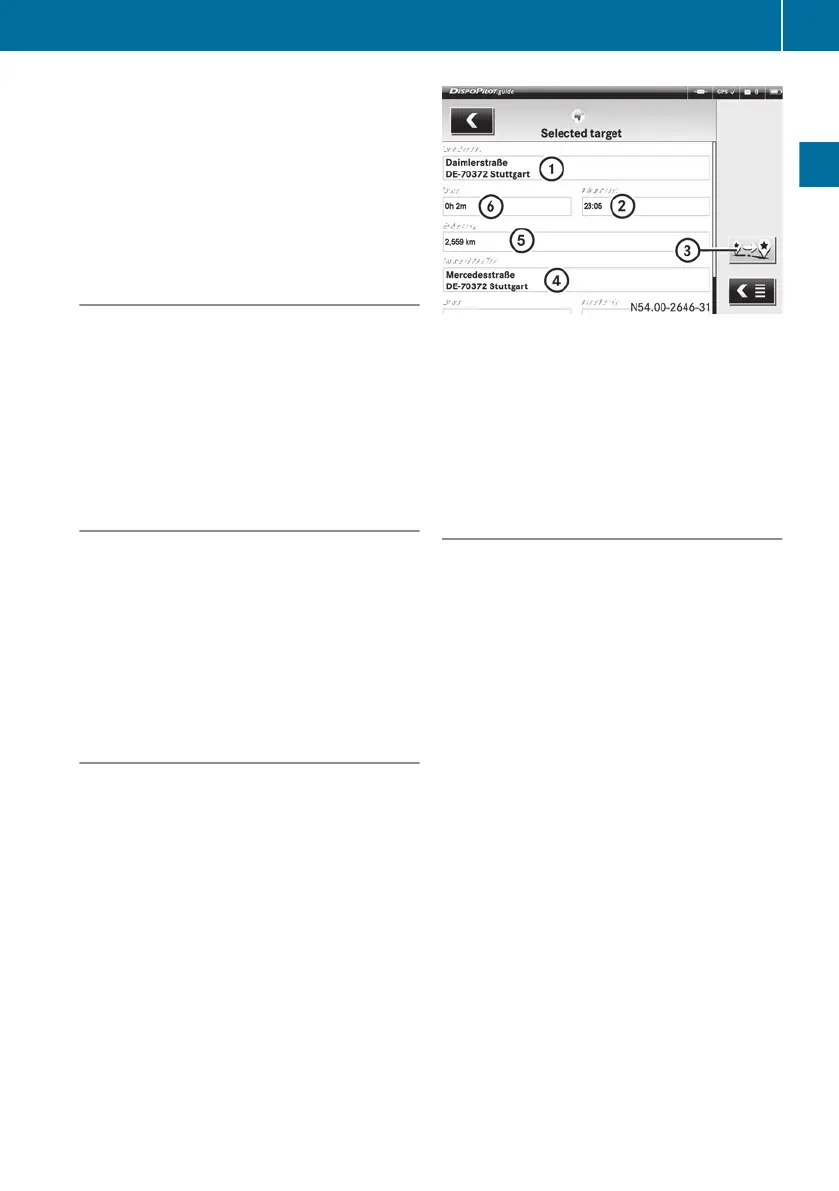
Displaying destination information
You can view the destination information dur-
ing navigation.
X
Select the ú symbol.
A menu appears.
X
Select the ñ symbol.
The destination, remaining driving time,
estimated arrival time and distance from
the destination are displayed.
:
Intermediate destination address
;
Arrival time at intermediate destination
address
=
To skip an intermediate destination
?
Final destination address
A
Distance to intermediate destination
B
Time to intermediate destination
Cancelling navigation
You can cancel navigation at any time.
X
Press the ¨ symbol.
You will be asked whether you really want
to cancel navigation.
X
Press the b button to confirm.
You have cancelled navigation.
FleetBoard
®
Navigation
23
FleetBoard
®
Navigation
Z


 To Next Page