EasyManua.ls Logo

FLIR Blackfly S - User Manual

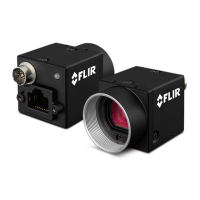
FLIR Blackfly S
50 pages
Print Icon
To Next Page IconTo Next Page
Loading...
INSTALLATIONGUIDE
FLIR
BLACKFLY®S
Version 15.0
Revised 2/19/2019
Copyright © 2015-2019 FLIR Integrated Imaging Solutions Inc.
All rights reserved.

Questions and Answers

  • E
    Edwin BergJul 27, 2025
    Why is the LED flashing green and red on my FLIR Machine Vision System?
    • J
      jesse79Jul 27, 2025
      If the LED on your FLIR Machine Vision System is flashing green and red, it indicates a general error. You should resolve the error to stop the flashing.
  • H
    Heather GrossJul 31, 2025
    What does it mean when the LED is solid green on a FLIR Machine Vision System?
    • J
      Jason PattonJul 31, 2025
      A solid green LED on your FLIR Machine Vision System indicates that data acquisition has started.
  • A
    angelaflynnAug 4, 2025
    What to do if the LED is rapidly flashing green on FLIR Blackfly S Machine Vision Systems?
    • M
      Mary MccormickAug 4, 2025
      If the LED on your FLIR Machine Vision System is rapidly flashing green, it means a firmware update is in progress. Wait for the update to complete.
  • A
    Alicia CarrAug 8, 2025
    What to do if the LED is blinking green once on FLIR Machine Vision Systems?
    • B
      brian14Aug 9, 2025
      If the LED on your FLIR Machine Vision System is blinking green once, check the USB1 connection.
  • E
    Erin BarnettAug 13, 2025
    What to do if the LED is blinking green twice on FLIR Blackfly S Machine Vision Systems?
    • K
      klewisAug 13, 2025
      If the LED on your FLIR Machine Vision System is blinking green twice, check the USB2 connection.
  • M
    Michael MorrisAug 17, 2025
    What to do if the LED is blinking green three times on FLIR Machine Vision Systems?
    • P
      Pamela HunterAug 18, 2025
      If the LED on your FLIR Machine Vision System is blinking green three times, check the USB3 connection.
  • J
    Jessica SpearsAug 21, 2025
    How to troubleshoot USB power issues on a FLIR Machine Vision System?
    • J
      James WebbAug 22, 2025
      If your FLIR Machine Vision System has no power, the LED is inactive, or the LED shows an error status without a specific error, check the USB connection and power supply.

Summary

1 Blackfly S Installation Guide

2 Handling Precautions and Camera Care

Camera Handling Warnings

Warning regarding voiding hardware warranty by opening the camera housing.

3 Blackfly S Installation

3.1 Preparing for Installation

Details system configuration requirements for camera installation.

3.2 Installing Interface Card and Software

Steps to install the camera interface card and Spinnaker software.

3.3 Installing Cased Models

Instructions for installing the cased version of the Blackfly S camera.

3.4 Installing Board-Level Models

Instructions for installing the board-level version of the Blackfly S camera.

3.5 Powering the Blackfly S Camera

Details on how to power the Blackfly S camera via Ethernet or USB.

4 Tools to Control Blackfly S

4.1 Using Spinnaker SDK

Guide to using the Spinnaker SDK for camera control and development.

4.2 Using GenICam Applications

Information on using GenICam for camera control and standards.

5 Configuring Blackfly S Setup

5.1 Configuring Camera Drivers

Steps to configure and update camera drivers using SpinView.

5.2 Camera Firmware Management

Information on determining and upgrading camera firmware.

5 Blackfly S Physical Interface

5.1 Cased Model Physical Description

Detailed description of the physical features of the cased Blackfly S camera.

5.2 Board-Level Physical Description

Detailed description of the physical features of the board-level Blackfly S camera.

5.3 Camera Dimensions

Technical drawings and dimensions for the Blackfly S camera models.

5.4 Interface Connectors

Details on the Ethernet and USB connectors for the Blackfly S camera.

5.5 Interface Cables

Recommendations and part numbers for interface cables.

5.6 Interface Card

Information on selecting and purchasing compatible interface cards.

5.7 General Purpose Input;Output (GPIO)

Description of the GPIO connector and its pin assignments.

5.8 Mounting Options

Details on mounting holes and methods for cased and board-level models.

5.9 Case Temperature and Heat Dissipation

Guidelines for managing camera temperature and ensuring proper heat dissipation.

5.10 Lens Mounting

Information on lenses and lens mounts for Blackfly S cameras.

6 Input;Output Control

6.1 General Purpose Input;Output (GPIO)

Description of the GPIO connector and its pin assignments.

6.3 Input Timing Characteristics

Specifications for input signal timing parameters.

6.4 Output Timing Characteristics

Specifications for output signal timing parameters.

7 Troubleshooting

7.1 Technical Support

Information on accessing FLIR technical support resources and customer accounts.

7.2 Status Indicator LED

Explanation of the LED indicators and their meanings.

Contacting Us

Revision History

Log of document changes and version updates.

FLIR Blackfly S Specifications

General IconGeneral
Sensor TypeCMOS
InterfaceGigE
Lens MountC-mount
Dimensions29 x 29 x 30 mm
Operating Temperature50°C
Bit Depth12-bit