ELIOS 2 USER MANUAL Page 33 of 106
6.1.2.2
MANUAL UPDATE
Follow the steps noted in the "Installing the application for the first time" section.
Setting up the remote controller
If you already used a remote controller with your tablet, typically with the DJI GO app, some setup is necessary
to enable Cockpit to recognize it without other applications taking over the connection.
6.1.3.1
RESET DEFAULT APPLICATION FOR THE CONTROLLER
You can skip this step if you never used the remote controller on your tablet since purchase or latest factory
reset.
Each time the remote controller is plugged and turned on, the tablet runs the default assigned app to handle
it, and other compatible apps will not see it. The default app must be reset in such cases.
Open the Settings menu of your tablet.
1.
Go to Applications.
2.
Open Applications Manager.
3.
In the list of apps, locate DJI GO or the one you have used before. Tap it.
4.
In the next screen, select Set as default (the name is ambiguous).
5.
In the next screen, tap Clear defaults.
6.
The default application for the remote controller is now reset.
6.1.3.2
SET COCKPIT AS DEFAULT APPLICATION
Turn the remote controller on, make sure it has enough battery, and plug a USB cable between the full-size
USB port of the controller and the micro-USB port of the tablet (or USB-C if applicable).
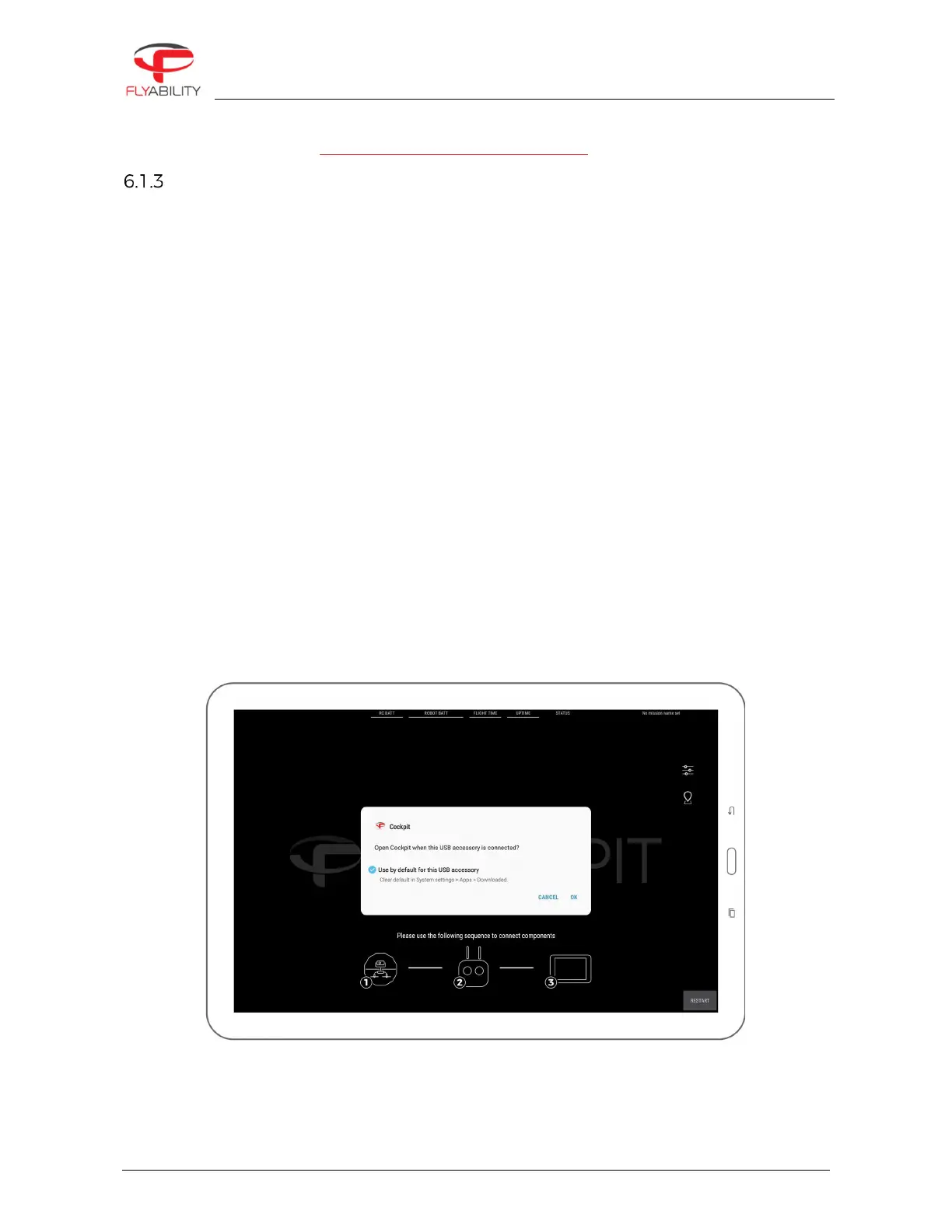
If multiple applications able to handle the controller are present, a popup window asks you to pick one.
Depending on the tablet models, another option, “Just once” or “Always” is selectable. A checkbox mentioning
“Always use” can alternately be proposed.
It is recommended to choose Always / Use by default, as you can later perform the actions in the section above
to reset the defaults.


 To Next Page