ELIOS 2 USER MANUAL Page 37 of 106
User Interface
Home screen
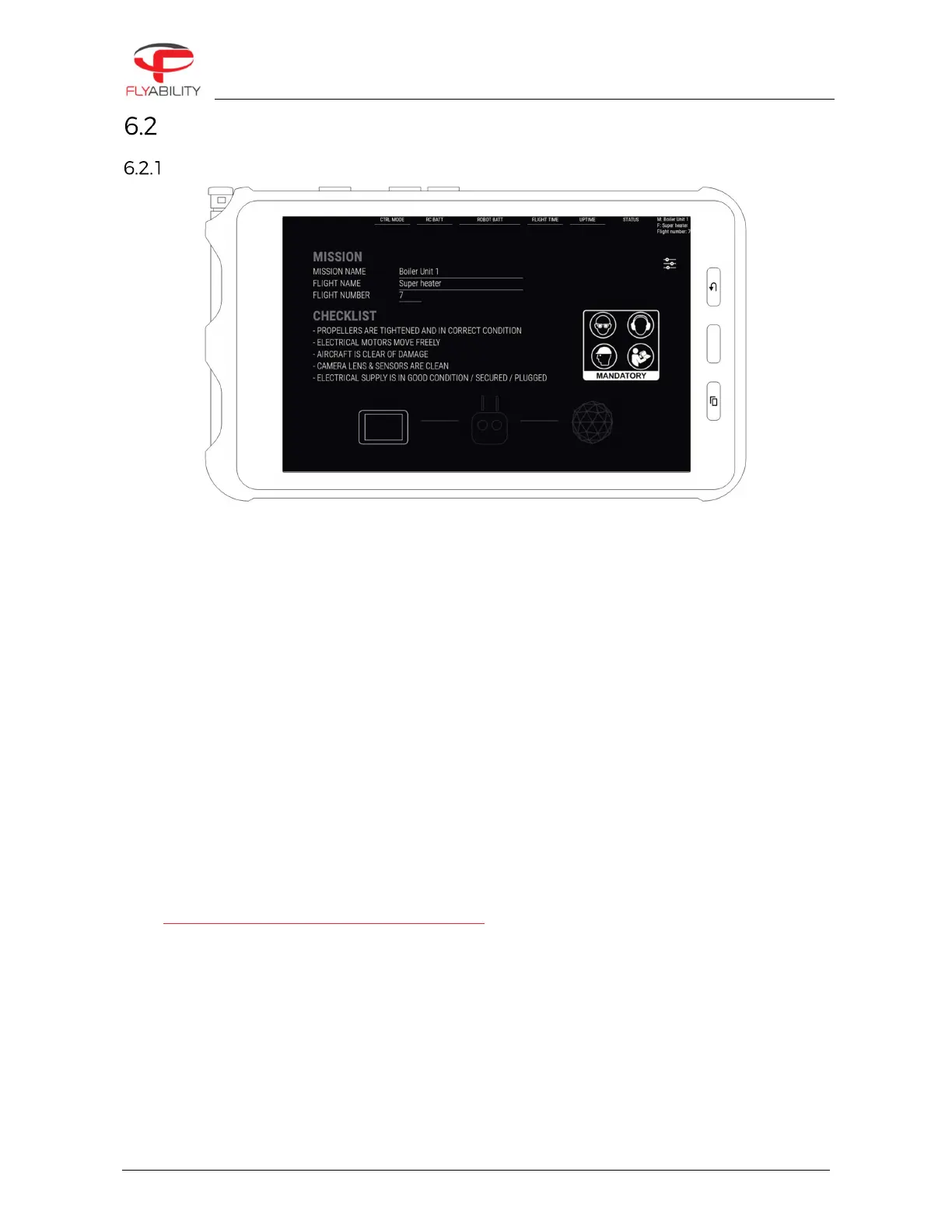
When starting the application, the user arrives on the Home screen. The home screen is enabling the user to:
MISSION
The flight location naming window records the mission name, flight name, and flight number of the
current or upcoming flight.
Mission name and flight name can be 40 characters long at most.
Flight number must be between 1 and 255; this flight number is automatically incremented for the
next flight upon disarming once it is filled out. If the field is left blank, it will not be automatically
incremented.
It is possible to change flight location naming multiple times throughout the flight; data that is
considered as definitive naming for the flight is the one being active at the moment of disarming.
Each field is optional. Simply let the field blank to unset the value for the next flight.
For post-mission analysis, all information entered in this dialog box can be retrieved later on a
computer using Flyability Inspector 1.4 and above.
CHECKLIST
Short and comprehensive checklist to make sure your system is good to fly
SAFETY REMINDER
Flyability recommends the user to wear eye protection, ear protection, and a hard hat while operating
the aircraft. The user MUST have read the aircraft user manual prior using the system.
CONNECTION STATUS
Tablet icon: represents your tablet in the connection order. If wi-fi streaming is used, and this tablet is
used as a viewer, the tablet icon flashes when no connection is established to the emitting tablet. See
Streaming video and telemetry to a second tablet for details.
-
Controller flashing: the controller is being searched.
-
Aircraft icon flashing: the controller is recognized and is now looking for the aircraft.
On the above image, the application is waiting for a controller and aircraft to connect.
Once the aircraft is connected and ready, the Home page allows the user to toggle the camera preview by
tapping on CAMERA.


 To Next Page