ELIOS 2 USER MANUAL Page 49 of 106
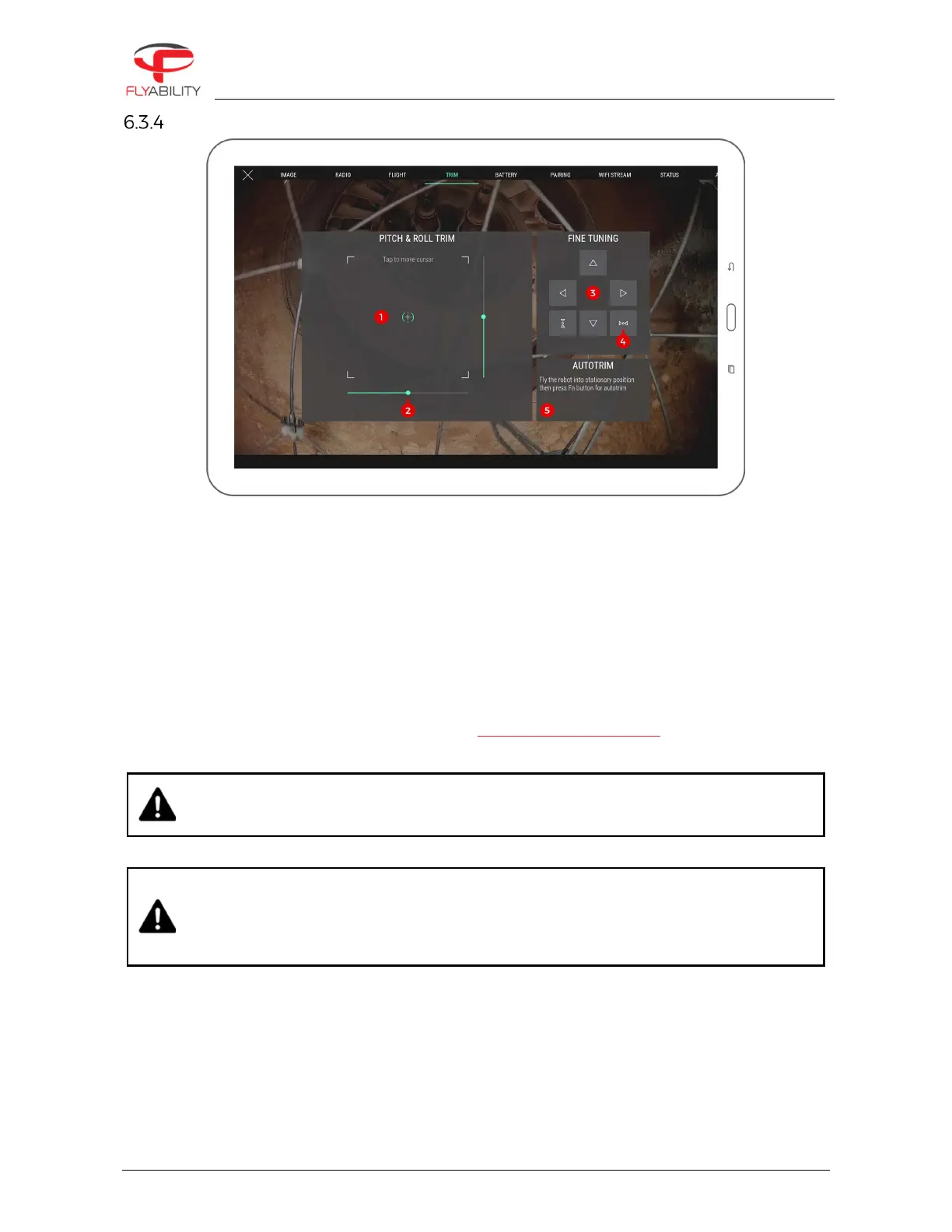
Trim panel
This panel allows the user to trim the drone should it be horizontally-drifting. Various controls are available to
perform trimming.
1.
Touch frame (tap to enable then drag the finger to set pitch and roll trim at once)
2.
Pitch/roll sliders (drag to trim each axis separately)
3.
Fine tuning buttons (tap arrows for small trim increments)
4.
Trim axis reset button (reset trim to zero on each axis)
5.
Autotrim function status (see autotrim procedure for more detail)
Trimming is usually performed while the aircraft is flying in a stable position in a wide open area to avoid
turbulence.
To perform a proper trim operation, please refer to the trimming procedure section.
IF THE TRIMMING PROCEDURE OF DJI GO WAS USED IN THE PAST, PLEASE RECALIBRATE THE
STICKS USING THE RECALIBRATE FUNCTION OF DJI GO BEFORE USING THE TRIM FEATURE IN
TRIM RANGE IS VOLUNTARILY LIMITED TO A PART OF THE FULL CONTROL RANGE. THIS
PREVENTS CASES SUCH AS ACCIDENTALLY PUSHING THE TRIM VALUE UP TO THE MAXIMUM
HORIZONTAL SPEED WHICH MAKES THE AIRCRAFT DIFFICULT TO STOP. THIS BEHAVIOUR
MAY DIFFER IF YOU HAVE EXPERIENCE USING THE TRIM FUNCTION OF OTHER RADIO-
CONTROLLED VEHICLES OR AIRCRAFT


 To Next Page