ELIOS 2 USER MANUAL Page 82 of 106
Move the selected POI. This action can also be performed with (M)
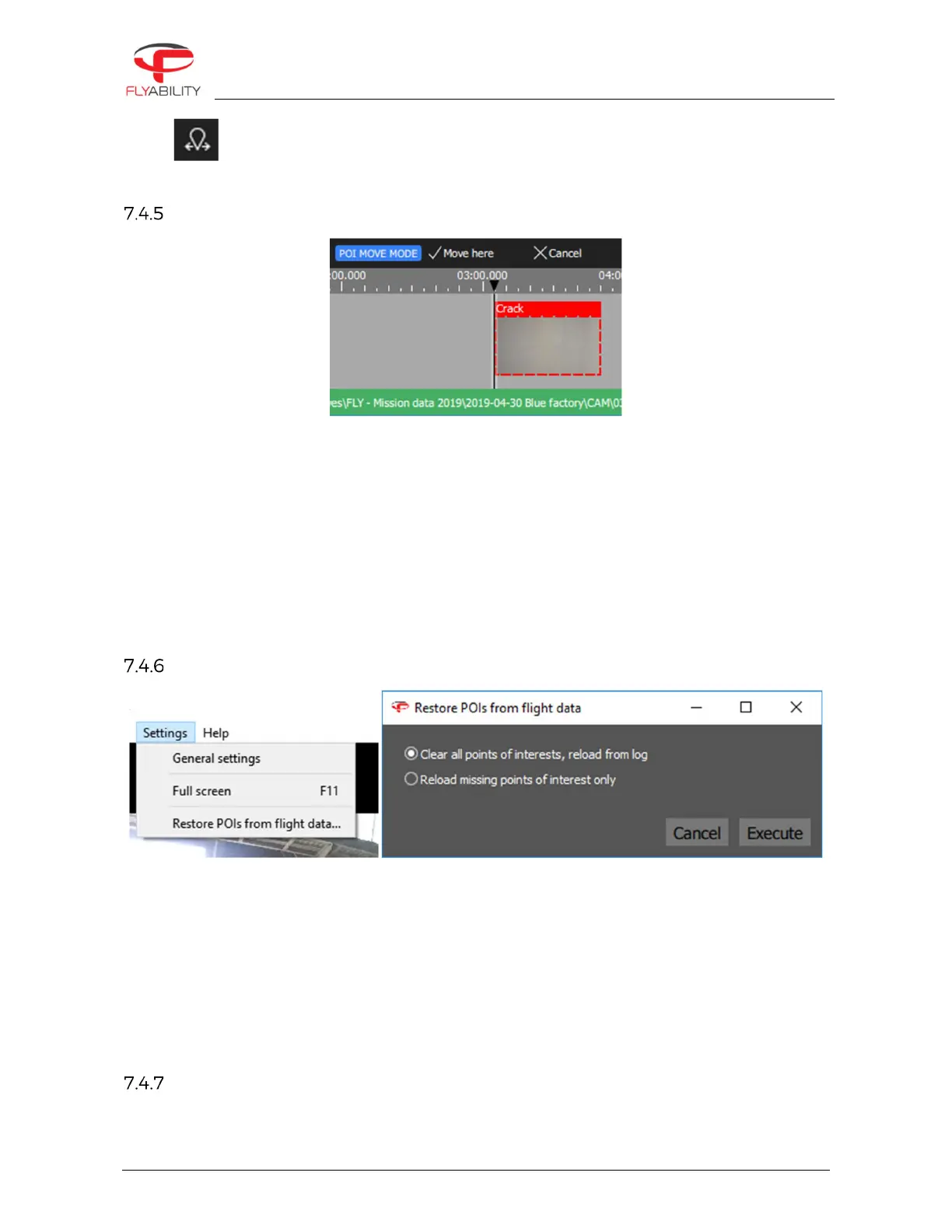
Move a POI
To adjust the time of a point of interest:
-
Select the point of interest
-
Click the Move button from the toolbar or press M
-
Inspector is now in move mode. In this mode, the toolbar changes.
-
Seek to the actual time where you want to reposition your point of interest. You can choose the new
location with the keyboard arrow, the next/previous frame button, or by clicking on the timeline. You
cannot reposition it over another existing Point of interest.
-
To validate, click “Move here” or press Enter.
-
To cancel the operation, click “Cancel” or press Esc.
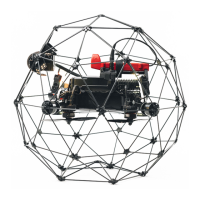
Restore orignal POIs
To restore points of interest from log files:
-
From the menu, use “File > Restore POIs from flight data…”
-
A dialog box appears to let you choose the restoration strategy.
-
Select “Clear all points of interests” to clear the entire timeline and restore original Points of interest
from the log file
-
Select “Reload missing points” to preserve manually added points of interest and restore missing ones
only. The absence of a point of interest at its original time is enough to consider it as missing.
-
Click Execute to apply the changes.
POI information
When a POI is selected, it is possible to edit its name and add comments. Those inputs will be used while
exporting a report from the flight.


 To Next Page