19
EN
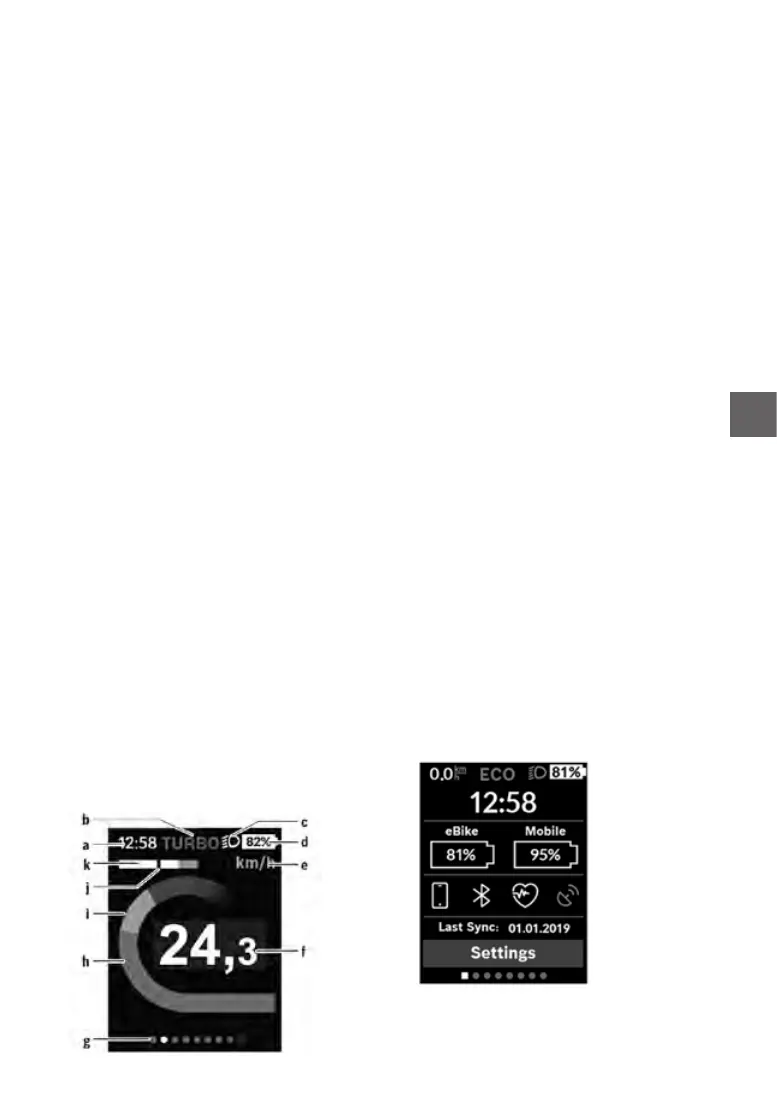
Time/speed indicator
b Assistance level indicator
c Lighting indicator
d Battery charge indicator of the e-bike battery
e Unit of speed indicatorA)
f Speed
g Navigation bar
h Motor output
i Your performance
j Average speed
k Performance evaluation
A) Can be changed via the <Settings> status
page.
The a and d indicators form the status bar and
are shown on every page. If the speed is already
being displayed on the screen itself, the a indica
-
tor will change to the current time in hours and
minutes.
The status bar displays:
– Speed/time: The current speed in km/h or
mph or the current time
– Assistancelevel:Indicates the current level
of assistance using a colour code
– Light: A symbol that indicates whether the
light is on
– e-bike battery state of charge: Indicates
the current state of charge as a percentage
The performance evaluation k graphically dis
-
plays your current speed (white bar) in compar-
ison to your average speed j. The graphic shows
you whether your current
speed is faster or slower
than your average speed (left of the black line =
lower than average value; right of the black line =
higher than average value).
The navigation bar g indicates which page you
are on. Your current page is highlighted. You can
use the (10) < and (8)>buttonstogotodierent
pages. From the initial start page, you can access
the status page via the < (10) button.
Statusscreen
As well as the status bar, the status page also
shows you the current time and the state of
charge of all your eBike’s batteries, as well as the
Operating logic
You can use the < (10) and >(8) buttons to switch
between the dierent riding value information
pages (even while riding). This way, you can keep
both hands on the handlebars while cycling.
You can use the + (12) and – (11) buttons to in
-
crease or decrease the assistance level. If you
are in a list (e.g. the
<Settings> menu), you can
use these buttons to scroll up or down in the list.
The <Settings> that can be accessed via the sta
-
tus page cannot be changed while riding.
Y
ou can use the select button (9) to perform the
following functions:
– You can access the quick menu while riding.
– You can access the settings menu from the sta
-
tus page while stationary.
– You can conrm values and acknowledge in-
formative hints.
– Youcanexitadialogue.
If the on-board computer is removed from its hold-
er
andnotswitchedo,itwilldisplayinformation
regarding the last journey, as well as status infor-
mation, on a loop.
If no button is pressed after the on-board comput-
er is removed from the holder, it will switch itself
o
afteroneminute.
Orderofpages
Provided the on-board computer is tted to the
holder, you can view the following displays one
after the other:
1. Start page
2. Time and range
3. Distance and journey time
4. Power and cadence
5. Averageandmaximumspeed
6. Distance, range, power and heart rate
7. Heart rate
8. Calories burnt and total distance
9. Status page
Start page
When you insert the on-board computer into the
holder while it is switched on, it will display the start
page.
a



 To Next Page