01134592 – REF20/25 LB, PH, BB 13
Data Storage
§ Data can be captured different ways. The factory default is for the data
to overwrite itself when the memory is full. This can be changed in the
advanced setting under Data storage overwrite. When this parameter
is set to No, the system will display an alert when the memory is 75%
full. To clear the alert the data must be downloaded.
Data duration alarm
§ A reminder can be set to download the data in the Data duration alarm
in the advanced setting. The data duration can be set from 1 to 180
days. If the data duration alarm is used, then the Alarm on data full
parameter in the advanced setting must also be set to Yes.
Downloading data
§ The touchscreen has the capability of downloading the temperature
data and event log via a USB port on the left side of the user interface.
The le is a CSV format and is suitable for import directly into Microsoft
Excel.
1. Insert the storage device in the USB slot located to the left of the
Touchscreen.
2. Select the Graph icon along the bottom of the Touchscreen.
3. Select the USB icon in the lower right hand corner.
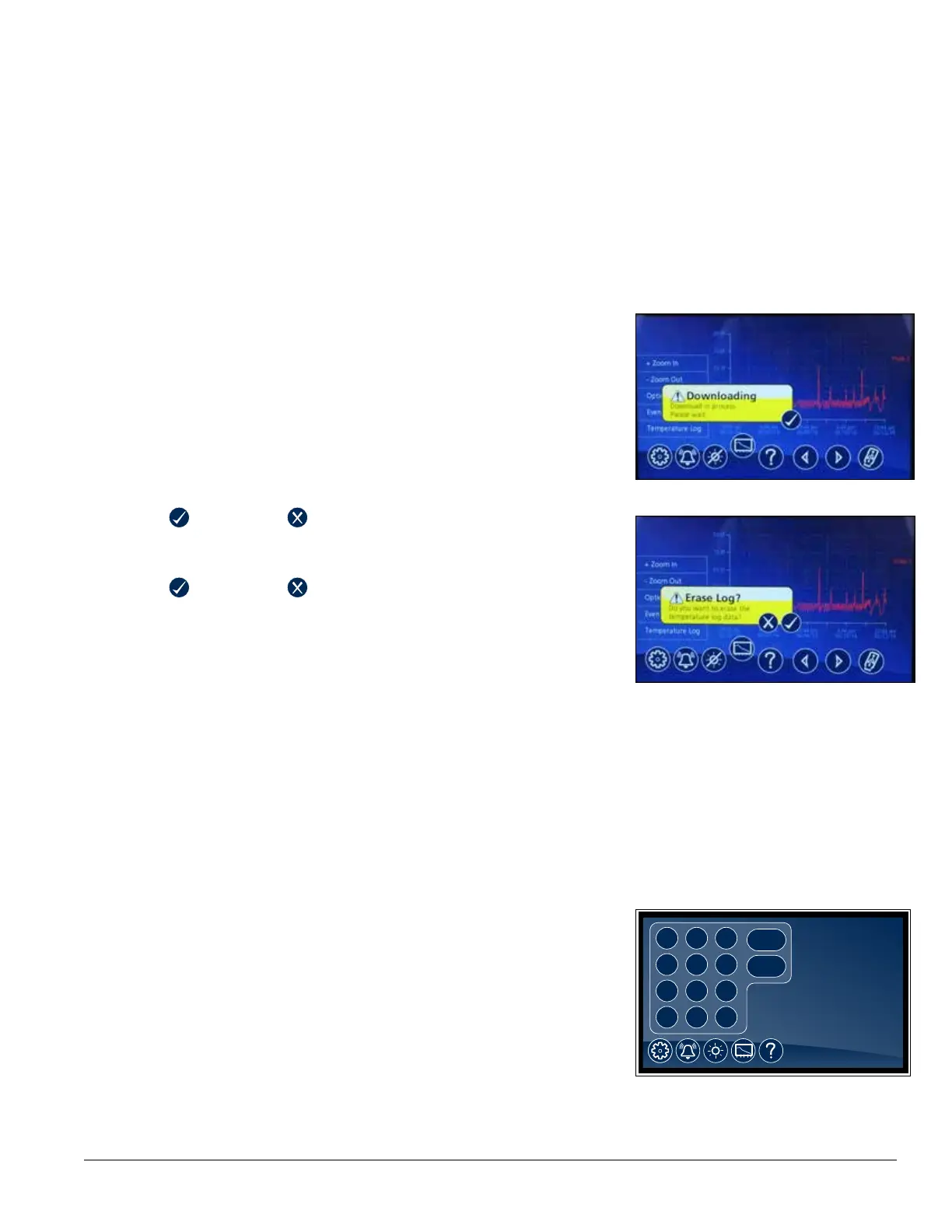
4. A yellow alert box with downloading data will appear.
5. Press
to accept or to cancel.
6. After the unit is done downloading a second yellow alert box will
appear asking if you want to Erase log.
7. Press
to accept or to cancel.
Note: If you chose to erase the data, the data duration timer and the data full
alarm will reset. It will also erase the information that is stored on the graph.
One of the two les below will be downloaded depending on
which screen is being viewed:
EL XXXX YY - Event Log
TL XXX YY - Temperature Log
XXXX = last 4 digits of serial number
YY = 0-99 number of downloaded le
Fig. 21
Fig. 22
Data download reminder and data full alarm
§ If you plan or are required to download data for a certain time period,
you can set a download data reminder on the Performance Plus unit.
Download data reminder can be found in the advanced setting under
Data duration and can be set from 1 to 180 days.
Follett Keypad Lock – (Optional)
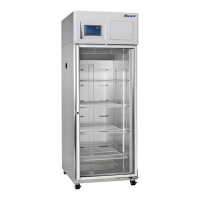
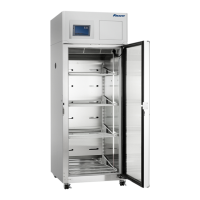
For units equipped with the electronic lock accessory option, a keypad will
be displayed on the left side of the touchscreen. In order to gain access to
the storage area, a user code must be entered.
§ User default code is factory set to 1,2,3,4,5,6 and is stored in memory
slot 01.
Fig. 23
38.4 F38.4 F
2
5
8
0
1
4
7
*
3
6
9
#
ENTER
CANCEL




 To Next Page