01134592 – REF20/25 LB, PH, BB 9
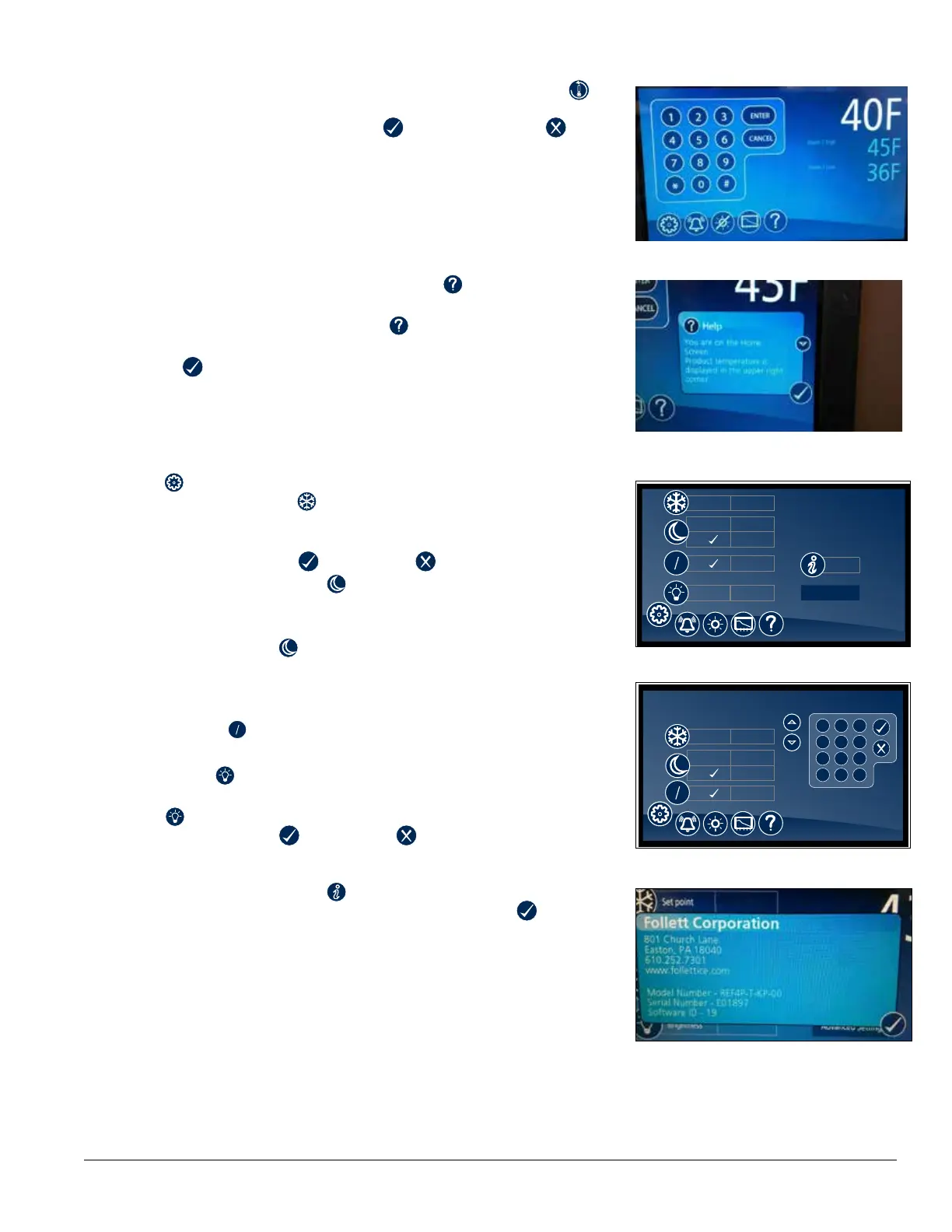
Reset the high and low temperatures
Touch the temperature display a second time and the reset function
will appear under the high and low temperature. Touch the reset icon and
a yellow message box will appear. Press
to conrm reset or to
cancel.
Alarm set point display
From the home screen touch the temperature display three times. The High
and low alarm set point will appear under the temperature.
Fig. 10
Help
§ Help is available at any time by touching the icon at the bottom of
the screen.
§ Help is screen-specic; touching the icon will display an explanation
of the functionality and use of the screen you are currently viewing.
§ Touch to exit help screen.
Fig. 11
Settings
§ Refrigeration Set Point
– Touch the number displayed in the box to the right of the Set point
label and use the keypad or UP and DOWN arrows to select product
temperature. Press to accept or tocancel.
§ Sleep Temperature Display
– Toggle ON to hide the temperature reading immediately on the
home screen.
§ Set the Sleep Delay
– To automatically hide the temperature after 0-600 seconds of
inactivity, touch the box to the right of the delay (0-600) box. Use
keypad or UP and DOWN arrows to select from 0-600.
§ Temperature
F
C
– Toggle between F and C to select Fahrenheit or Celsius.
§ Brightness
– Touch the number displayed in the box to the right of the Brightness
icon and use the keypad or UP and DOWN arrows to select
from 1-10. Press to accept or to cancel.
Fig. 12
38.4 F40 F
Advanced Settings
F
C
F
C
Set point 38.0 F
System Info
Brightness
delay (0 - 300)
ON
3 seconds
OFF
5
Fig. 13
Advanced Settings
delay (0 - 300)
ON
3 seconds
OFF
F C
F
C
Set point 38.0 F
2
5
8
0
1
4
7
3
6
9
#
*
System Information
§ Touch the System Info icon to display the model number, unit serial
number and software version. Touch the checkbox icon in the lower
right corner of the box to clear.
Fig. 14




 To Next Page