Preparation and Set Up | 17
4.3.5 Insert the Resin Cartridge
1. Close the printer cover.
2.
Shake the cartridge before each print to
ensure the resin is mixed thoroughly. Shake
the resin cartridge approximately every
two weeks during storage to keep the
formula well-mixed for the best print quality.
3.
Remove the orange protective valve cover
from the bottom of the cartridge. Consider
saving the cover to protect the valve
during storage.
Spill hazard. Donotremove the rubber valve at the bottom of the cartridge. This bite
valve controls the release of the resin. Removing the rubber bite valve allows resin to
continuously flow and causes extreme damage to the machine. This damage is not
covered by the warranty.
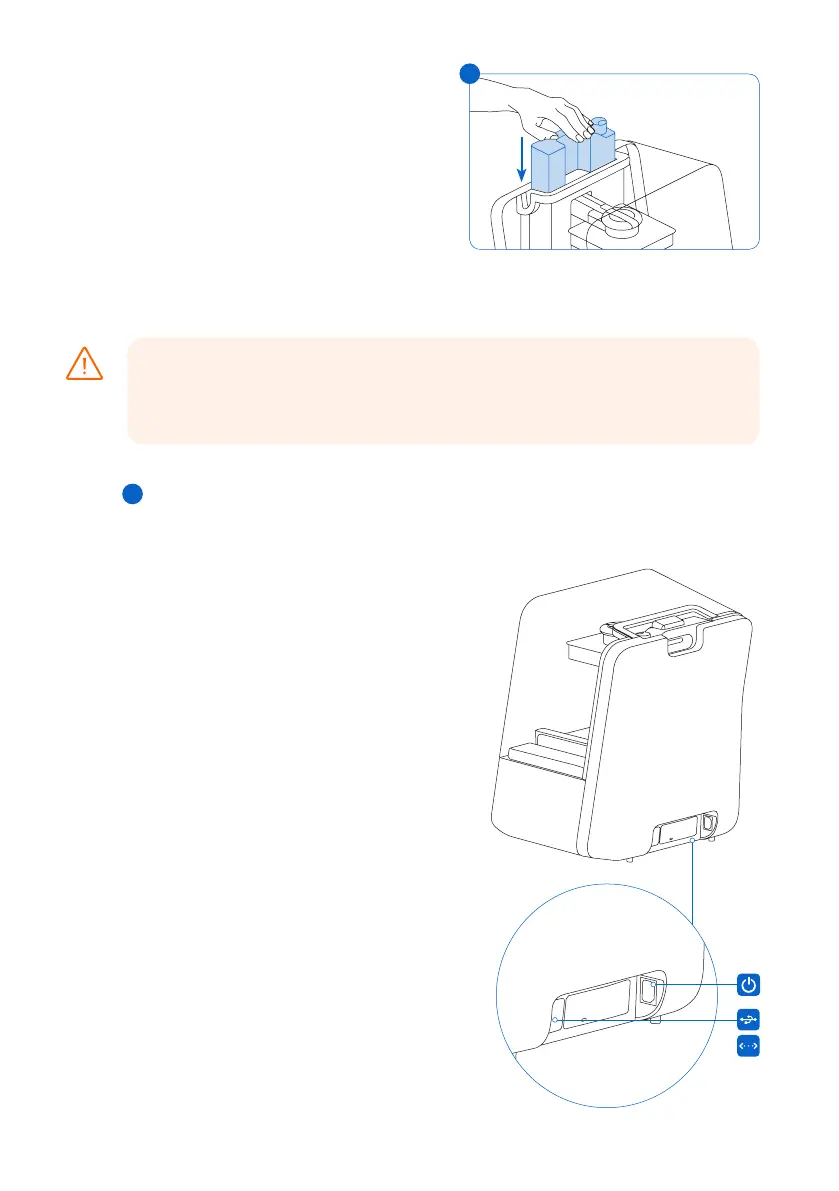
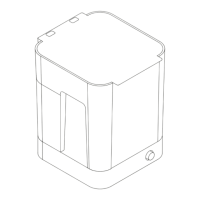
4. Align the cartridge with the opening in the back of the printer.
5. Push down on the cartridge handle until the top of the cartridge is level with the printer. A
sensor detects the resin cartridge, and the status light illuminates.
6. Press open the vent cap, so that the resin tank fills correctly.
4.4 Connecting the Form 3
Connect to the Form 3 to upload and manage
prints over Wi-Fi, USB, and Ethernet. The Form
3 can connect directly to a computer with a USB
cable. For remote uploading and monitoring,
the Form 3 supports both wired (Ethernet) and
wireless (Wi-Fi) connections.Connect PreForm
print preparation softwareto the same local-
area network (LAN) as the printer in order to
send a print job.
For a Windows operating system, after installing
PreForm,check to ensure that Bonjour is properly
installed. Bonjour is a piece of third-party software
that is required to connect over Wi-Fi or Ethernet.
See support.apple.com for assistance with
Bonjour. The USB connection can still be used
while the Form 3 is connected to a LAN.
When the Form 3 is connected to a LAN, its current
status and print progress can bemonitored with
Dashboard: formlabs.com/dashboard.
CAUTION
5
5


 To Next Page