40
7. Troubleshooting
7.1 Collecting diagnostic logs
The Form4B maintains diagnostic logs to provide detailed information about the machine
that may expedite issue investigation. After experiencing any error or unusual behavior on
the Form4B, include the diagnostic logs with other relevant observations and details when
contacting Formlabs Support or a certified service provider. The options for sharing diagnostic
logs vary depending on the machine’s connection type. For detailed guidance and visual
assistance, visit support.formlabs.com.
7.2 Performing a factory reset
On some occasions, a factory reset may correct unusual printer behavior. Unusual behavior
may include unknown error messages, incomplete firmware updates, an unresponsive
touchscreen, or trouble connecting to PreForm. For detailed guidance and visual assistance,
visit support.formlabs.com.
Do not perform a factory reset immediately before contacting Formlabs Support
or a certified service provider. The stored diagnostic information may be helpful to
Formlabs Support or a certified service provider to assist with troubleshooting. A
factory reset erases diagnostic information and custom settings, including uploaded
print jobs and networked connections.
7.3 Cleaning after a failed print
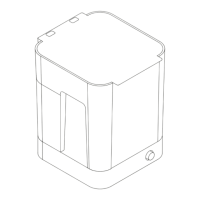
Occasionally, a print may fail to complete. A failed print may leave small, partially-cured pieces
of resin floating in the resin tank or hard cured resin stuck to the interior of the resin tank.
Inspect the resin tank after every print. Remove debris after a failed print. For detailed guidance
and visual assistance, visit support.formlabs.com.
Skin irritant: Resin and solvent may cause skin irritation or an allergic skin reaction.
Wear gloves when handling liquid resin, resin-coated surfaces, or solvent. Wash skin
with plenty of soap and water.
Sharp and metal tools can damage the resin tank and aect print quality, leading to
print failures and/or a resin spill. Do not use sharp or metal tools like the removal tool
or flush cutters to inspect or clean the resin tank.
7.3.1 7.3.1 Removing cured resin with the cleaning sheet
Formlabs Low Force Display (LFD)™ printers can print a cleaning sheet, which is a thin, flat
printed part that binds loose debris together. The cleaning sheet adheres to the resin tank for
removal using the plastic tank scraper. Print a cleaning sheet after a failed print to more easily
remove cured resin and other debris.
NOTICE
WARNING
NOTICE



 To Next Page