WWW.FOSCAM.COM FI8908/FI8908W User Manual
(3) Plug the power adapter into the camera and then into the power outlet.
CAUTION: Make sure to only use the power adapter supplied with IPCAM. Using a
non-approved power adapter may damage the camera.
(4) The camera takes approximately 30 seconds to start up before it displays an IP address on
the IP Camera Tool (details: 2.1)
(5) When the camera is powered and network cable plugged correctly. The small green light
(network jack) will turn on and the small yellow light will flash. The network light will blink.
(about 1~2 times per second) The power light will turn on too.
2 SOFTWARE OPERATION
2.1 IP Camera Tool
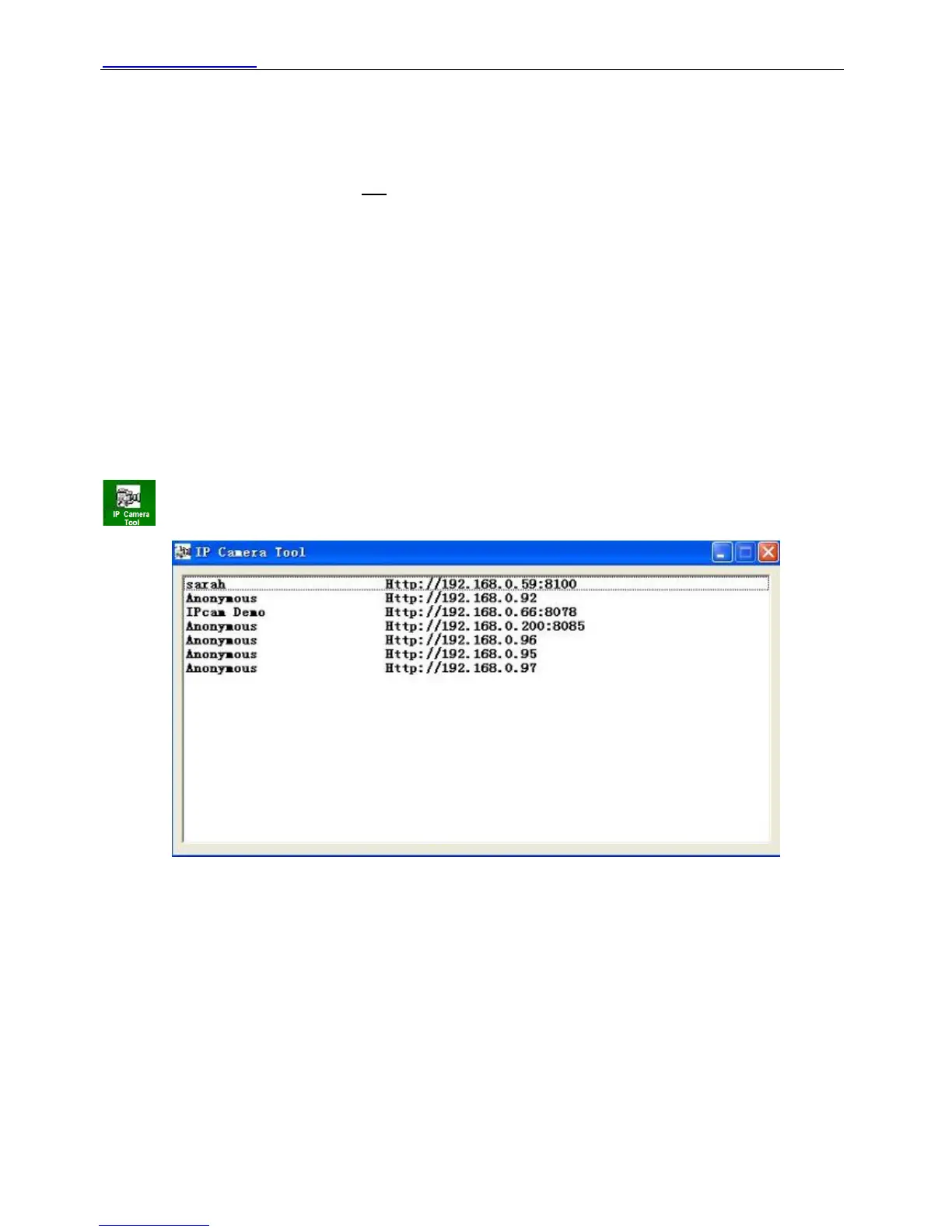
When the Device has been mounted properly, you can double click the icon “IP Camera Tool”
and a dialog box as Figure 2.1 will pop up.
Figure 2.1
The software searches IPcam automatically over LAN.
There are 3 cases:
(1) if no Camera in LAN. After about 1 minute search, the Result Field will show “not found IP
Server” and the program shut automatically.
(2) If IP Cameras having been installed within LAN. All the IP Cameras will be listed and the
total number is displayed in the result field as shown in Figure 2.1.
(3) The IP Cameras installed within LAN do not share the same subnet with the monitoring PC.
A prompt as shown in result field (prompt: Subnet doesn’t match, dbclick to change!). Click
the left mouse button to choose the prompt and click the right mouse, choose Network
Configuration to set the IP address of the Camera to the same subnet as LAN. (Figure 2.5)
You can choose obtain IP from DHCP server or set a static IP for the camera. (Figure 2.4)
ShenZhen Foscam Intelligent Technology Co., Ltd
Tel: 86 755 2674 5668 Fax: 86 755 2674 5168
6


 To Next Page