WORKING WITH ORDERS
6
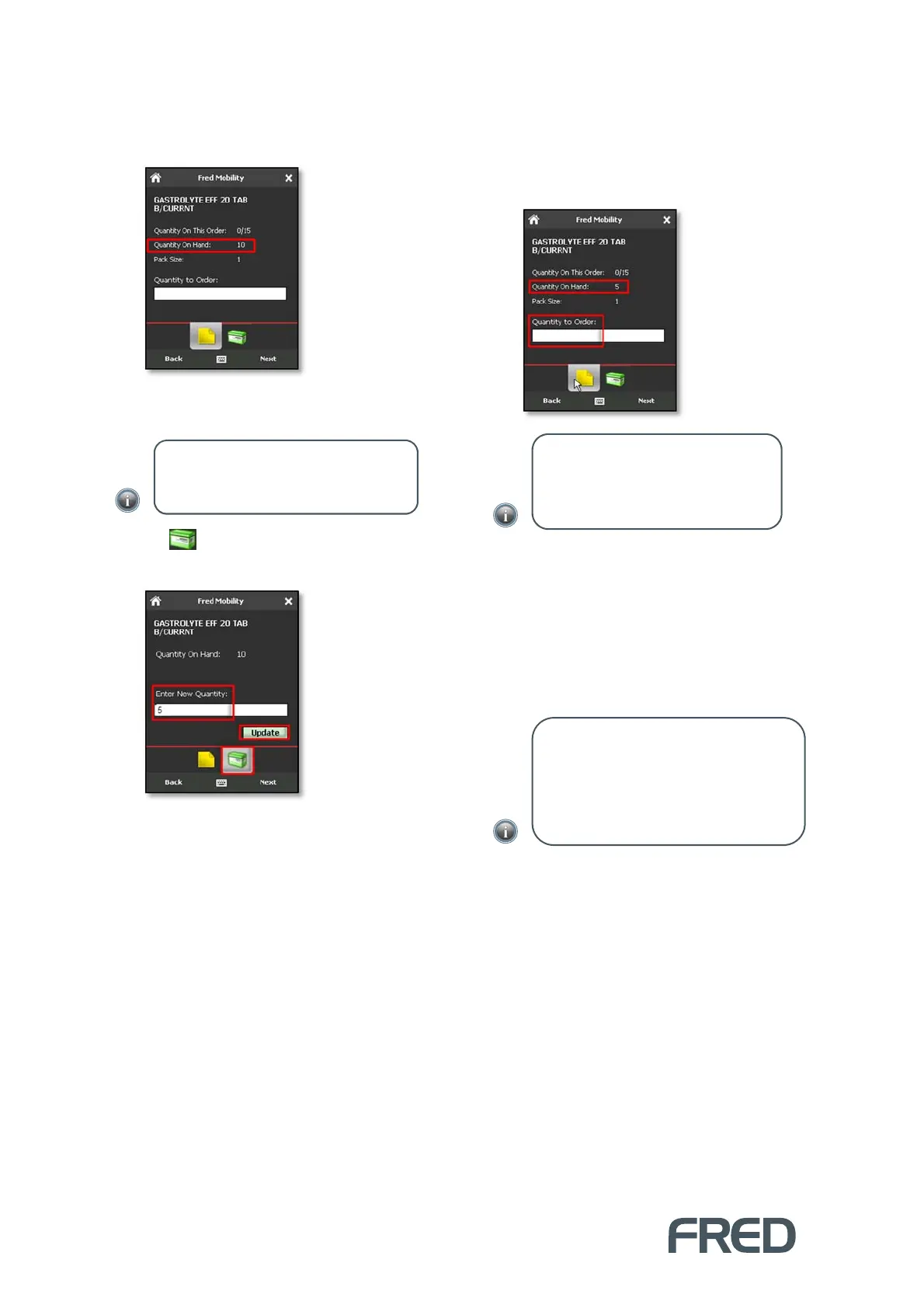
If the code is found, the Orders screen
displays basic ordering information about
the item.
Before ordering, you can also update the
Quantity on Hand.
5. Tap to open the Quantity on Hand
screen.
6. Enter the New Quantity on Hand and tap
[Update] (or press the [E
NTER
] key on your
Fred Mobility device) to update the Quantity
on Hand and return to the Quantity to
Order screen.
7. Enter the Quantity to Order and press the
[E
NTER
] key on your Fred Mobility device.
A new line is saved your new Order.
8. Repeat the process for all items to be added
to the new Order.
9. Once complete logout of Fred Mobility and
return your device to the charger.
NOTE: The second value in Quantity
on This Order represents the quantity on
order in ALL orders.
NOTE: The Quantity on Hand has
been updated. If you close the
Quantity on Hand screen without
updating, the value is discarded.
NOTE: If you scan or input a code that is
already on the order, the screen displays
the Quantity on This Order. When you
input a Quantity to Order, the system
overrides the previous Quantity on this
Order. It does not append it to the existing



 To Next Page