WORKING WITH ORDERS
8
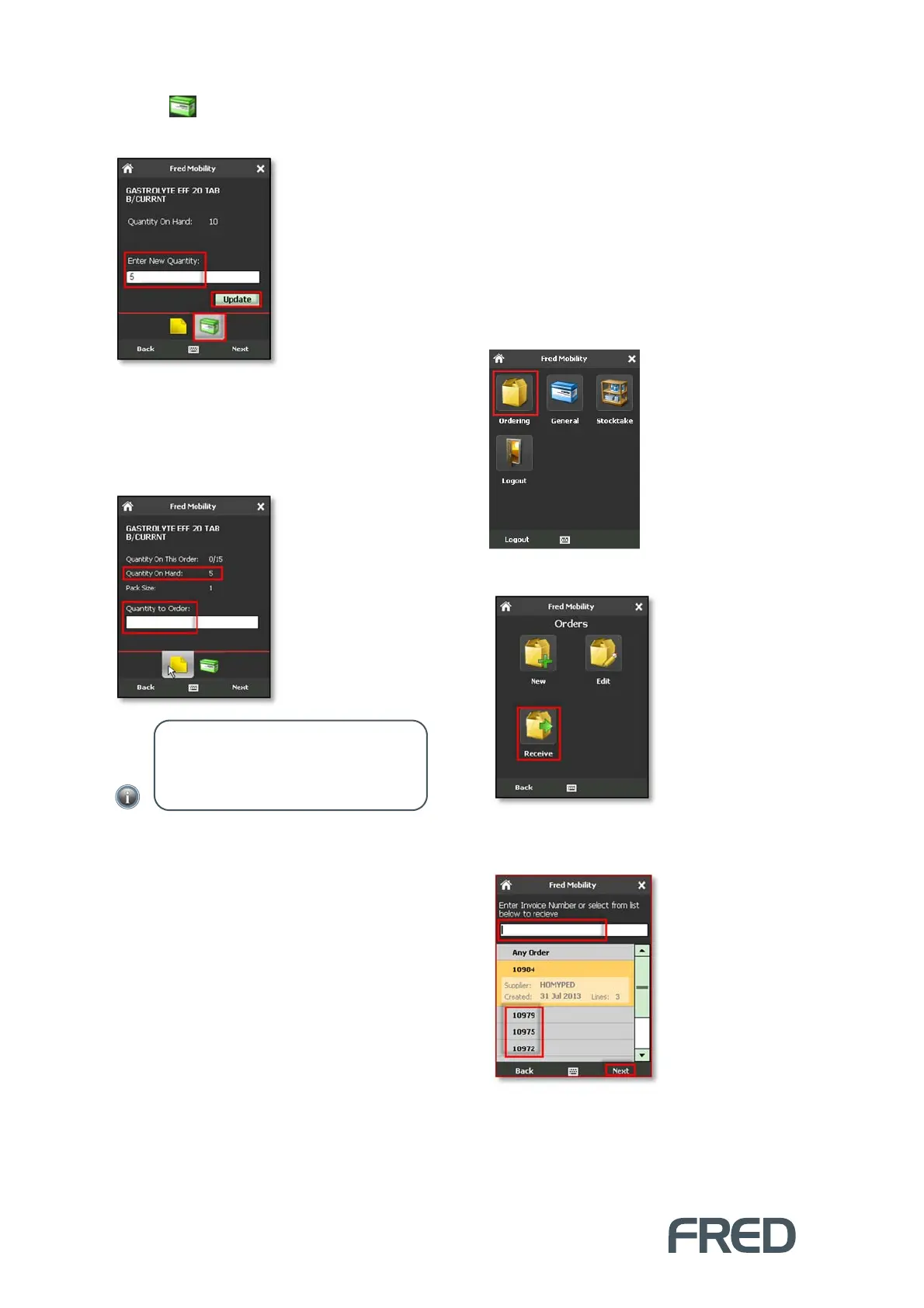
14. Tap to open the Quantity on Hand
screen.
15. Enter the New Quantity on Hand and tap
[Update] (or press the [E
NTER
] key on your
Fred Mobility device) to update the Quantity
on Hand and return to the Quantity to
Order screen.
16. Enter the quantity to add to the order and
press the [E
NTER
] key on your Fred Mobility
device.
If you input a zero Quantity to Order, the
line is removed from this order.
If the code is new to this order, the
Quantity on This Order is displayed as
zero (as it was not on the original order).
17. Repeat the process for all items to be added
to the order.
18. Once complete logout of Fred Mobility and
return your device to the charger.
19. To complete your order, log into Fred NUHQ.
Receiving an order
This section describes how to receive Orders
from suppliers or from other stores.
To receive orders:
1. Login to Fred Mobility using your Fred
POS username and password.
The Fred Mobility main screen appears.
20. Tap [Ordering].
21. Tap [Receive].
22. In the Receive screen, do one of the
following:
NOTE: The Quantity on Hand has been
updated. If you close the Quantity on
Hand screen without updating, the value is
discarded.



 To Next Page