STOCKTAKING
21
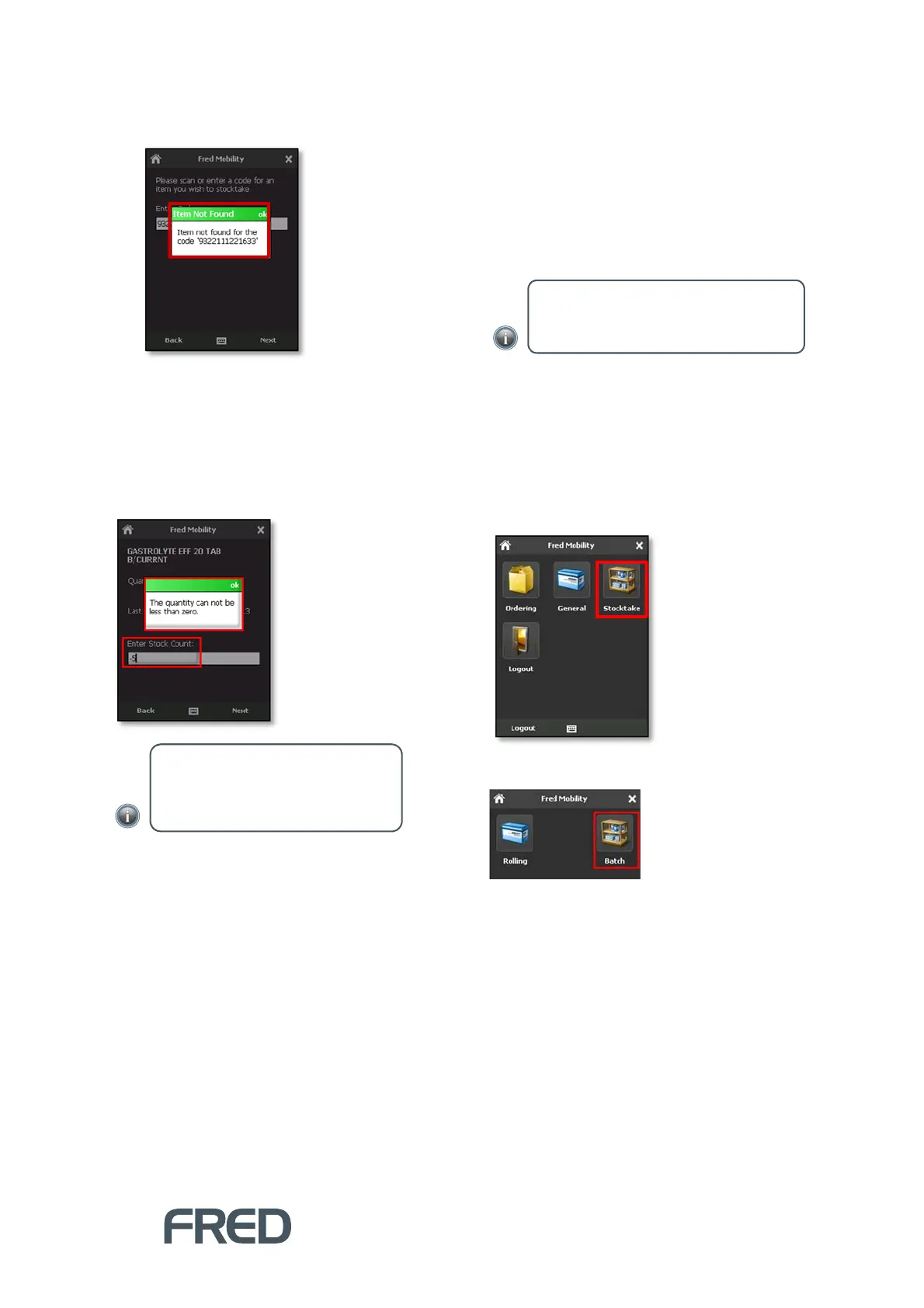
If no suitable match is found, Fred Mobility
displays an Error message.
If a suitable match is found, the Item
information at the last stocktake is
displayed.
If multiple items are found, Fred Mobility
selects the first found item.
12. Enter a new Stock Count.
13. Tap [Next] to update the Stock Count for
the Rolling stocktake.
14. Repeat the process for all items to be
updated.
15. Once complete logout of Fred Mobility and
return your device to the charger.
Performing a Batch
Stocktake
The Batch Stocktake feature is recommended if
you wish to perform Stocktake Reporting. It
provides the most detailed analysis and reporting
via Fred NUHQ.
To perform a Batch Stocktake:
1. Login to Fred Mobility using your Store
Operations or Fred POS username and
password.
The Fred Mobility main screen appears.
2. Tap [Stocktake].
3. In the Stocktake screen, tap [Batch].
The Stocktake Selection menu displays a
list stocktakes with an Open status.
NOTE: Stock Count accepts decimal
values. Negative values are not allowed.
The new value overwites the previous
number.
NOTE: The following procedure presumes
you have already created the Batch within
Store Operations Manager.



 To Next Page