STOCKTAKE OPTIONS
22
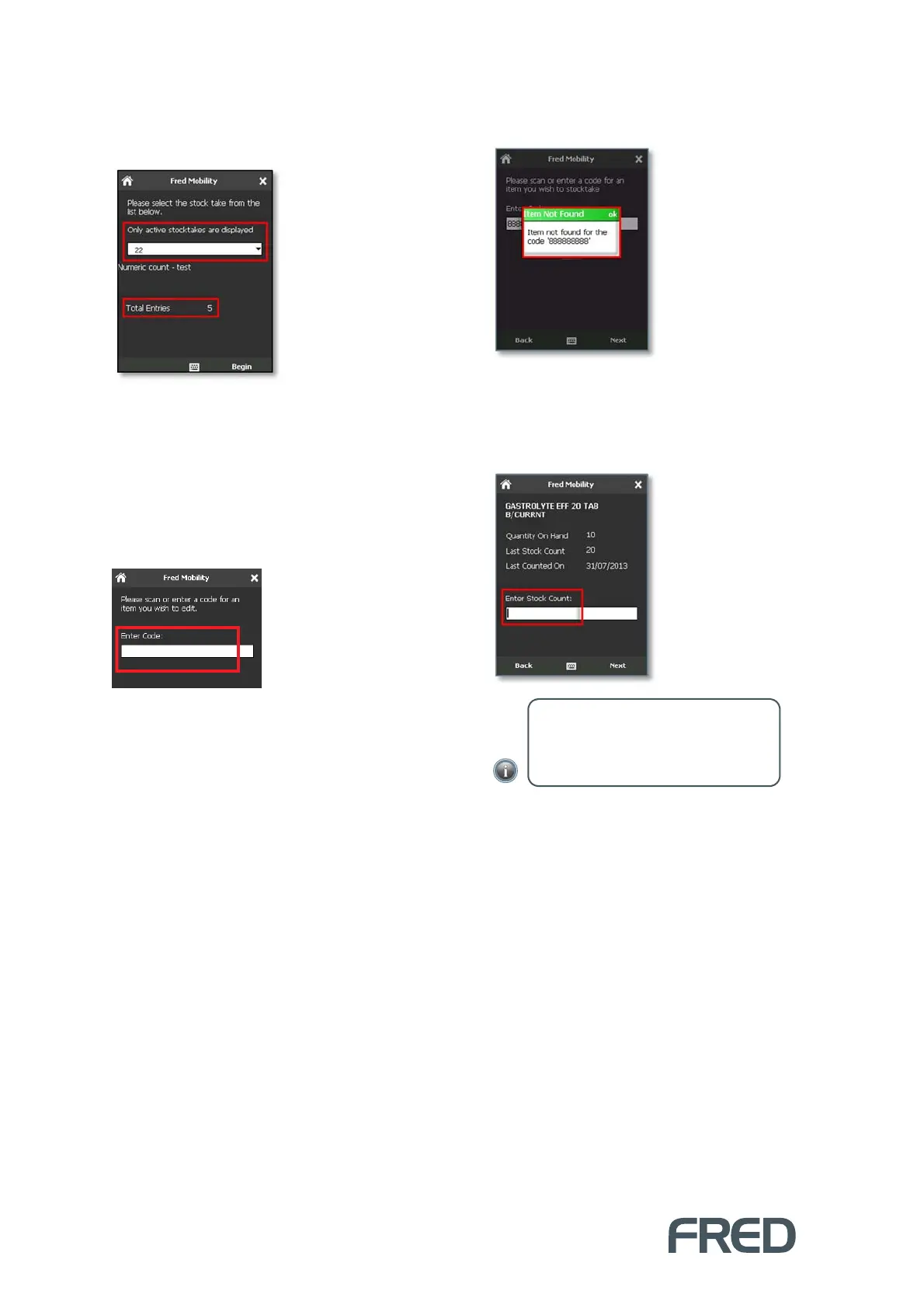
4. Tap the drop-down menu and select the
Stocktake Batch previously created in the
Store Operations Manager.
Each stockake entry is displayed with a tally
of entries.
5. Once you have located the desired
stocktake, tap [Begin].
The Search screen is displayed.
6. In the Search screen, scan the item or enter
a code for an item you wish to scan.
If the Code cannot be found, an Error
message is displayed.
If the code is found, the items details are
displayed.
7. Enter the Stock Count and then press
[Enter] or [Next] to capture the count.
8. Repeat the process for all items to be
updated.
9. Once complete logout of Fred Mobility and
return your device to the charger.
Quantities are updated when the batch is
closed in the Store Operations Manager.
NOTE: Stock Count accepts decimal
values. Negative values are allowed and
the new value is appended to the
previous number.



 To Next Page