SCAN
14
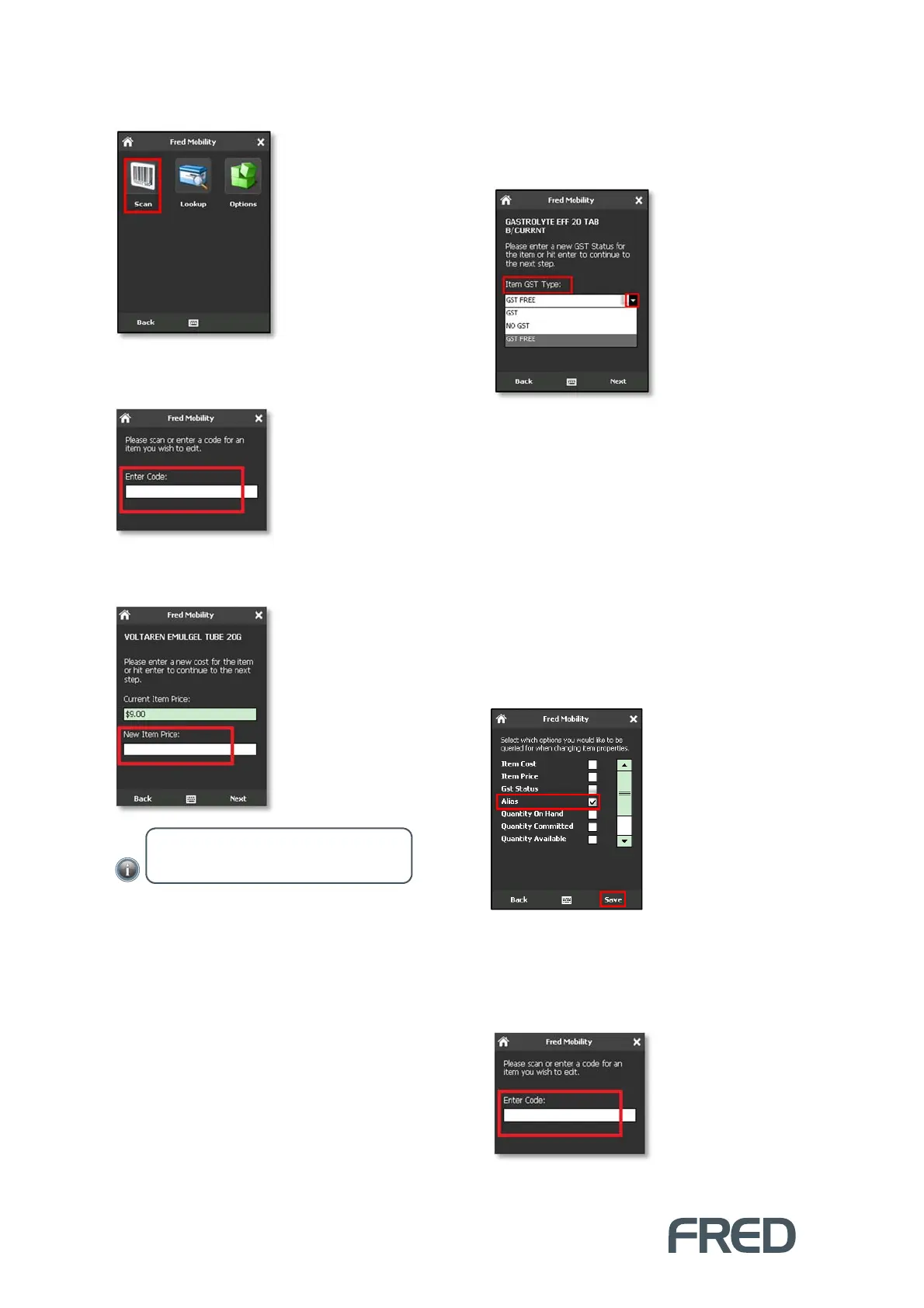
4. Tap [Scan].
5. In the Search screen, scan the item or enter
a code for an item you wish to scan.
6. Enter the New Item Price and press the
[E
NTER
] key on your Fred Mobility device.
7. Tap [Next] to display the next screen. If GST
Status was selected in the Options screen,
Fred Mobility displays the GST Status
screen.
8. Select the appropriate Item GST Type from
the drop-down list.
9. Tap [Next] and repeat the process for all
items to be updated.
10. Once complete logout of Fred Mobility and
return your device to the charger.
Creating Alias
To create a new Alias for an item:
1. Ensure that Alias is selected in the
[Options] menu.
2. To finish, tap [Save].
3. Tap [Scan].
4. In the Search screen, scan the item or enter
a code for an item you wish to scan.
5. Enter a new Alias for the item.
NOTE: If no figure is entered, the Current
Item Price is maintained.



 To Next Page