SCAN
16
5. Enter the New Quantity on Hand and then
press [E
NTER
] on your Fred Mobility device.
6. Repeat the process for all items to be
updated.
7. Once complete logout of Fred Mobility and
return your device to the charger.
Updating Committed
Quantities
Quantity Committed refers to stock that has
been reserved. It is not counted in the Quantity
Available tally.
To update Committed Quantities:
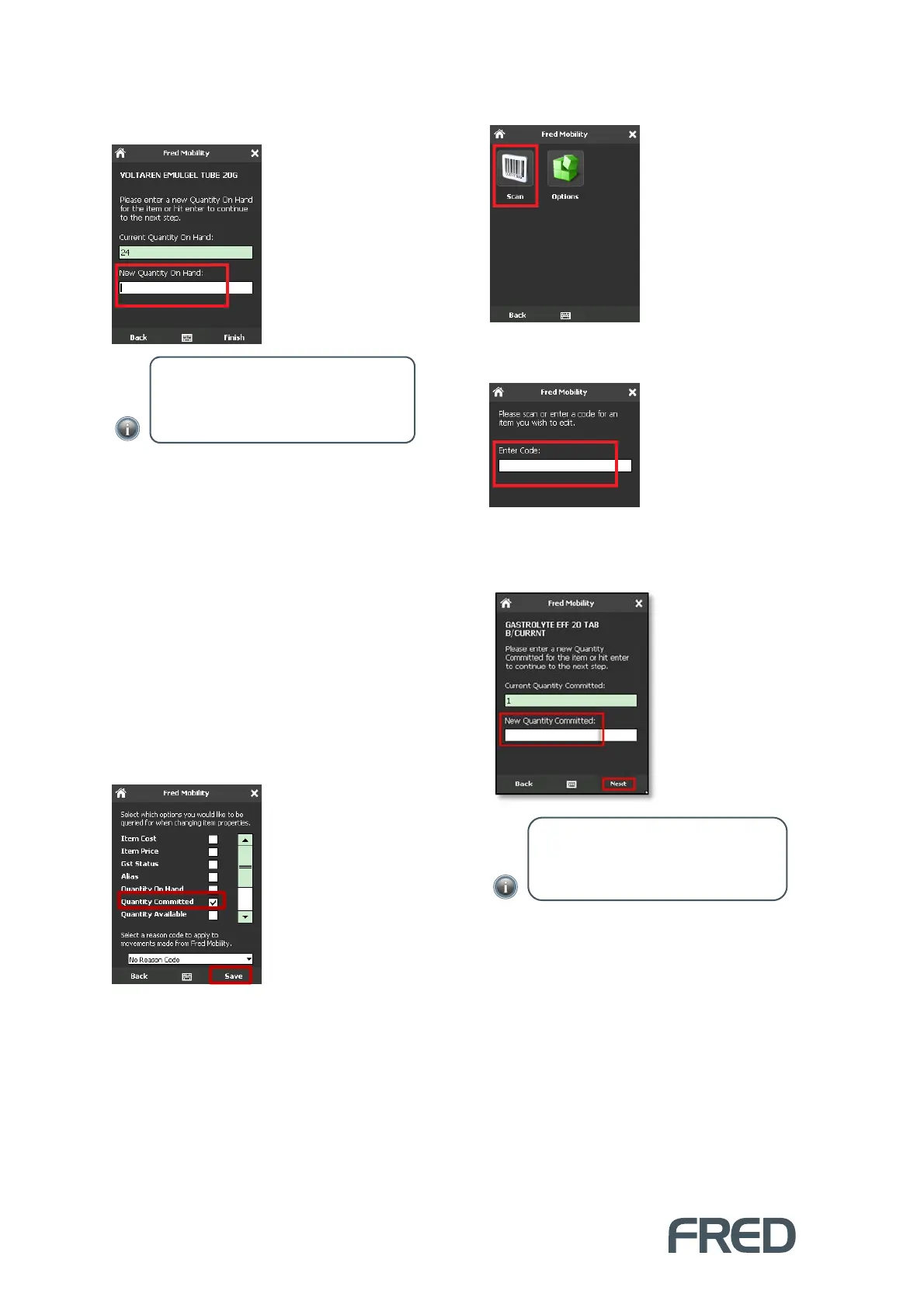
1. Ensure that Quantity Committed is selected
in the [Options] menu.
2. To finish, tap [Save].
3. Tap [Scan].
4. In the Search screen, scan the item or enter
a code for an item you wish to scan.
5. Enter the New Committed Quantity and
then press the [E
NTER
] on your Fred Mobility
device.
6. Tap [Next] to repeat the process for all items
to be updated.
7. Once complete logout of Fred Mobility and
return your device to the charger.
NOTE: The figure entered overwrites the
Current Quantity On Hand. If no figure is
entered, the Current Quantity On Hand
will be maintained.
NOTE: The quantity entered overwrites the
Current Quantity Committed. If no figure is
entered, the Current Quantity Committed will
be maintained.



 To Next Page