ORDERING
9
Enter the invoice number.
-or-
Select from the list of displayed invoices
and press the [E
NTER
] key on your Fred
Mobility device.
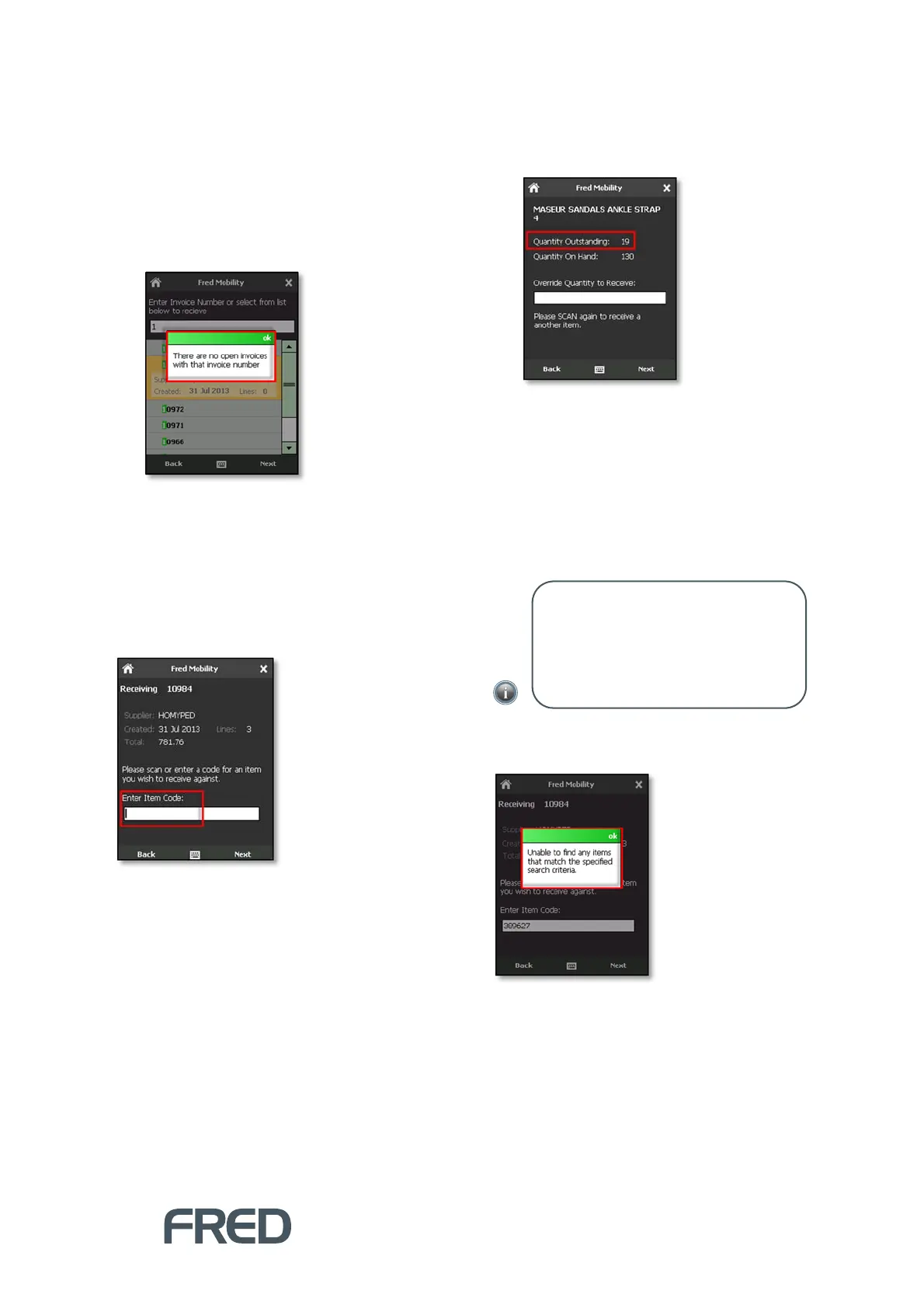
If no matching invoice number is found, Fred
Mobility displays an Error message.
If a matching invoice number is found or
selected in the Receive screen, Fred
Mobility displays basic information about the
selected invoice.
23. In the Search screen, scan the item you
wish to receive or enter a code, then tap
[Next].
24. Do one of the following:
To receive items individually, scan each
product barcode.
Fred Mobility automatically receives “1” and
displays another Search screen.
-or-
To receive multiples of an items scan the
next product barcode and enter the
quantity to receive.
Press the [E
NTER
] key on your Fred
Mobility device.
If an Item Code cannot be found, Fred
Mobility displays an Error message.
NOTE: The quantity entered reduces the
Quantity Outstanding figure — it does not
overwrite. If an error is made and too many
items received, log in to Fred NUHQ and
manually adjust the quantity received (this
cannot be done in Fred Mobility).



 To Next Page