GENERAL OPTIONS
19
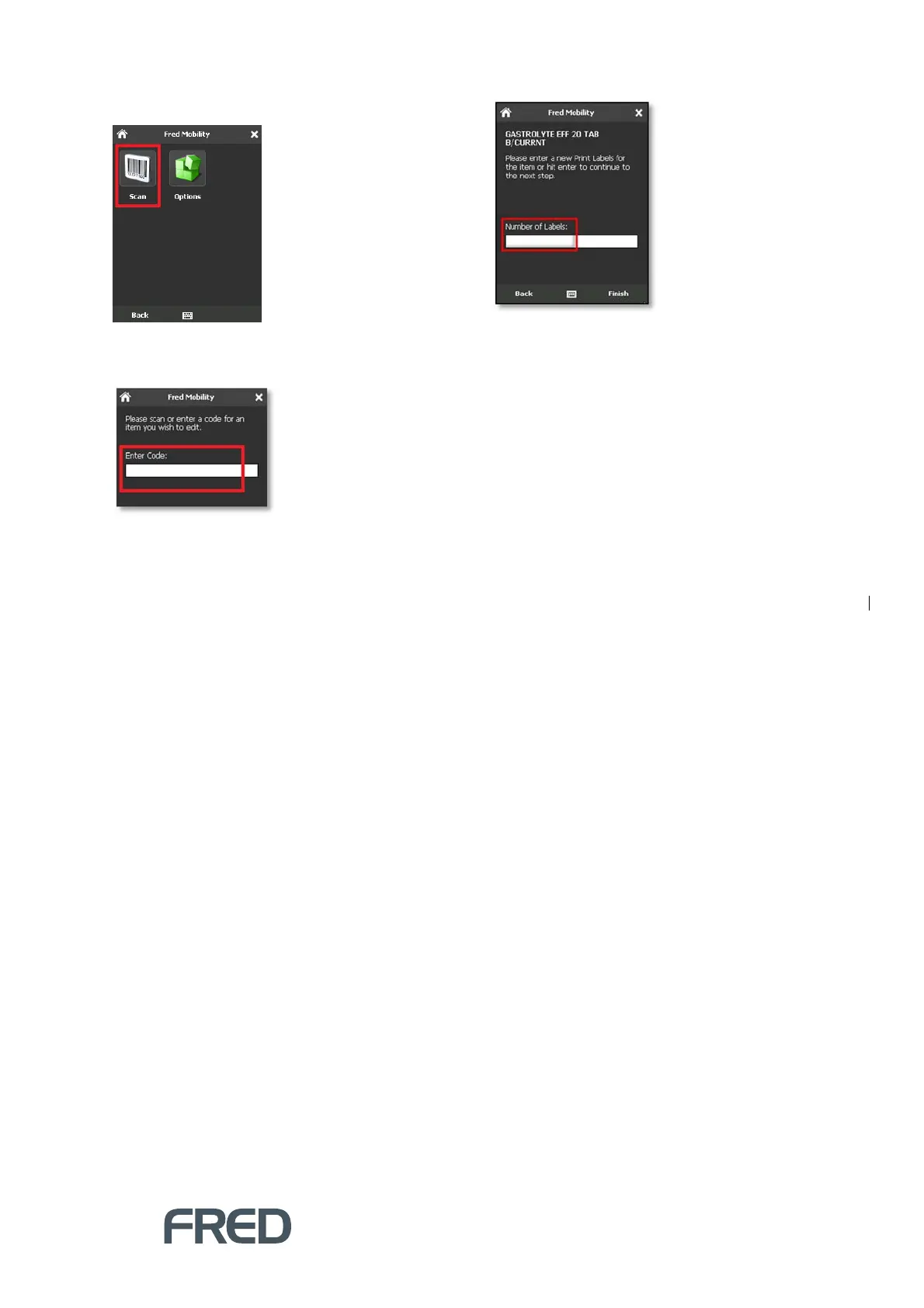
3. Tap [Scan].
4. In the Search screen, scan the item or enter
a code for an item you wish to scan.
5. Enter the Number of Labels you want to
print for this item and then press the [E
NTER
]
key on your Fred Mobility device.
6. Tap [Finish] to return to the Search screen
and scan another item.
7. Repeat the process for all items you wish to
print labels for.
8. Once complete logout of Fred Mobility and
return your device to the charger.



 To Next Page