FGR2-PE Wirelss Data Transceiver
LUM0024AB Rev A
l Upstream Margin
l % Rx
l % Tx
l VSWR (Reflected Power),
l Temp
l unAcked Packets
l Distance
l # Disconnects
l Connected To
You can also view these radio statistics in the Status page in the transceiver's configuration Web pages.
1. Open the Discovery Server application.
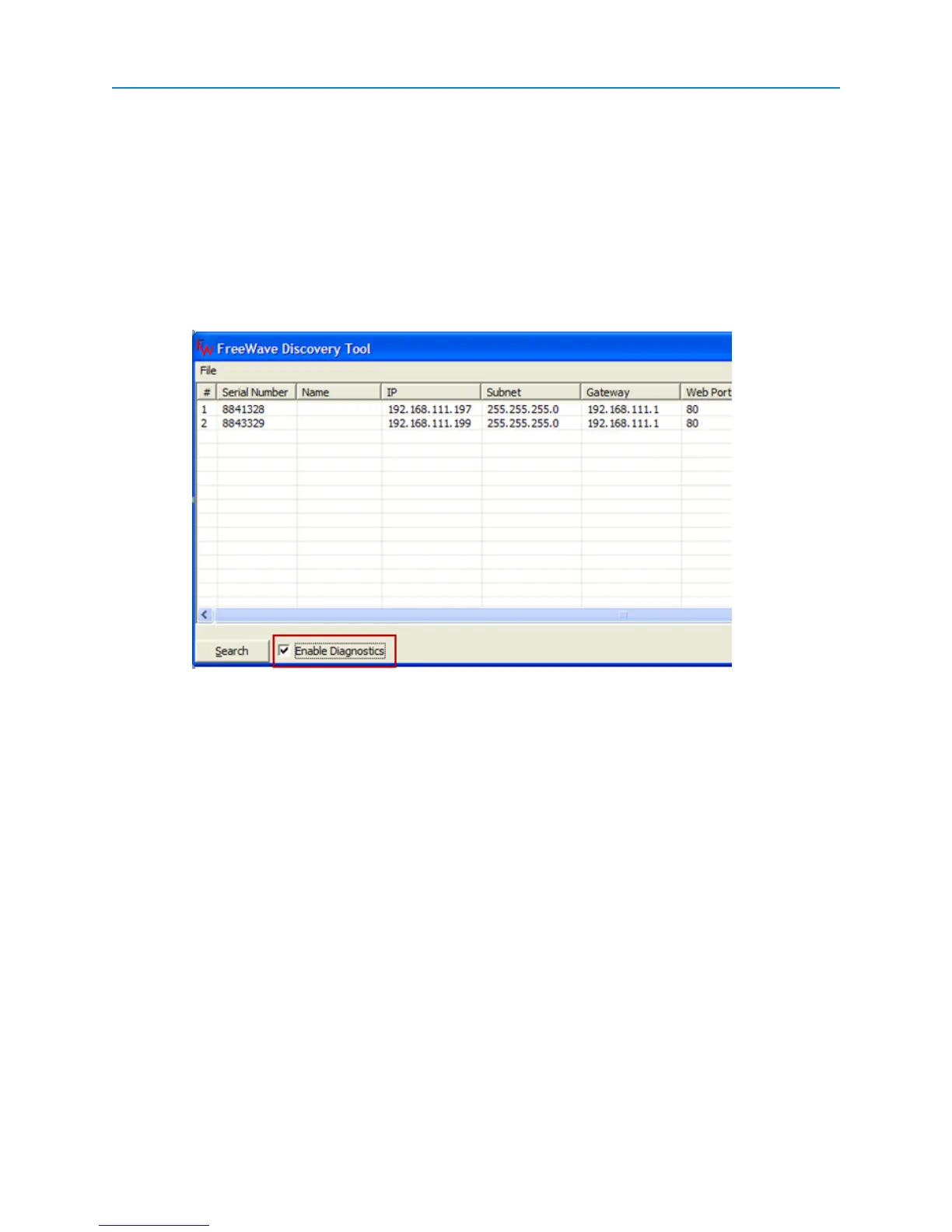
2. In the Discovery Server main window, select the Enable Diagnostics check box.
Diagnostics are regularly updated as long as the Enable Diagnostics check box is selected.
When that box is deselected, the last reported diagnostic information remains in the window, but it
is no longer updated.
3. To retrieve diagnostics information from transceivers that have a poor communication to the
Gateway, right-click the transceiver in the list and select Poll Radio. This option sends 10
consecutive diagnostic poll requests to the transceiver.
Working with Network Files in Discovery Server
You can save a discovered network into a network file and import that file into a separate instance of the
Discovery Server application. When you save a network to a network file, the application saves only the
transceiver IPaddresses, no other information is saved.
When you import a network file, only the IPaddresses display until the Discovery Server application receives
a broadcast signal from the transceiver.
To save a network file:
1. Open the Discovery Server application.
2. From the File menu, select Save Network File.
118


 To Next Page