•
prognostics.
Time Settings: Display Format
NOTE: Local time offsets can also be viewed
under this menu.
In the ICUC, time can be displayed in 12 or 24 hour
format. Time format is set under Time Settings under
User Settings.
1.
Select the gear icon to open the ’User Settings’
menu. The last settings menu accessed will
open.
2.
If not on the ’Settings Options List’ screen, use
the up arrow in the left-hand steering wheel
switch pod to move to this screen.
3.
Press ’OK’ to access the settings menus.
4.
Use the down arrow in the left-hand steering
wheel switch pod to get to ’Time.’
5.
Press ’OK’ to access Time.
6.
Use the right arrow to switch between 12h and
24h.
7.
Press ’OK’ on the left-hand steering wheel switch
pod to choose an option.
Setting An Alarm
In the ICUC, one alarm can be set under Alarms
under the User Settings, as shown in Fig. 3.7.
The alarm triggers a repeated chirping sound as well
as a alarm pop-up. Both can be dismissed by
pressing the back button on the left hand steering
wheel switch pod.
1.
Select the gear icon to open the ’User Settings’
menu. The last settings menu accessed will
open.
2.
If not on the ’Alarms’ screen, use the down arrow
in the left-hand steering wheel switch pod to
move to this screen.
3.
Press ’OK’ to access the alarm clock options.
4.
Use the up and down arrow to choose hour,
minute, am/pm and alarm status.
5.
Press ’OK’ to set the alarm.
Main ICUC Driver Display Screens
NOTE: Screens will vary depending on vehicle
options. Some screens are accessible only
when the vehicle is parked and the parking
brake is on.
f61144410/31/2016
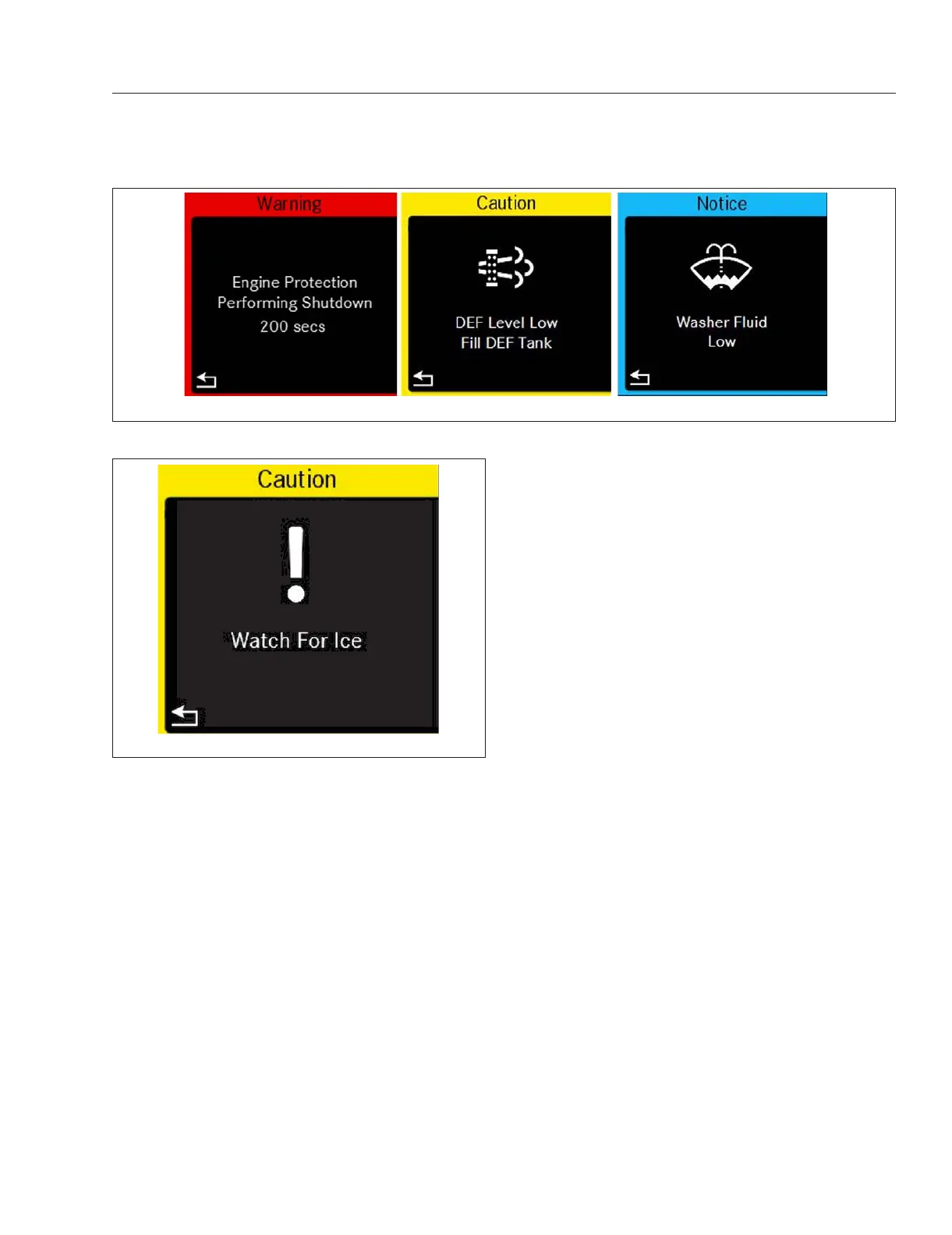
Fig. 3.5, Sample Alert Messages
f61175305/21/2019
Fig. 3.6, ICUC Watch for Ice Popup
Instruments
3.4












 To Next Page