LOV
™
Technical Reference
19
Loading and Updating Software
Loading Software from an SD card to MIB and AIF boards
To update MIB or AIF software in the fi eld follow these steps:
1. Switch all computers to OFF. With the computer displaying
OFF, press the TEMP button to
check current M2007/MIB/AIF/ATO software version.
2. Remove the two screws on the right side cover plate of the MIB board.
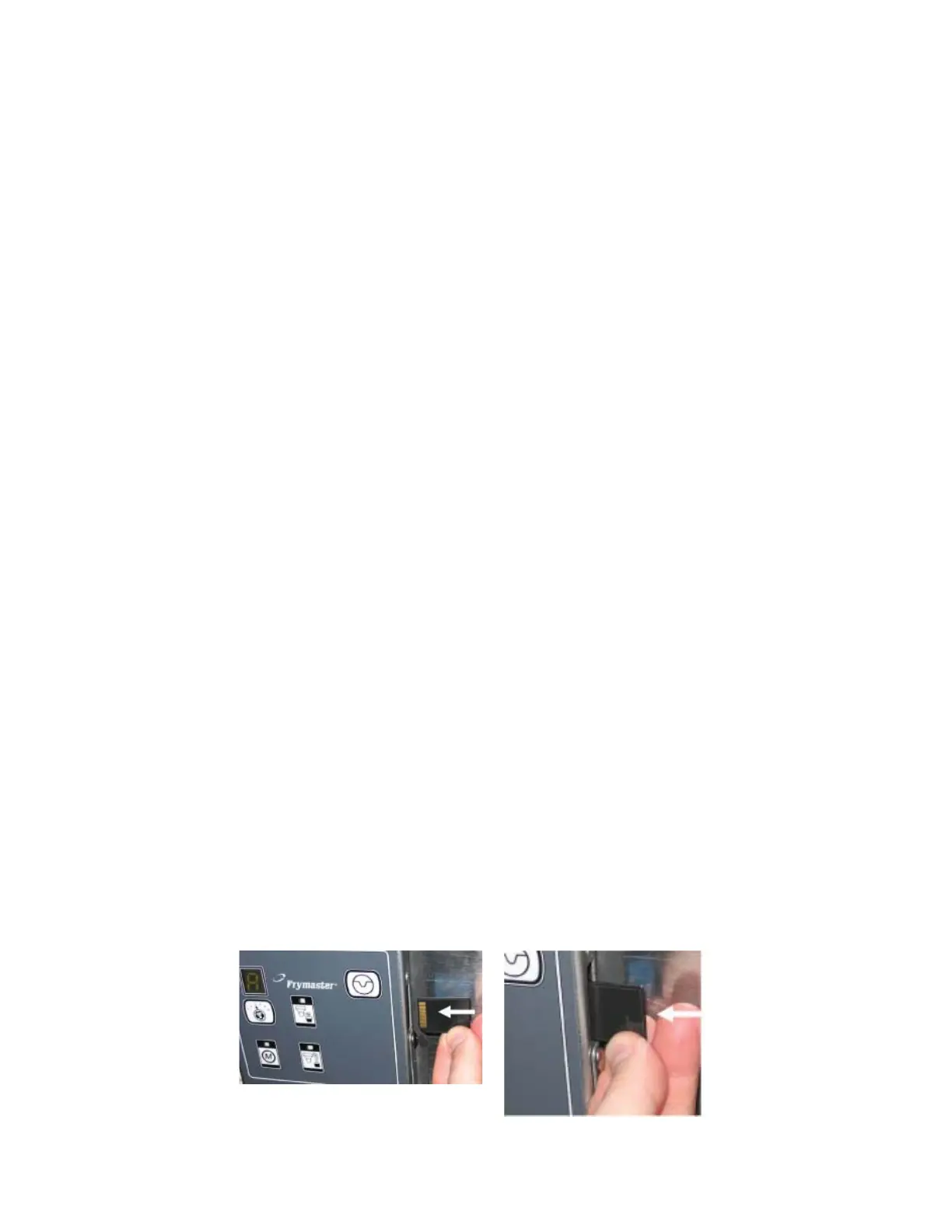
3. With the MIB displaying
insert the SD card with the new software, with the card contacts
facing out and the notch on the bottom left, into the slot on the right side of the MIB board.
4. Once inserted, watch for a period in the display to appear on the bottom right of the MIB dis-
play, indicating the software is being downloaded. If a period does not appear, the software
on the card and on the computer may be the same version, or the boot loader software missing
or corrupt. It will not update. If this happens, contact Frymaster.
5. The period blinks several times while loading. Wait for a minimum of two minutes and the
period in the display stays off.
6. Remove the SD card from the MIB.
7. If only updating the MIB or AIF boards remove power from the MIB by carefully removing
the16-pin harness behind the MIB board or the fi ve-pin control power cord on the rear of the
unit. If updating all the software update the MIB and then the M2007 and then remove all
power from the fryer using the fi ve-pin control power cord on the rear of the unit.
8. Restore power to the MIB to reboot the system.
9. A successful upgrade is confi rmed by a “cLc” display on the MIB board upon restart followed
by “r, 1, r, 1, r, 2, r,” etc., ending with A. If this does not happen, try reloading the software.
10. Verify software upgrade by pressing the TEMP button with the computer OFF to check the
updated MIB/AIF version.
Insert the SD card with contacts
facing the front of the fryer.
Remove the SD card using
the fi ngernail slot on the top
of the card.



 To Next Page