Fax
4
4 Fax
188
Sending IP Fax (SIP)
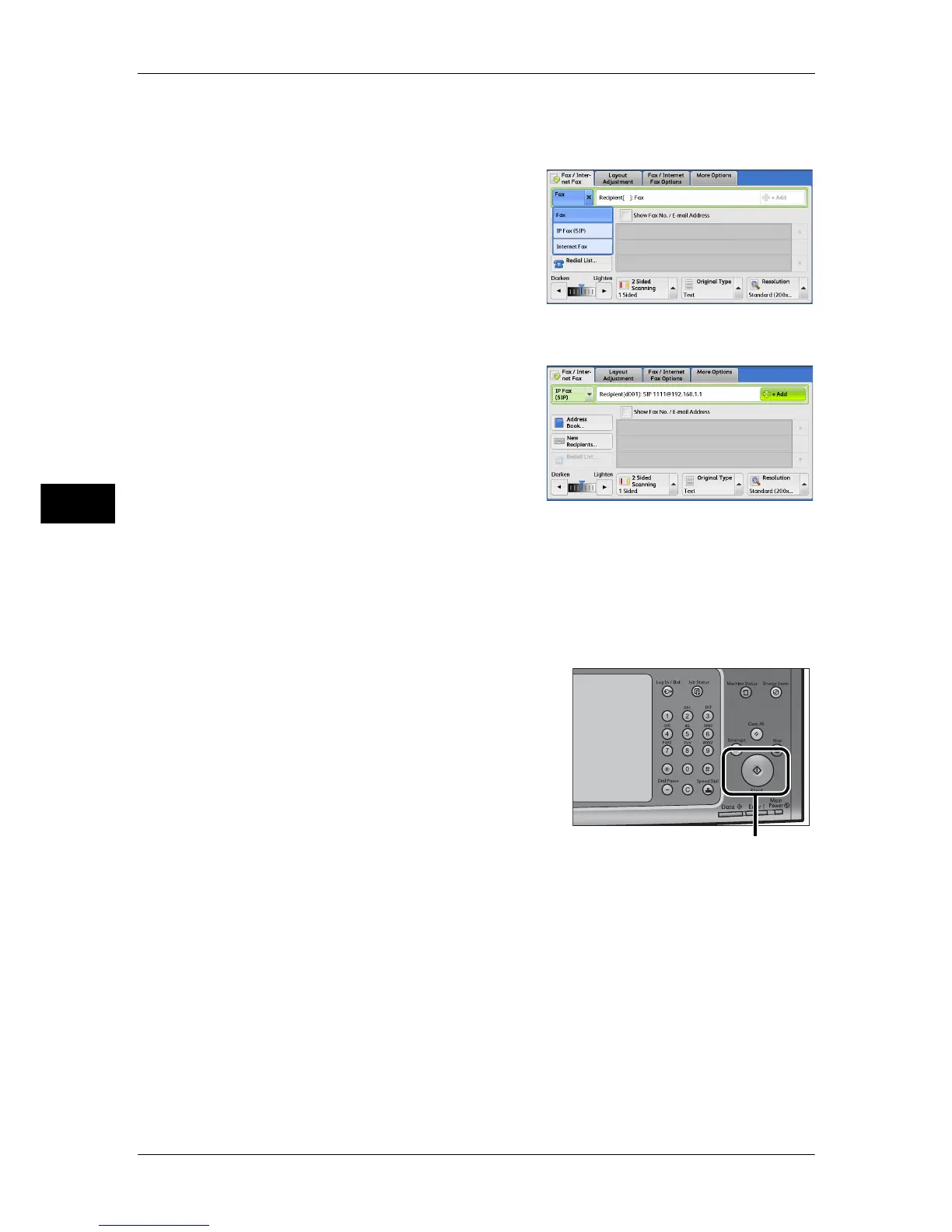
The following describes the procedure of sending IP Fax (SIP).
1 Select [IP Fax (SIP)].
2 Configure features as necessary.
For available features, refer to "Fax/Internet Fax" (P.197)
3 Specify a recipient.
Example: Telephone number: 0312345678
SIP user name: 1111
SIP device address: 1111@192.168.1.1
Important • Method to input IP Fax (SIP) destination
differs depending on the fax type of a
recipient or the connection configuration.
For these differences, refer to "About IP
Fax (SIP)" (P.184).
• Check the recipient information before sending the fax.
l For the method to specify a recipient using keyboard, refer to "Entering Text" (P.68).
l For other methods to specify a recipient, refer to "Fax/Internet Fax" (P.197).
l For the broadcast sending, refer to "Broadcast" (P.241).
4 Press the <Start> button.
Important • If the document has been loaded in the
document feeder, do not hold down the
document while it is being conveyed.
• Fax cannot be sent if a copy protection code is
detected.
Note • Depending on the settings, a screen to reenter
the recipient may be displayed after you
specify the recipient. In such case, re-enter
the recipient.
• If a problem occurs, an error message
appears on the touch screen. Solve the
problem according to the message.
If a fax cannot be sent, refer to "15 Problem Solving"> Fax problem.
For the method to cancel sending fax, refer to "Stopping the Fax Job" (P.173)
Receiving IP Fax (SIP)
Received fax documents are printed automatically in a manner similar to that of a reg-
ular fax.
For information on operations of the Remote Folder, refer to "Fax/Internet Fax" (P.197).
<Start> button


 To Next Page
 Loading...