On larger screens, the worklist will also be displayed to the left of the image viewer interface, but you can
toggle it on or off.
To expand the worklist
Click the Expand Worklist tool.
To shrink the worklist
Click the Shrink Worklist tool.
When the worklist is displayed beside the image viewer:
You can load an entry by clicking and dragging it from the worklist into the viewer.
You can return to the search results by clicking the Data Panel tool.
Images currently being viewed in the image viewer will be highlighted in the worklist.
A ring appears around the thumbnails of the series that have been displayed in the viewer.
Worklist filters
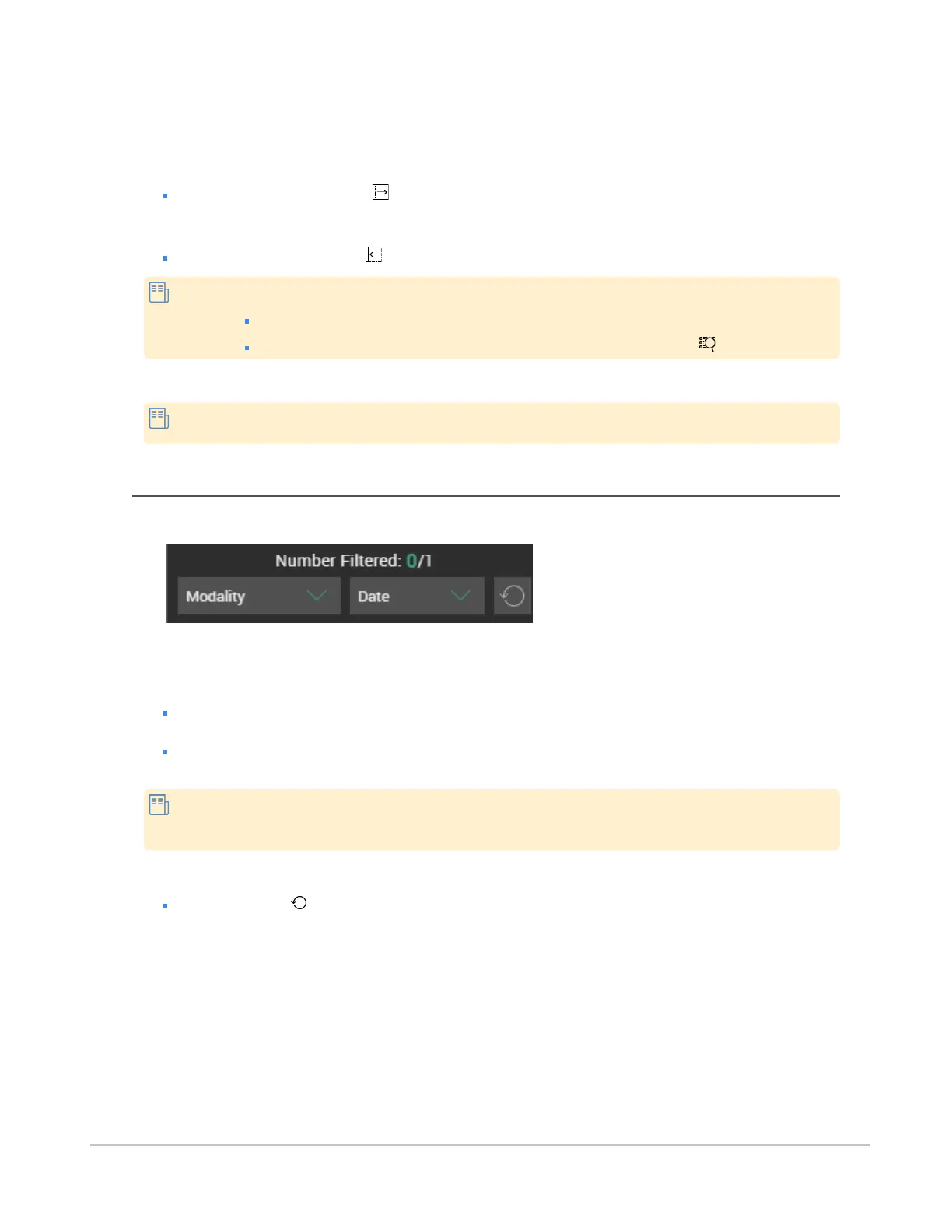
You can filter the studies being displayed in the worklist, either by modality or by date.
To filter studies
Do one of the following
Click Date to filter by date. Dates can be filtered to: 1 Day, 3 Days, 1 Week, 1 Month, 3
Months, or 1 Year. You can apply only one date filter at a time.
Click Modality to filter by modality. The modalities listed in this filter depend on the studies
loaded. Multiple modalities can be used to filter the studies in the worklist.
The application will provide a summary of how many studies have been loaded into the
worklist, and how many studies have been filtered out using the current filter settings.
To reset the filters
Click the Reset option.
Synapse® Mobility User Guide for HTML5 Search interface
Confidential and Proprietary
DOC-0046692-A
27







 To Next Page