Linked Scrolling
When scrolling is linked, images in different views that share a common frame of reference will scroll
together.
To link scrolling
Click the Link Scrolling tool .
To manually link scrolling by slice
Sometimes the data set does not contain slice position information and you must manually align the views
visually by scrolling to the desired parts of the anatomy before linking the views.
1. Scroll each of the views to the respectively desired slices.
2. Click the Link Scrolling by Slice Number tool .
Changing the image orientation
Orientation information is always visible to clearly indicate how a patient is oriented (posterior, anterior,
superior, inferior, right lateral or left lateral).
In 2D view mode, patient orientation is indicated using letters at the edge of the image (top, bottom, left,
and right).
The letters displayed as orientation labels at the edge of the image come from the DICOM
source data, and could vary depending on the data set (if the data was generated in a
different language, for example).
You can quickly change the patient orientation to view the image from different angles by using the mirror
and rotate tools.
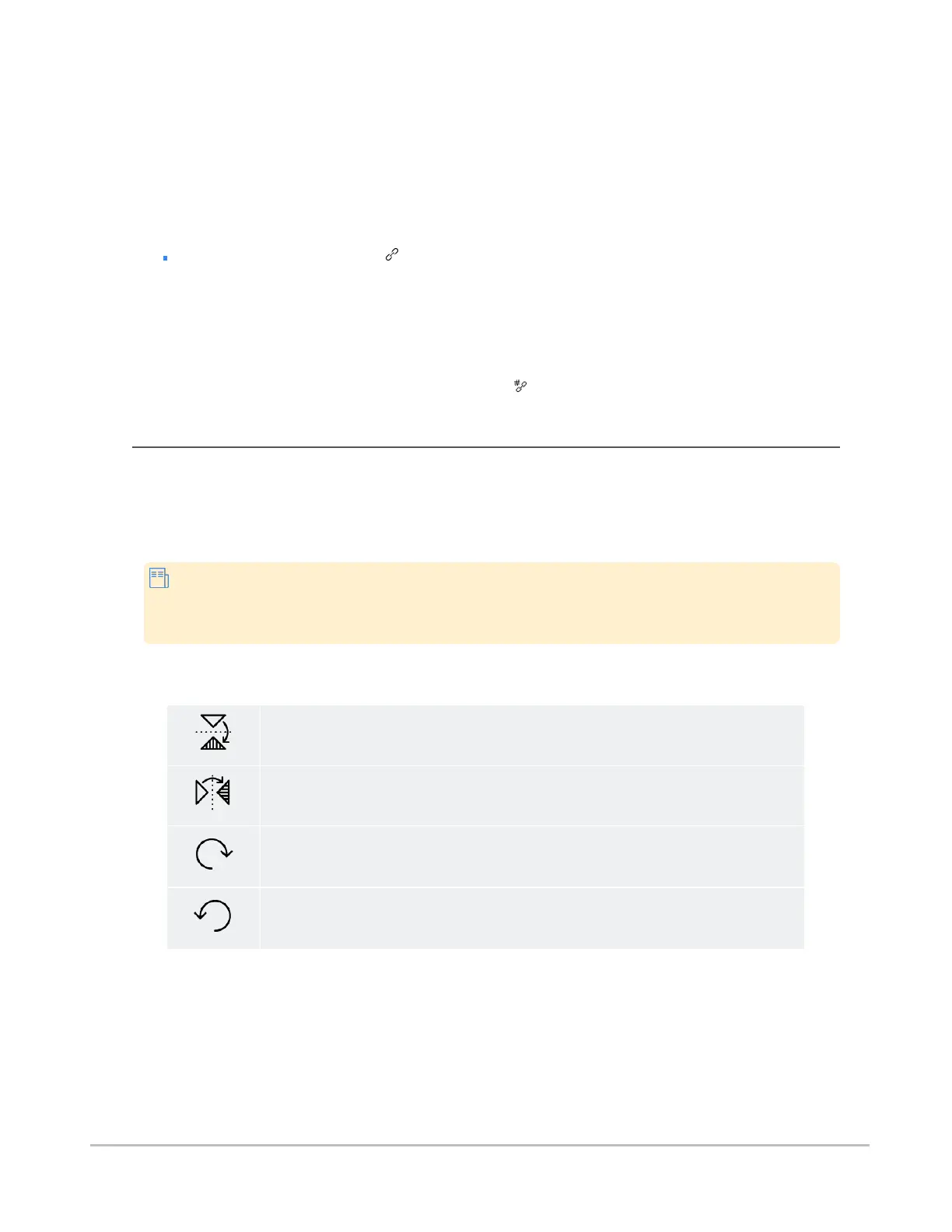
Mirror Vertical
Mirror Horizontal
Rotate clockwise
Rotate counter-clockwise
Synapse® Mobility User Guide for HTML5 Viewer
Confidential and Proprietary
DOC-0046692-A
36







 To Next Page