72
3.4 Saving Scanned Images in PDF Format
3. From the [File] menu, select [Create PDF] - [From Scanner] - [Custom
Scan].
⇒[Custom Scan] dialog box appears.
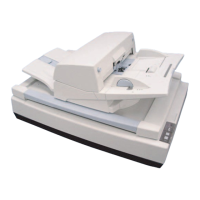
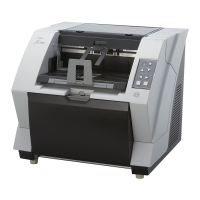
4. Select “FUJITSU Fi-5950d” at [Scanner] .
If your document is scanned by the default settings, the output image may
not be satisfactory. It is recommended to change the settings as follows:
1. Clear the [Make Searchable (Run OCR)] check box.
2. Click the [Options] button for [Small Size / High Quality] under
[Document].
⇒ The [Optimization Options] dialog box appears.
3. Select [Custom Settings] and configure the following settings:
- Color/Grayscale: none
- Monochrome: JBIG2 or CCITT Group 4
- Background removal: Off
- Edge shadow removal: Off



 To Next Page