EasyManua.ls Logo

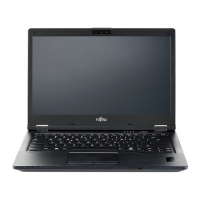
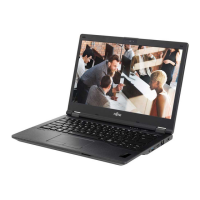
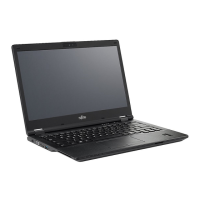
Fujitsu LIFEBOOK E548 - User Manual

Fujitsu LIFEBOOK E548
107 pages
Print Icon
To Next Page IconTo Next Page
Loading...
System
Operating Manual
FUJITSU LIFEBOOK E548
FUJITSU LIFEBOOK E558

Table of Contents

Other manuals for Fujitsu LIFEBOOK E548

Questions and Answers

  • E
    Edward MendozaAug 19, 2025
    Why won't my Fujitsu LIFEBOOK E548 Laptop turn on?
    • S
      Samantha PrinceAug 19, 2025
      Your Fujitsu Laptop might not start because the battery isn't correctly installed. Check that the battery is correctly installed in its compartment and try switching the notebook on. Alternatively, the battery may be dead. In this case, charge the battery, insert a charged battery, or connect the AC adapter to the notebook. Another possibility is that the AC adapter isn't properly connected. Ensure the AC adapter is properly connected to the notebook and then switch it on.
  • M
    mhowardAug 21, 2025
    How to fix wireless connection on Fujitsu LIFEBOOK E548 Laptop?
    • N
      Nicholas WoodAug 21, 2025
      If the wireless connection on your Fujitsu Laptop isn't working, first ensure that the wireless component is switched on. If it is on but the connection still fails, verify that the wireless connection is enabled by the software.
  • W
    whiteshannonAug 23, 2025
    How to fix blank LCD screen on Fujitsu Laptop?
    • E
      Edward FernandezAug 23, 2025
      If your Fujitsu Laptop's LCD screen remains blank, the screen might be switched off. Try pressing a key or touching the touchpad. Alternatively, an external monitor or television set might be connected. Press the key for changing over the screen output.
  • B
    brendarobinsonAug 26, 2025
    Why does my Fujitsu LIFEBOOK E548 Laptop keyboard type numbers instead of letters?
    • R
      Robert BatesAug 26, 2025
      If your Fujitsu Laptop is displaying only numerals when you type certain characters, the virtual number keys may be activated. Press the Num button to deactivate them.
  • P
    pattonamandaAug 28, 2025
    What to do if external monitor remains blank with Fujitsu LIFEBOOK E548?
    • A
      Alyssa KellyAug 28, 2025
      If your external monitor remains blank when connected to your Fujitsu Laptop, check these potential causes: First, ensure the monitor is switched on. Second, if power saving mode is activated, press any key to continue. Third, adjust the brightness of the monitor if it's set too low. Fourth, if the screen output is set to the notebook’s LCD screen, press the key for changing over the screen output. Finally, check whether the AC cable and data cable are properly connected to both the external monitor and the notebook. If not, switch off the external monitor and the notebook, ensure all cables are properly connected, and then switch them back on.
  • C
    cowanrandallSep 1, 2025
    What to do if my Fujitsu LIFEBOOK E548 stops working?
    • C
      Cheryl JamesSep 2, 2025
      If your Fujitsu Laptop stops working, it might be in energy-saving mode; end energy-saving mode. Alternatively, an application program may have caused the malfunction. Close the application program or restart the notebook. Finally, the battery might be dead. Charge the battery, insert a charged battery, or connect the AC adapter to the notebook.
  • S
    Shawn MooreSep 4, 2025
    Why is my Fujitsu LIFEBOOK E548 Laptop not printing?
    • D
      David WoodSep 4, 2025
      If your printer is not printing from your Fujitsu Laptop, first ensure that the printer is switched on and ready for operation. Next, check that the data cable connecting the notebook to the printer is properly connected. Lastly, verify that the correct printer driver is loaded.
  • N
    Nancy PattersonSep 6, 2025
    How to improve LCD screen readability on Fujitsu Laptop?
    • K
      kyleperrySep 6, 2025
      If the LCD screen of your Fujitsu Laptop is difficult to read, it might be due to reflected glare. Try turning the notebook or altering the tilt of the LCD screen. Also, increase the brightness of the screen.
  • T
    tinawelchSep 8, 2025
    Why is the image unstable on external monitor connected to Fujitsu Laptop?
    • J
      Johnny GallegosSep 8, 2025
      If the external monitor connected to your Fujitsu Laptop is blank or the image is unstable, the wrong external monitor may have been selected, or the wrong screen resolution set for the application program. Terminate the application program under Windows by pressing Alt + F4. If the error persists after terminating the program, use the key for switching the screen output in order to switch to the LCD screen of the notebook. Change the screen resolution and select the correct monitor in your operating system's settings.
  • T
    Thomas WilliamsonSep 12, 2025
    How to correct date and time on Fujitsu Laptop?
    • T
      Tracy BrooksSep 12, 2025
      To correct the date or time on your Fujitsu Laptop, use the BIOS-Setup-Utility to set the date and time in the Main menu. If the issue persists, contact your sales outlet or our hotline/service desk.

Summary

Ports and Controls

Important Notes

Safety Instructions

Essential safety information to follow while operating the notebook.

Radio Component Safety

Safety guidelines for using wireless components like WLAN/Bluetooth in specific environments.

First-Time Setup of Your Device

Location and AC Adapter Setup

Guidance on choosing a suitable location and connecting the AC adapter.

Initial Power On and Software Installation

Steps for the first power-on and installation of bundled bonus applications.

Working with the Notebook

Notebook Power Management

Guide to safely powering the notebook on and off, including shutdown procedures.

Battery Management

Information on rechargeable battery care, charging, maintenance, and storage.

Security Functions

BIOS Password Protection

Details on setting, changing, removing supervisor and user passwords in BIOS.

System Boot and Hard Disk Protection

Securing the system boot process and the hard disk with passwords.

Trusted Platform Module (TPM)

How to enable and disable the Trusted Platform Module for enhanced security.

Connecting External Devices

External Monitor Connection

How to connect analog and digital external monitors via VGA, DVI, and HDMI ports.

Removing and Installing Components during Servicing

Component Servicing Preparation

Safety precautions and steps before removing or installing internal components.

Accessing Internal Components

Instructions on how to remove the notebook cover to access internal parts.

Memory Module Servicing

Step-by-step guide for removing and installing RAM modules.

Hard Disk Drive Servicing

Instructions for removing and installing the notebook's hard disk drive.

Settings in BIOS Setup Utility

Starting the BIOS Setup Utility

Steps to access and launch the BIOS Setup Utility program.

BIOS Setup Utility Operation

How to navigate menus, change settings, and use function keys within BIOS.

Exiting BIOS Setup Utility

Procedures for saving changes, discarding them, or exiting the BIOS utility.

Troubleshooting and Tips

Technical Data

Appendix

Windows 10 Recovery Procedures

Guide to creating recovery drives, system restore, and resetting the PC.

Windows Reinstallation and Driver Updates

Steps for reinstalling Windows and updating system drivers.

Fujitsu LIFEBOOK E548 Specifications

General IconGeneral
Memory slots2x SO-DIMM
Supported memory typesDDR4-SDRAM
Maximum internal memory32 GB
Supported memory clock speeds2400 MHz
Built-in processorNo
Processor manufacturerIntel
Compatible processor seriesIntel Celeron, Intel Core i3, Intel Core i5, Intel Core i7
Supported processor frequency (max)4.2 GHz
USB 3.2 Gen 1 (3.1 Gen 1) Type-A ports quantity2
Internal drive bays1x M.2
Aspect ratio16:9
Display diagonal14 \
Audio systemRealtek ALC255
Product colorBlack
Pointing deviceTouchpad
Ethernet LAN data rates10, 100, 1000 Mbit/s
Weight and Dimensions IconWeight and Dimensions
Depth234 mm
Width333.6 mm
Height23.9 mm
Dimensions (WxDxH)333.6 x 234 x 23.9 mm

Related product manuals