EasyManua.ls Logo

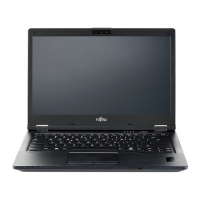
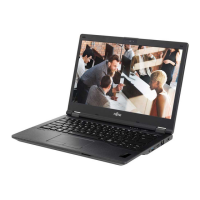
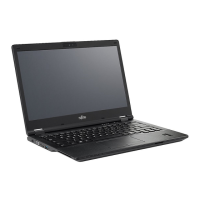
Fujitsu LIFEBOOK E548 - User Manual

Fujitsu LIFEBOOK E548
107 pages
Print Icon
To Next Page IconTo Next Page
Loading...
System
Operating Manual
FUJITSU LIFEBOOK E548
FUJITSU LIFEBOOK E558

Table of Contents

Other manuals for Fujitsu LIFEBOOK E548

Questions and Answers

  • B
    Bonnie RomeroSep 13, 2025
    What to do if Smart Card reader is not recognized on Fujitsu LIFEBOOK E548?
    • M
      Megan ArmstrongSep 13, 2025
      If the Smart Card reader on your Fujitsu Laptop isn't recognizing your card, make sure you have inserted your Smart Card into the Smart Card reader with the chip facing upwards / downwards (device-dependent). Check whether the Smart Card you are using is supported and complies with the ISO standard 7816-1, -2, -3 and -4.
  • R
    Richard RobertsSep 15, 2025
    Why is my Fujitsu LIFEBOOK E548 beeping?
    • L
      Leslie SmithSep 15, 2025
      If you hear an acoustic warning from your Fujitsu Laptop, the battery is almost dead. Charge the battery.
  • S
    Savannah SchroederDec 1, 2025
    What to do if Fujitsu Laptop shows error messages on screen?
    • P
      Patrick ThorntonDec 1, 2025
      If you're seeing error messages on your Fujitsu Laptop screen, here are a few potential solutions: If the error message occurs repeatedly, the back-up battery in the notebook is dead, contact your sales outlet or our customer service center. If the system configuration information is incorrect, switch the notebook off and then on again. Press the F2 key to access the BIOS Setup, select the Exit menu, choose Load Setup Defaults, and press Enter. If an error resulted when testing the extended memory, check whether the additional memory module has been inserted correctly. If the settings of the hard disk drive are incorrect, start the BIOS Setup (Primary Master submenu) and select the correct settings. If none of the above work, try switching off the notebook with the ON/OFF button, wait 3-5 ...

Summary

Ports and Controls

Important Notes

Safety Instructions

Essential safety information to follow while operating the notebook.

Radio Component Safety

Safety guidelines for using wireless components like WLAN/Bluetooth in specific environments.

First-Time Setup of Your Device

Location and AC Adapter Setup

Guidance on choosing a suitable location and connecting the AC adapter.

Initial Power On and Software Installation

Steps for the first power-on and installation of bundled bonus applications.

Working with the Notebook

Notebook Power Management

Guide to safely powering the notebook on and off, including shutdown procedures.

Battery Management

Information on rechargeable battery care, charging, maintenance, and storage.

Security Functions

BIOS Password Protection

Details on setting, changing, removing supervisor and user passwords in BIOS.

System Boot and Hard Disk Protection

Securing the system boot process and the hard disk with passwords.

Trusted Platform Module (TPM)

How to enable and disable the Trusted Platform Module for enhanced security.

Connecting External Devices

External Monitor Connection

How to connect analog and digital external monitors via VGA, DVI, and HDMI ports.

Removing and Installing Components during Servicing

Component Servicing Preparation

Safety precautions and steps before removing or installing internal components.

Accessing Internal Components

Instructions on how to remove the notebook cover to access internal parts.

Memory Module Servicing

Step-by-step guide for removing and installing RAM modules.

Hard Disk Drive Servicing

Instructions for removing and installing the notebook's hard disk drive.

Settings in BIOS Setup Utility

Starting the BIOS Setup Utility

Steps to access and launch the BIOS Setup Utility program.

BIOS Setup Utility Operation

How to navigate menus, change settings, and use function keys within BIOS.

Exiting BIOS Setup Utility

Procedures for saving changes, discarding them, or exiting the BIOS utility.

Troubleshooting and Tips

Technical Data

Appendix

Windows 10 Recovery Procedures

Guide to creating recovery drives, system restore, and resetting the PC.

Windows Reinstallation and Driver Updates

Steps for reinstalling Windows and updating system drivers.

Fujitsu LIFEBOOK E548 Specifications

General IconGeneral
Memory slots2x SO-DIMM
Supported memory typesDDR4-SDRAM
Maximum internal memory32 GB
Supported memory clock speeds2400 MHz
Built-in processorNo
Processor manufacturerIntel
Compatible processor seriesIntel Celeron, Intel Core i3, Intel Core i5, Intel Core i7
Supported processor frequency (max)4.2 GHz
USB 3.2 Gen 1 (3.1 Gen 1) Type-A ports quantity2
Internal drive bays1x M.2
Aspect ratio16:9
Display diagonal14 \
Audio systemRealtek ALC255
Product colorBlack
Pointing deviceTouchpad
Ethernet LAN data rates10, 100, 1000 Mbit/s
Weight and Dimensions IconWeight and Dimensions
Depth234 mm
Width333.6 mm
Height23.9 mm
Dimensions (WxDxH)333.6 x 234 x 23.9 mm

Related product manuals