Scanning Documents of Different Widths or Lengths in One Batch
(S1300i)
Documents of different widths or lengths can be scanned in one batch.
For details about documents that can be scanned, refer to "Documents to Scan (S1300i)" (page
299).
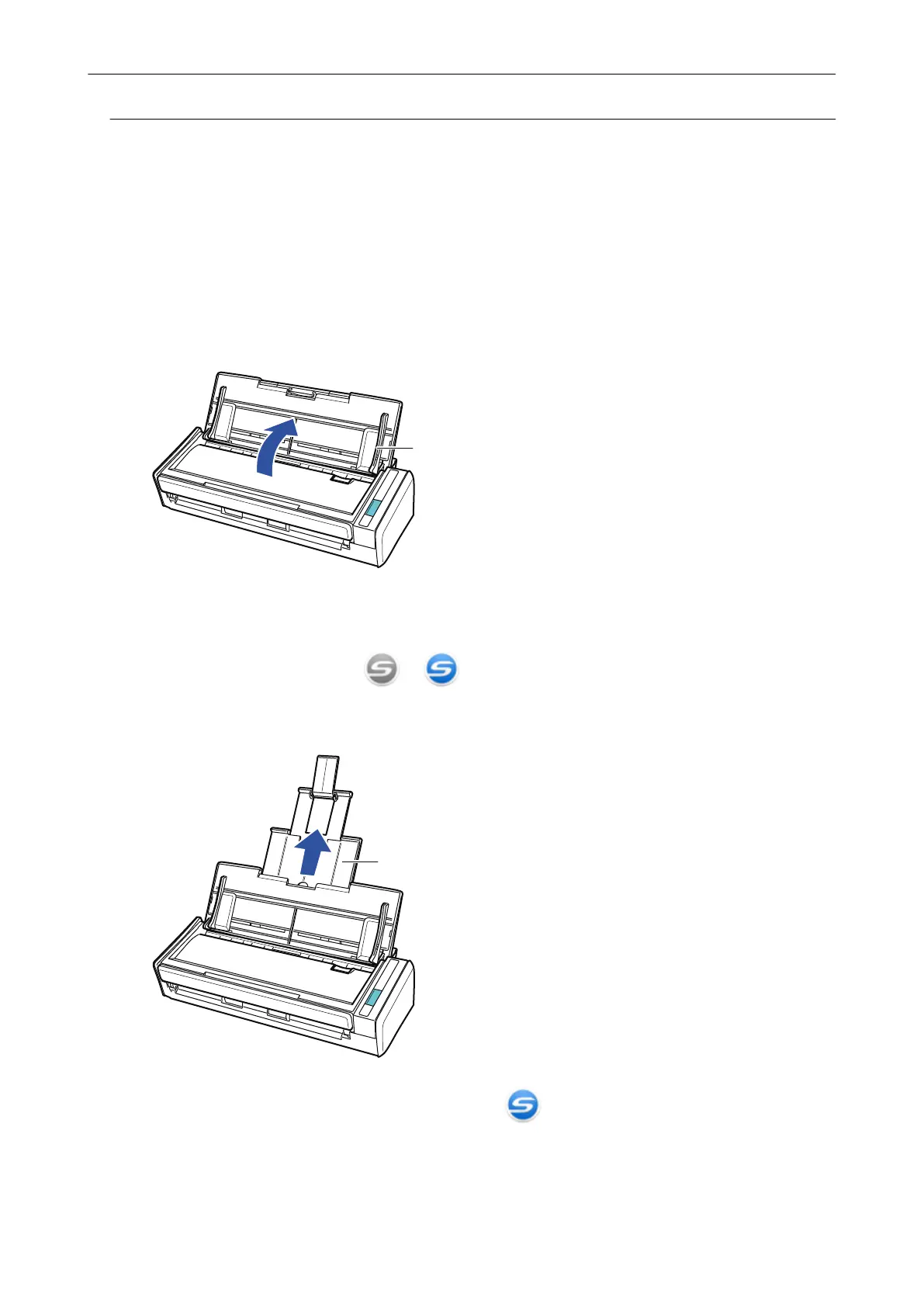
1. Open the ADF paper chute (cover) of the ScanSnap.
a The [Scan] button flashes in blue. The button returns to being lit normally when document
scanning is enabled.
In addition, the ScanSnap Manager icon in the notification area located at the far right of
the taskbar changes from
to .
2. Pull out the extension.
3. Right-click the ScanSnap Manager icon in the notification area located
at the far right of the taskbar, and select the [Scan Button Settings] from the
"Right-Click Menu" (page 87).
a The ScanSnap setup window appears.
Scanning Documents with S1300i
310



 To Next Page
 Loading...










