DVD FUNCTIONS
ress [PREV
] or [NEXT
]
uring p
ay
ac
Pr
RETUR
r
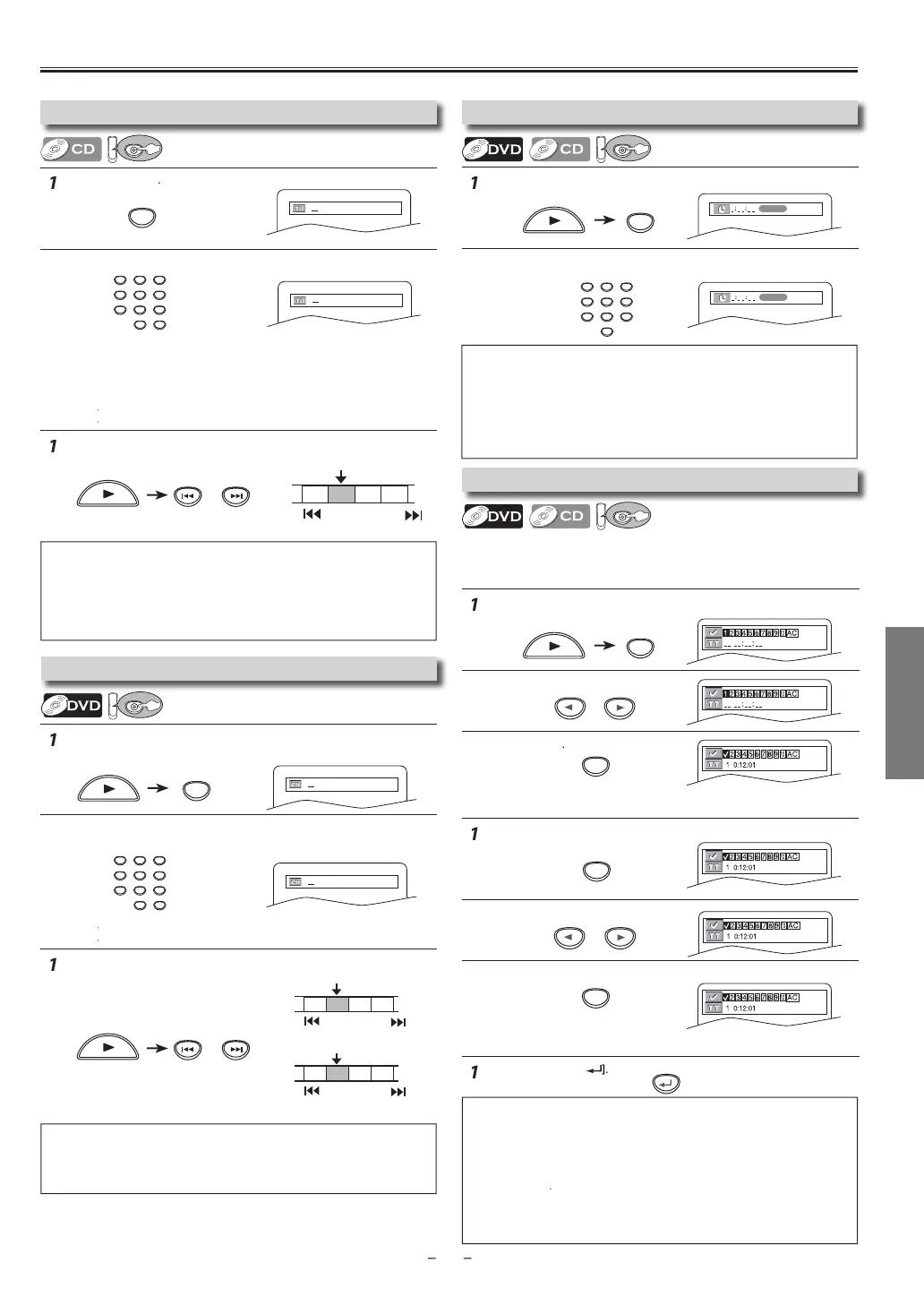
SEARCH
repeatedly until the marker display appears
m
r
r
r
K
h
ir
m
rk
r
r
SEARCH
repeatedly until the marker display appears
l
m
rk
r
r
K
ress
SEARCH
repeatedly until the time search display appears.
Select a desired disc time b
using
the
umber buttons] wi
hin
seconds
Pr
PREV
r
NEXT G
uring p
ay
ac
Pr
SEARCH
once for the cha
ter search.
Pr
SEARCH
wi
f
r
h
i
l
r
h
Select title/chapter number b
using [the Number buttons
wit
in 30 secon
s
Pr
SEARCH
elect track number by using [the Number buttons] within 30 seconds.
Se
rc
F
ncti
n
r
t
rn t
t
m
r
r
t
xit th
m
rk
r
cr
TR 1 TR 2 TR 3 TR 4
Current Track
(TR)
PREV
NEXT
RE
or [NEXT
CH 1 CH 2 CH 3 CH 4
Current Chapter
(CH)
or
TT 1 TT2 TT3 TT4
Current Title
(TT)
PREV
NEXT
PREV
NEXT
RE
or
NEXT
ote
s
• When there is no need to enter a number, “0” appears automaticall
For example, “0: 0_: _ _” appears in the time search display i
the total
im
f
h
i
l
r
r
k i
l
h
n 1
min
• Pr
CLEAR
to erase the incorrect input at step 2
• For audio CD, time search is not available
or programmed and random
pla
back
ote
s
T
e mar
er
isp
ay wi
isappear in a
out 30 secon
s w
en t
ere is no
utput
To clear a marker, select the marker to be cleared at ste
2 in the
ection “To set a mar
er” or “To return to t
e mar
er
ater” an
t
en
ress
CLEAR
Opening the disc tra
or turning o
the power will erase all markers
Selectin
“AC” at step 2 in the section “To set a marker” or “To return to
h
m
rk
r l
r” will
l
r
ll m
rk
r
• For the disc with less than 10 tracks, press the track number directly.
• For discs with more than 10 but less than 99 tracks, to pla
back single
digit track, press [0
first, then the track number (e.g., for track 3, press
0
,
3
). To pla
back a double-digit track, press the track number
If the disc has no chapters)
ote
s
+10
can also bring the track search display, except
or the disc with
ess than 10 tracks. For such a disc, track search can be performed by
ust pressing the track number
For audio CD, track search is not available for pro
rammed and random
pla
back
Search
unction does not work during programmed or random pla
back
Usin
Trac
Searc
Using Time Searc
Marker Settin
his function allows you to assign a specific point on a disc to be
a
e
ac
ater.
t
m
r
ote(s)
Depending on the disc being played back, this
unction can also be
performed b
directl
entering the desired chapter number with
the Number buttons
. Re
er to the manual accompan
ing the disc.
Using Tit
e / C
apter Searc
NEXTPREV
NEXTPREV
r


 To Next Page