DVD FUNCTIONS
E
21
DISPLAY Sett
n
You can change the displa
unctions. Follow steps 1 to 3 in the “CUSTOM Menu” section on page 20.
AUDIO Settin
Choose the appropriate audio setting for your device. It is only affected during the playback of DVD discs. Follow steps 1 to 3 in the
CUSTOM Menu
section on page 20.
l
h
ir
i
m
SETUP AUDIO
DRC
DOWN SAMPLING
DOLBY DIGITAL
ON
ON
BITSTREAM
Note(s)
TV A
PE
T
• Select “4:3 LETTER BOX”, so
t
at
ac
ars may appear
on the top and bottom of the
screen
•
l
“4
PAN
AN” f
r
full height picture with both
ides adjusted
•
l
“1
9 WIDE” if
wi
creen TV is connected to
this Unit
STILL M
DE
• Select “AUTO” usuall
• If you select “AUTO”, it
utomaticall
selects the
est reso
ution setting
“FRAME” or “FIELD”)
ase
n
h
h
r
ri
i
the pictures. (default
• If you select “FIELD”, the
icture in the still mode will
iliz
• If you select “FRAME”, the
icture in the still mode will
e highly de
ined
• An individual picture on
h
TV
r
n i
ll
rame”
which consists o
two separate ima
es ca
e
fi
l
”
•
ome pictures ma
e
lurred if you select “AUTO”
n t
e sti
mo
e
ue to t
eir
ata c
aracteristics
ir
i
m
DI
PLAY m
n
A
DI
m
n
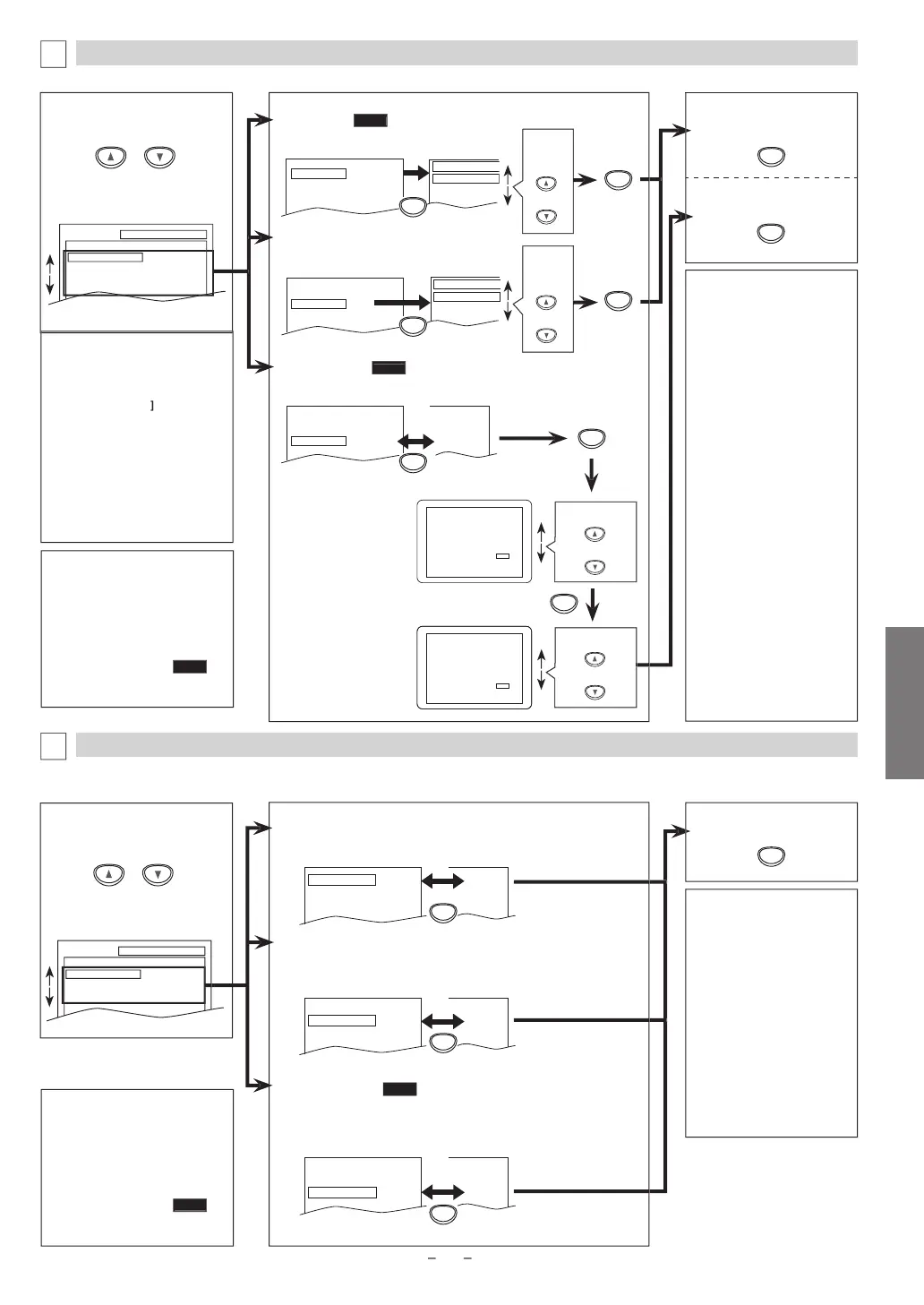
TV ASPE
T
QUICK
Default: 4:3 LETTER BOX
ee note on t
e ri
t
TV ASPECT
4:3
LETTER BOX
4:3
PAN & SCAN
16:9
WIDE
TV ASPECT
4:3 LETTER BOX
STILL MODE
AUTO
PROGRESSIVE OFF
TILL M
DE
(Default: AUTO
ee note on the right
TV ASPECT
4:3 LETTER BOX
STILL MODE
AUTO
PROGRESSIVE OFF
STILL MODE
AUTO
FIELD
FRAME
DRC (Dynamic Range Contro
)
Default: ON
Set to “ON” to compress the range between so
t and loud sounds.
D
LBY DIGITAL
QUICK
(De
ault: BITSTREAM
et to “BITSTREAM” w
en t
e Unit is connecte
to a Do
y Digita
eco
er
• BITSTREAM: outputs Do
y Digita
signa
s
• PCM: converts t
e Do
y Digita
into PCM (2 c
anne
)
DRC ON
DOWN SAMPLING
ON
DOLBY DIGITAL BITSTREAM
OFF
ON
BITSTREAM
D
WN SAMPLING
(Default: ON
Set to “ON” w
en outputting in 48
Hz
Set to “OFF” w
en outputting t
e origina
soun
DRC ON
DOWN SAMPLING
ON
DOLBY DIGITAL
BITSTREAM
ON
ON
PCM
DRC ON
DOWN SAMPLING
ON
DOLBY DIGITAL
BITSTREAM
ON
OFF
BITSTREAM
ote(s)
R
Thi
n
i
n i
v
il
l
onl
on the discs which are
recorded in the Dolb
Digital
rm
WN SAMPLING
When pla
ing back a 96kHz
isc wit
t
e copyrig
t
rotection, the sound will be
down sam
led at 48kHz even
i
h
“D
WN
AMPLING” i
“
FF”
This
unction is only available
w
en t
e
isc
i
ita
output
was recor
e
at 96
Hz
SETUP DISPLAY
TV ASPECT
STILL MODE
PROGRESSIVE
4:3 LETTER BOX
AUTO
OFF
T
xi
h
m
n
l
h
ir
setting.
o
l
h
ir
setting.
Note(s)
PR
GRESSIVE
• Y
n
“PR
GRE
IVE”
“OFF” in “DISPLAY” menu or
ress
n
h
l
PLAY
n
hi
ni
n
h
DVD
i
f
r m
r
h
n
5 seconds during pla
back until
h
P-
AN in
i
r
n
hi
ni
rn
ff
• W
en “PROGRESSIVE” is “ON”,
video signals from the Unit’s
VIDE
T
n
-VIDE
ac
s wi
e
istorte
or not
e
out
ut at all
TV ASPECT
4:3 LETTER BOX
STILL MODE
AUTO
PROGRESSIVE
OFF
4:3 LETTER BOX
AUTO
ON
l
“Y
”
Before proceeding…
1. Make sure your TV has progressive scan.
2. Connect with component video cable
NOTE: If there is no picture or picture is
distorted after selecting ‘YES’,
wait about 15 seconds for auto recovery.
Activate Progressive?
SELECT: K / L SET:OK
NO
YES
NO
YES
NO
YES
Confirm again to use progressive scan.
If Picture is good, select ‘YES’.
SELECT: K / L
SET:OK
l
“Y
”
f there is no picture
or
ou do not press
n
buttons for 15
econds, “PROGRES
IVE” will
wi
h
OFF” an
it wi
exit
ET
P” m
n
r
R
GRESSIVE
QUICK
(De
ault: OFF
n
n
h
l
f
To exit
TV ASPECT
or
STILL
DE” m
n
o comp
ete
PROGRESSIVE
settin
Note
s
In “QUICK” menu, “PLAYER
ENU”, “TV ASPECT”,
PR
GRE
IVE
r
D
LBY
DIGITAL” are available. “
UICK”
menu consists of the settin
menu frequently used and they
are accompanied with
QUICK
You can make all settin
s in
T
M
m
n
Note(s)
In “QUICK” menu
“PLAYER
ENU”
“TV ASPECT”
“PR
GRE
IVE”
r “D
LBY
DIGITAL” are avai
a
e. “QUICK”
menu consists o
the setting
menu
requentl
used and the
are accom
anie
wit
QUICK
You can ma
e a
settings in
“CUSTOM” menu
Continue
on next page


 To Next Page