EasyManua.ls Logo

FUNAI DV220FX5 - Optional Settings; Changing the DVD Settings (in the Setup Menu)

FUNAI DV220FX5
28 pages
Print Icon
To Next Page IconTo Next Page
To Previous Page IconTo Previous Page
Loading...
PRECAUTIONS PREPARATION ADVANCED PLAYBACKBASIC OPERATIONS RECORDING
OPTIONAL SETTINGS
TROUBLESHOOTING
INFORMATION
EN
23
OPTIONAL SETTINGS
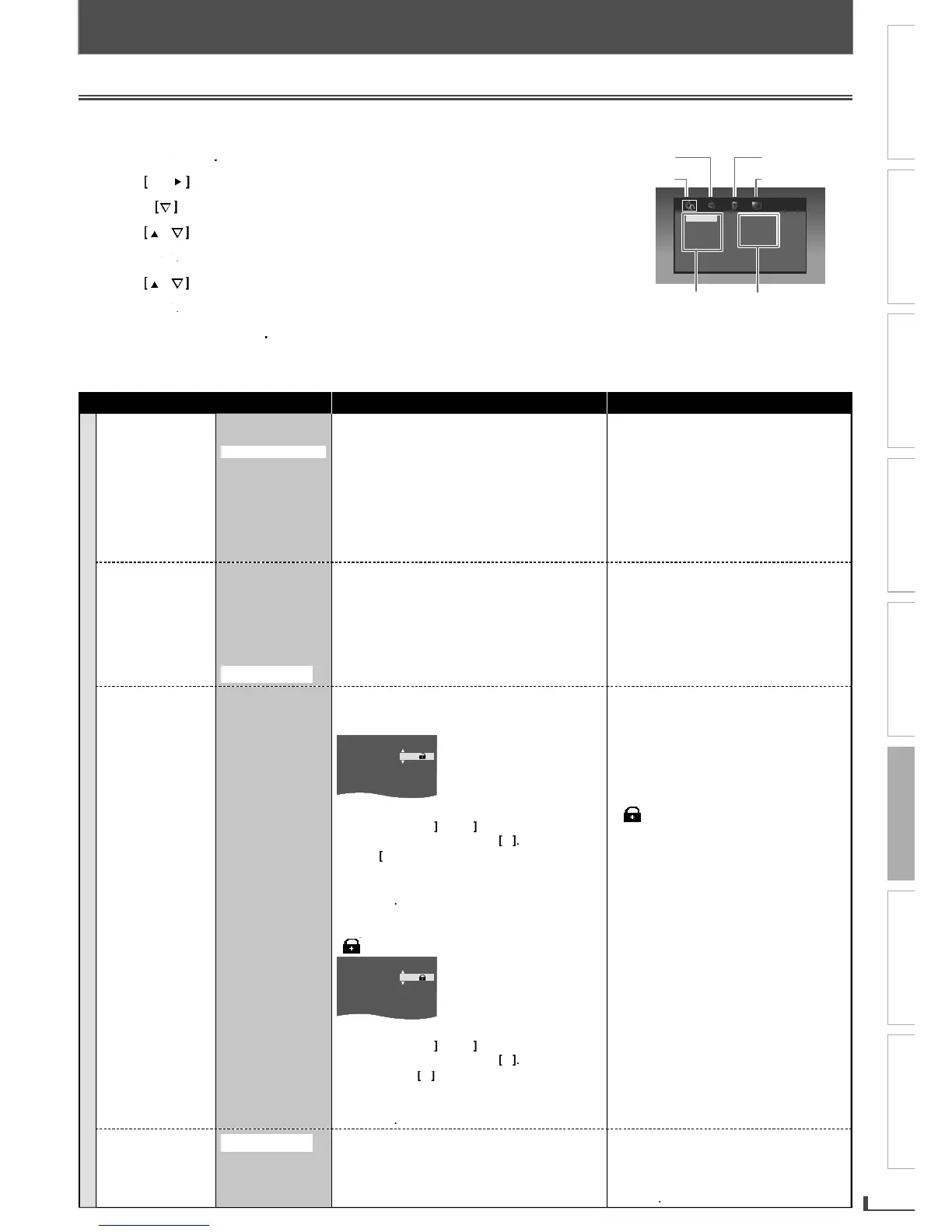
Changing the DVD Settings (in the setup menu)
In the setup menu,
y
ou can customize the various kinds of settings as
y
ou prefer
.
Refer to the following instructions to navigate through the setup menus
.
1
Press
Press
[SETUP]
[SETUP]
.
.
2
Use Use
[
[
0
0
0
/
/
1
1
]
]
to select a setup item.
3
Press
Press
[
[
L
L
L
]
]
to access the highlighted item.
4
Use Use
[
[
K
K
K
//
L
L
]
]
to go up or down in the menu list.
5
Press
Press
[ENTER]
[ENTER]
to access the sub contents.
6
Use Use
[
[
K
K
K
//
L
L
]
]
to select a setting.
7
Press
Press
[ENTER]
[ENTER]
to enter.
to enter.
to enter.
8
Press
Press
[SETUP]
[SETUP]
to exit
to exit
.
.
The
f
ollowing table is the contents which
y
ou can set and the de
f
ault settings. Re
f
er to the table
f
or use
f
ul operation
.
Y
our change to each setting sta
y
s activated even when the unit is turned o
ff.
Setup menu (highlight is the default)
Contents Notes
S
Y
S
TEM
TV
A
s
p
ec
t
4:3
P
a
n
&
Scan
4:3
L
ette
r
box
1
6:
9 Wi
desc
r
een
1
6:9
S
queez
e
Sets the aspect ratio of the pla
y
back image to
f
it your TV
.
See t
h
e note on t
h
e ri
gh
t
.
Select “4:3 Pan & Scan” for a full height
picture with both sides ad
j
usted
.
Se
l
ect “4:3 Letter
b
ox”,
bl
ac
k
b
ars ma
y
a
pp
ear on the to
p
and bottom o
f
the
TV
sc
r
ee
n
.
Se
l
ect
“1
6:
9 Wi
desc
r
ee
n” if
a
wi
de-
sc
r
ee
n TV i
s
co
nn
ected
to
t
hi
s
u
ni
t.
Se
l
ect “16:9 Squeeze” to
d
isp
l
a
y
4:3
as
p
ect ratio in the center o
f
the 16:9
s
creen w
h
en p
l
a
y
ing
b
ac
k
4:3 images.
M
ovie
R
atin
g
1
[
ALL
]
2
[
NR
]
3 [G
]
4
[
PG
]
5
[
PG-13
]
6
[
R
]
7
[
NC-17
]
8
[X-Adult
]
Sets the rating level
f
or the disc pla
y
back
.
Rating settings a
ll
ows
y
ou to set t
h
e rating
l
evels of
y
our DVD
.
Pla
y
back will stop i
f
the ratings exceed the
l
eve
l
s
y
ou set.
T
h
e rating
l
eve
l
can
b
e c
h
ange
d
w
h
en
a password has not been set
y
et
f
or
t
h
e
f
ir
st
t
im
e
use.
I
f
y
ou have set a password alread
y
,
“Movie Rating“ cannot
b
e se
l
ecte
d.
P
ass
w
o
r
d
Sets the password
f
or “Movie Ratin
g
” and
“De
f
ault” settin
g
s
.
– F
o
r the
f
ir
s
t time
us
e
.
TV Aspect
Movie Rating
Password
Default
-
- - -
Enter an
y
4-digit number(except
f
or 4737)
.
P
r
ess
cu
r
so
r
[
K
]
or
[
L
]
to c
h
an
g
e t
h
e
number, then
p
ress cursor
[
1
]
.
P
ress
[
0
] to erase if
y
ou input the incorrect
n
u
m
be
r
.
When 4-di
g
it numbers are entered, press
[
ENTER
]
.
– A password has been set already.
(
p
is
d
isp
l
a
y
e
d
.
)
TV Aspect
Movie Rating
Password
Default
-
- - -
Enter
y
our 4-digit password
.
P
r
ess
cu
r
so
r
[
K
]
or
[
L
]
to c
h
an
g
e t
h
e
num
b
er, t
h
en
p
ress cursor
[
1
]
.
Pr
ess
cu
r
so
r
[
0
]
to erase i
f
y
ou input the
in
co
rr
ect
n
u
m
be
r
.
When 4-di
g
it numbers are entered, press
[
ENTER
]
.
If
y
ou
f
orget the password, enter
4737
at ste
p
6
, t
h
en enter
y
our new
p
asswor
d.
Pla
y
back will stop if the ratings exceed
t
h
e
l
eve
l
s
y
ou set, it wi
ll
require
y
ou to
enter a password be
f
ore the disc will
p
l
a
y
b
ac
k.
This function is available only when
is displa
y
ed.
D
efau
l
t
Resto
r
e
Reset to de
f
ault settin
g.
“De
f
ault“ is not selected i
f
y
ou have set
a password alread
y
.
W
h
en
y
ou
d
o not wis
h
to initia
l
ize,
press
[
SETUP
]
to
e
xi
t
the
m
e
n
u
at
s
tep
7
.
OPTIONAL SETTINGS
TV Aspect
Movie Rating
Password
Default
4:3 Pan & Scan
4:3 Letterbox
16:9 Widescreen
16:9 Squeeze
VIDE
O
M
e
n
u
Sub
co
n
te
n
ts
Me
n
u
l
i
st
S
Y
S
TEM M
e
n
u
L
AN
GU
A
G
E M
e
n
u
A
U
DI
O
M
e
n
u
E8R6AUHDV220FX5OMv1.indd23 2014/10/0615:42:21

Related product manuals