3. SETTINGS AND STATUS
3-3
3.3 Alert Status
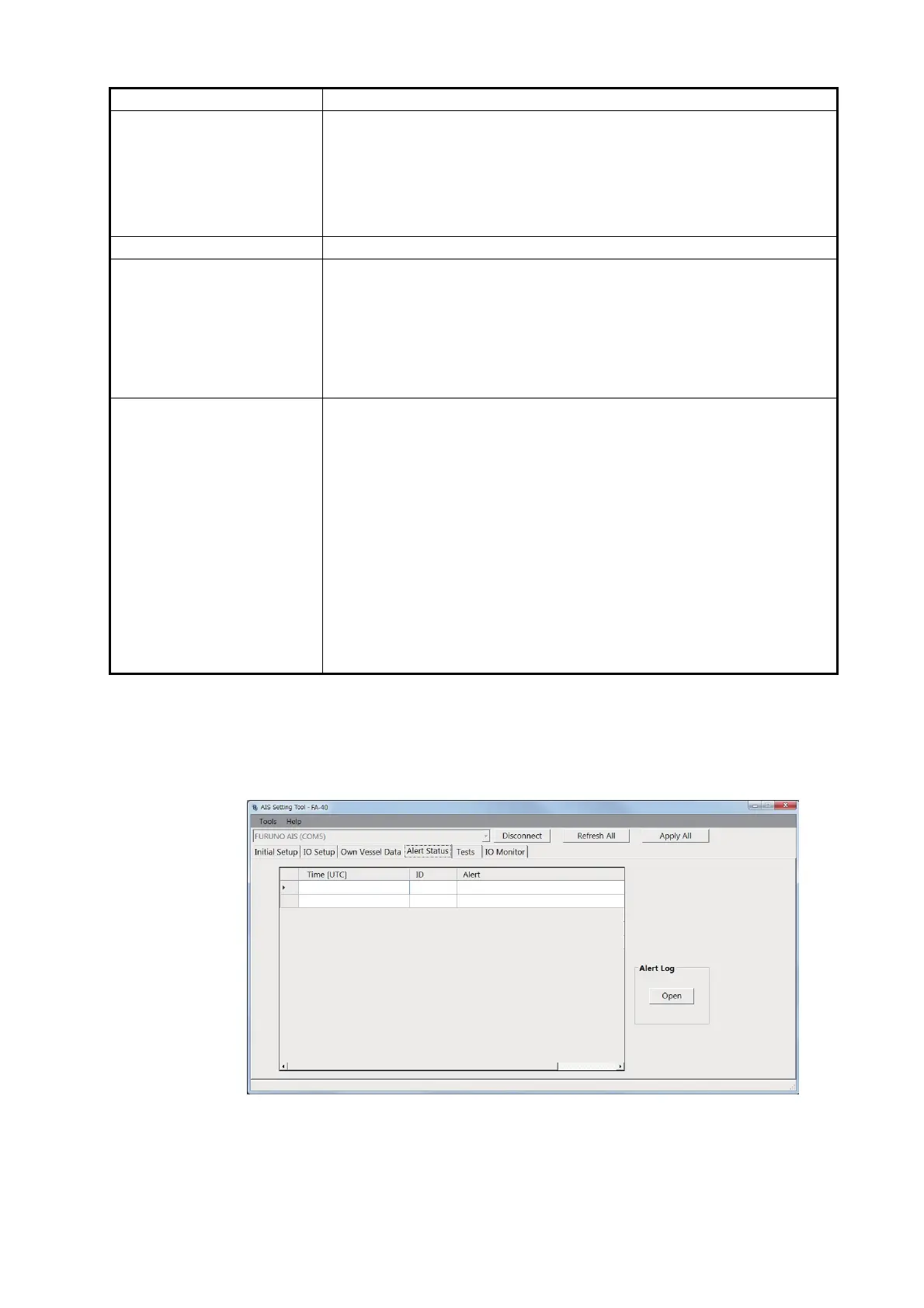
The [Alert Status] screen shows the alerts currently occurred.
[Alert Status] screen for PC
• [Time [UTC]]: Shows the time and date when the alert occurred.
• [ID]: Shows the alert number.
• [Alert]: Shows the alert message*.
[CH A], [CH B] Set the channel number for channel A/B. For the PC, click [Apply] to
confirm the settings.
Note: When setting the inappropriate channel A or B manually, the
message "[CH] Setting Error!!" appears on the PC, "Invalid input." ap-
pears on the external display. Click [OK], and then set the appropriate
channel A or B.
[Screenshot] (for the PC) Click to take a screenshot.
[Sensor Status] Shows the information about the sensors connected to the FA-40.
• Internal/External DGNSS in Use: DGNSS currently in use.
• Internal/External GNSS in Use: GNSS currently in use.
• Internal/External SOG/COG in Use: SOG/COG currently in use.
• Heading Valid: Valid heading data.
• Channel Management Parameters Changed (for the PC): Channel
parameters have been changed.
[GNSS Status] (for the PC) Shows the GNSS information.
• [UTC]: Universal Time Coordinated
• [LAT]: Latitude
• [LON]: Longitude
• [SOG]: Speed over ground
• [COG]: Course over ground
• [PA]: Positioning accuracy
• [RAIM] (Receiver autonomous integrity monitoring): Whether to use
RAIM or not.
• [Mode]*: Positioning mode
• [Status]*: Positioning status
• [Satellites in View]*: The number of satellites in view.
*: These items are not displayed when using the positioning data from
the external sensor.
Menu item Description
003
004
RX Channel 1 Malfunction
RX Channel 2 Malfunction
01/JAN/2020 18:10
01/JAN/2020 18:11


 To Next Page