Calibrating the Compass
NOTICE
Calibrate the electronic compass outdoors. To improve heading accuracy, do not stand near objects that
influence magnetic fields, such as vehicles, buildings, and overhead power lines.
Your device was already calibrated at the factory, and the device uses automatic calibration by default. If you
experience irregular compass behavior, for example, after moving long distances or after extreme temperature
changes, you can manually calibrate the compass.
1 Select Compass.
2 Swipe up from the bottom of the screen, and select > Calibrate Compass > Start.
3 Follow the on-screen instructions.
Course Pointer
The course pointer is most useful if you are navigating on water or where there are no major obstacles in your
path. It also can also help you avoid hazards to either side of the course, such as shoals or submerged rocks.
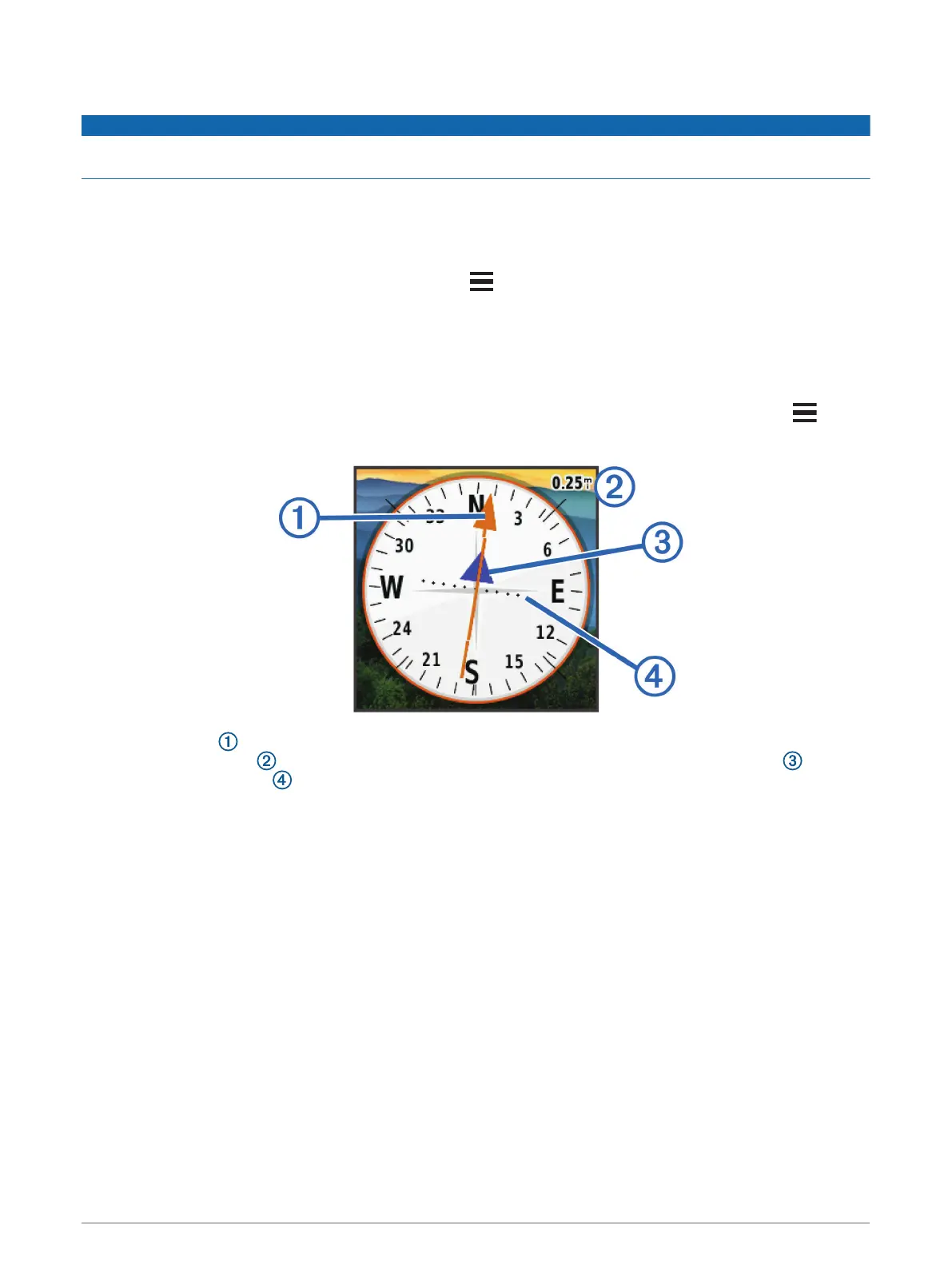
To enable the course pointer, from the compass, swipe up from the bottom of the screen, and select >
Setup Heading > Go To Line (Pointer) > Course (CDI).
The course pointer indicates your relationship to the course line leading to the destination. The course
deviation indicator (CDI) provides the indication of drift (right or left) from the course. The scale refers to
the distance between dots on the course deviation indicator, which tell you how far off course you are.
Marking and Starting Navigation to a Man Overboard Location
You can save a man overboard (MOB) location, and automatically start navigation back to it.
1 Select Man Overboard > Start.
The map opens showing the route to the MOB location. The default appearance of the route is a magenta
line.
2 Navigate using the map (Navigating with the Map, page 10) or compass (Navigating with the Compass,
page 10).
Navigating with Sight 'N Go
You can point the device at an object in the distance, lock in the direction, and navigate to the object.
1 Select Sight 'N Go.
2 Point the device at an object.
3 Select Lock Direction > Set Course.
4 Navigate using the compass.
Navigation 11


 To Next Page