4140
CHAPTER 6: VIVOFIT
™
CHAPTER 6: VIVOFIT
™
OVERVIEW VIVOFIT
™
6.1 GETTING STARTED
6.4 INACTIVITY ALERT / GOAL SETTING
6.5 STARTING AND STOPPING HEART RATE ACTIVITY
6.2 BASIC SETTINGS
6.6 AUTO GOAL
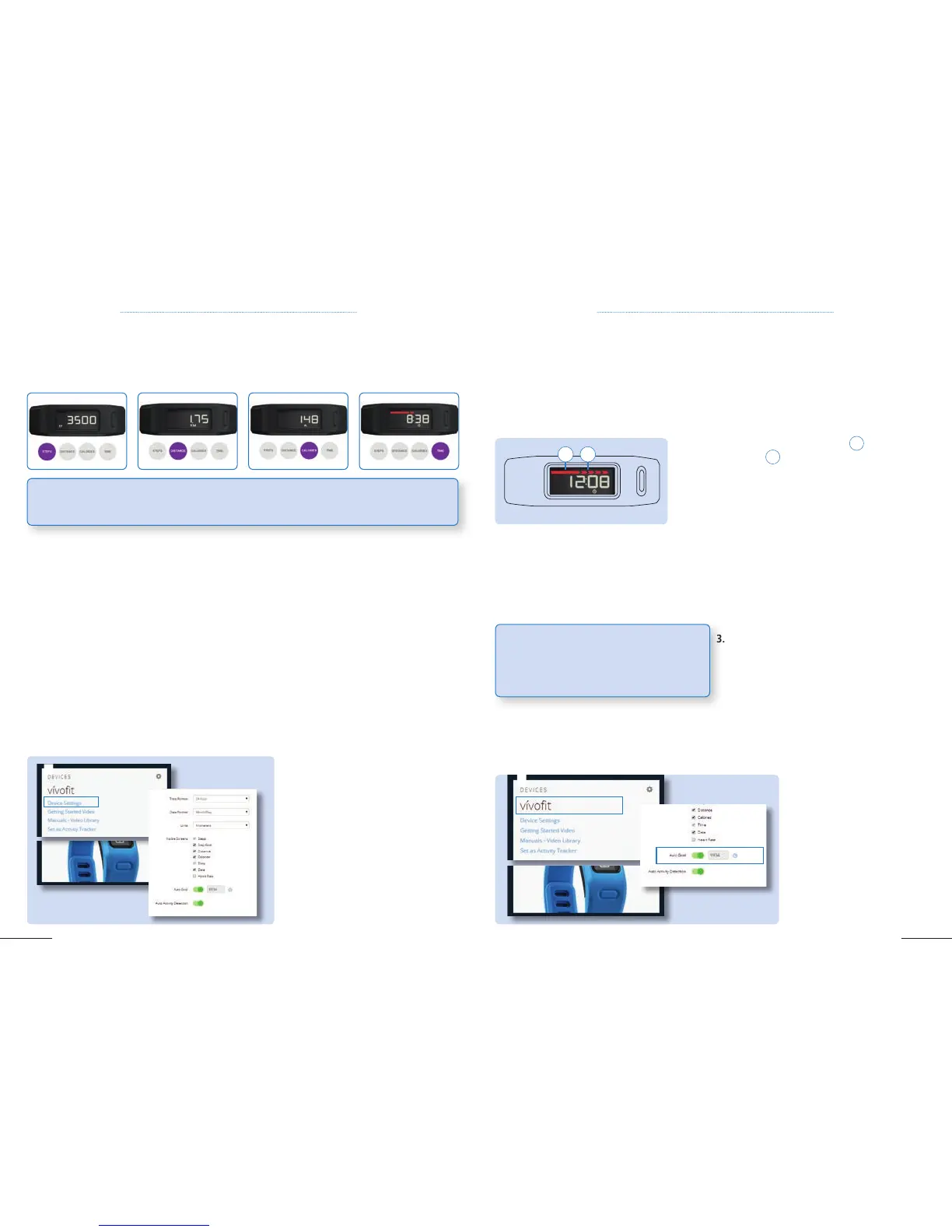
Vivofit
™
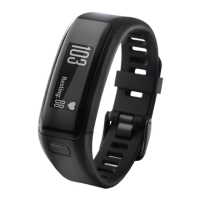
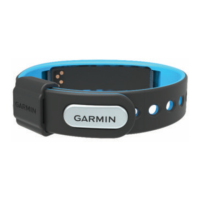
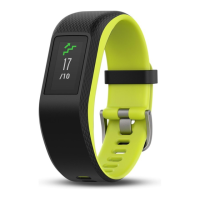
offers are easy-to-read display showing you how many steps you‘ve taken throughout the day,
the distance traveled, calories burned as well as time of the day.
When the sleep mode is activated, vivofit
™
monitors your rest. Your sleep statistics on Garmin Connect
include total hours of sleep, period of movement, and period of restful sleep.
1. Hold the device key until Sleep appears. 2. Press the device key to exit sleep mode.
After one hour of inactivity, the move bar
1
,
appears.
Additional segments
2
,
appear after every 15 additional
minutes of inactivity. Inactivity can cause unfavorable chan-
ges in your metabolism and may lead to health issues.
Starting
1. Put on your HRM: see chapter 1.5.
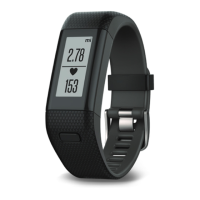
2. Select the device key until Heart appears.
Stopping:
1. Click several times on the button until you reach
the heart rate page.
2. Wait until the heart rate data displays.
3. Hold the device key to stop heart rate activity.
What are the first things you need to do once you receive your device?
1. Plug the ANT+
™
USB stick into a USB port and install Garmin Express:
http://software.garmin.com/en-US/express.html
2. Go to www.GarminConnect.com/vivofit and sign in or create a Garmin Connect account.
3. Turn on the device. If you are not in Pair mode, hold the device key until Pair appears.
4. Follow the on-screen instructions to pair your device and complete the setup process.
1. Go to Garmin Connect.
2. On vivofit
™
window, click on Device
Settings.
3. Change your display
preferences:
Time Format, Date Format, Units,
Visible Screens, Auto-Goal, Auto
Activity detection.
1. Go to www.Garmin-
Connect.com/vivofit.
2.
Click on the device’s name
vivofit
™.
3. In Device Settings, you can
activate or deactivate Auto-Goal.
If you deactivate Auto-Goal, you
can define your daily goal.
6.3 SLEEP TRACKING
Your device automatically creates a daily step goal based on your previous activity levels. You can also
determine your steps goal manually (8000 steps for instance). For that you need to:
Basic settings allows you to adapt the display of the vivofit
™
according to your preferences. It concerns
the following features: Time Format, Date Format, Units, Visible Screens, Auto-Goal and Auto Activity
detection.
TIP: Vivofit
™
follows your progress 24/7 and can stay active for more than a year without a battery
change. As it is dust and water resistant, so you can wear it all the time.
TIP: Vivofit
™
automatically records your activity
while HRM is used. You can review your activity
details in Garmin Connect once uploaded.
2
3
2
3
1 2


 To Next Page