3130
CHAPTER 5: F
¯
ENIX
™
2 CHAPTER 5: F
¯
ENIX
™
2
Power on / off
Light on / off Start / Stop / Select
Go back / LapGo down
OVERVIEW F
¯
ENIX
™
2
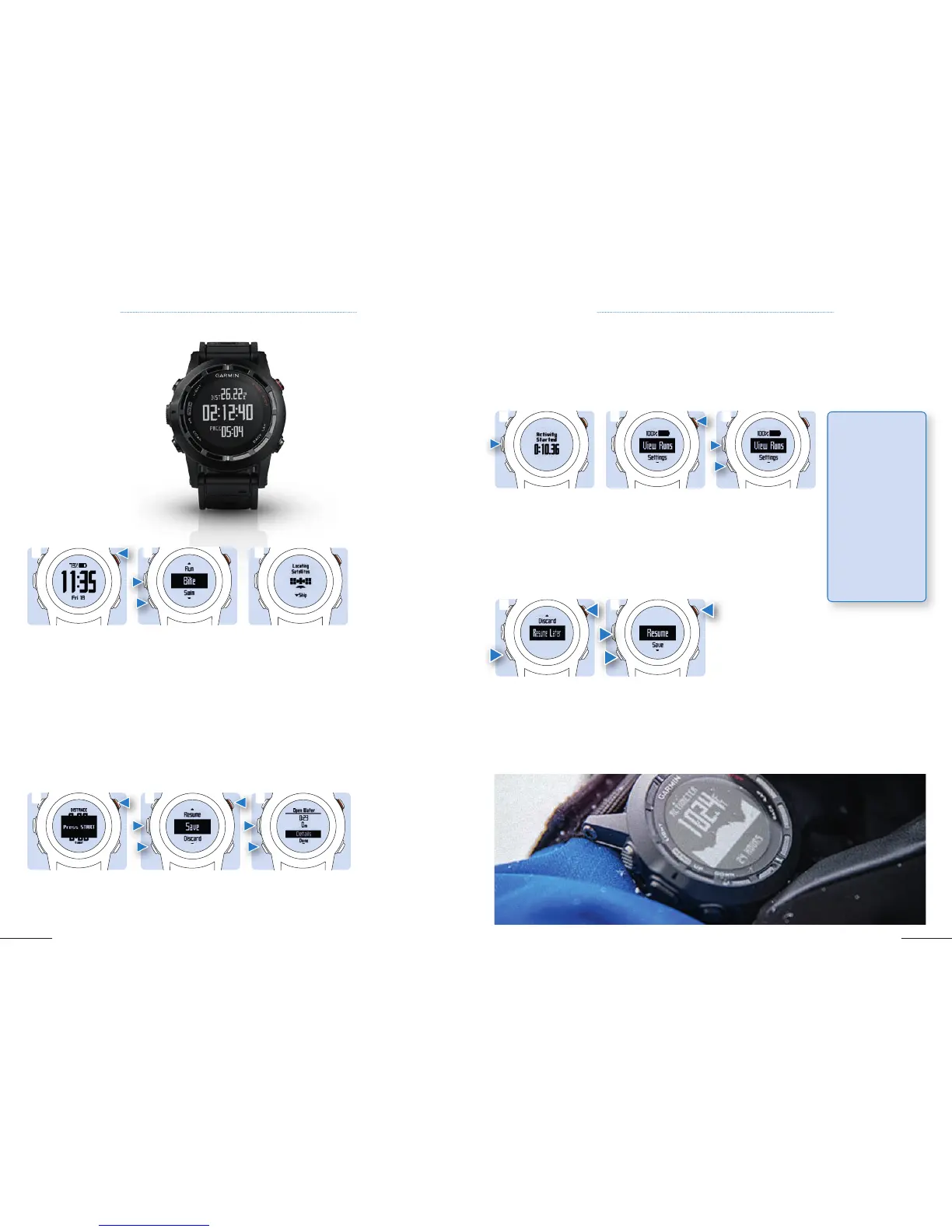
2. Select View Run
.
3. Scroll to see the
details of your current
run, your last run and
your total runs.
1. Once you start a
skiing or snowboarding
activity hold Menu.
5.2 ACTIVITY DETAILS
1 3
SKIING OR SNOWBOARDING: How to view the ski run
2
Go up / Hold: Menu
2. Once you stopped
the timer, select Save
to save the activity.
3. Select Details
to obtain additional
information about your
activity.
2 3
1. Select Start or Stop
to start or stop the
timer / the activity.
2. Select your activity
among the following:
XC Ski / Ski-Board
/ Climb / Hike /
Navigate / Trail Run
/ Run / Bike / Swim
/ Workout / Indoor /
Multisport / Custom.
3. Wait until you get
your GPS location.
1. Select Start.
5.1 ACTIVITY SELECTION
BASICS
1 3 2
1. When you want to
take a break or pause
the device from tracking,
select Stop then scroll
down to Resume Later.
2. Select Start then
Resume to continue
tracking.
1 2
HIKING: How to pause the device to take a break
1
Each activity has its own specifications. Listed below is a detailed breakout of each activity to help you
operate your device effectively.
For most activities, you can repeat the same simple steps to start, stop and save your activity.
TIP: The run over-
view includes time,
distance traveled,
maximum speed,
average speed and
total descent.
In Skiing mode
fenix
TM
2 uses
automatic run
counting and
Autostop while
lifting.


 To Next Page