AUTOMOTIVE
Editing and Managing Routes
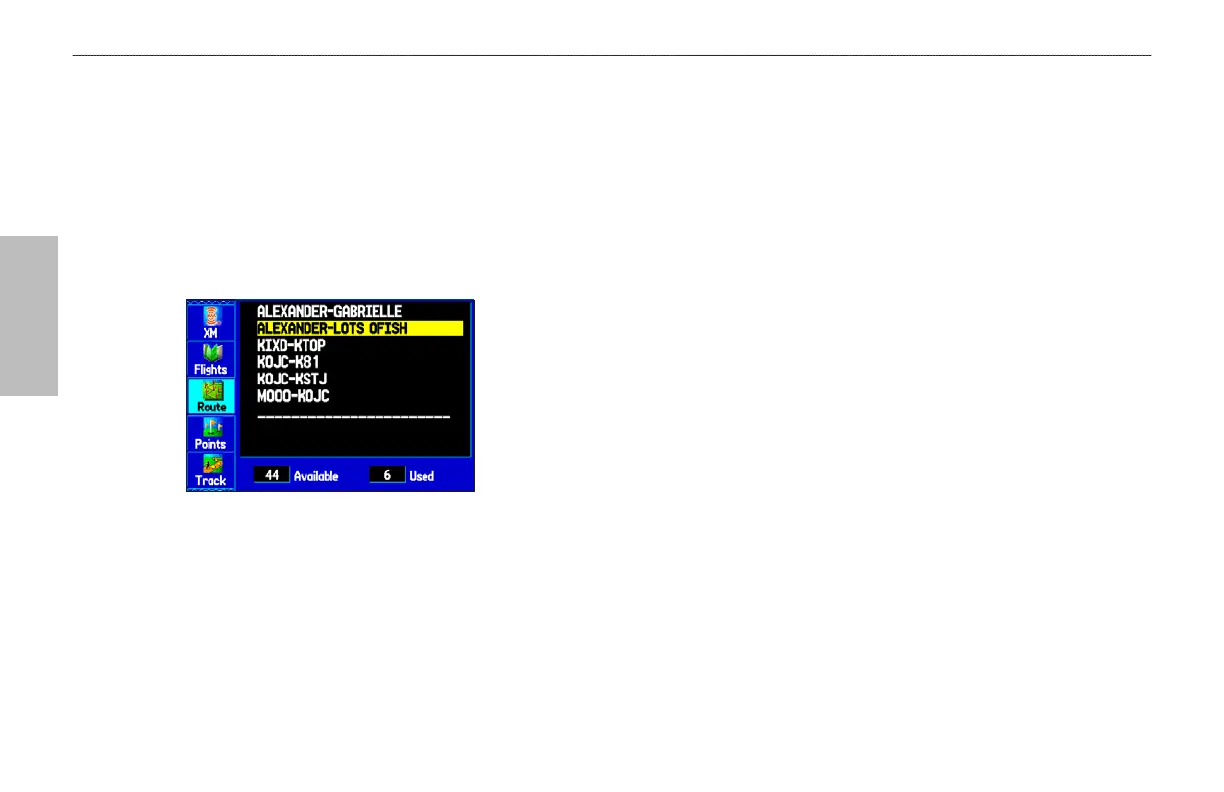
The Route tab shows the routes you have created in your
GPSMAP 496 unit. For complete information on routes, refer to the
“Creating Routes” section on page 61.
Viewing All of Your Saved Routes
The Route tab in the Main Menu lists all of your saved routes and
routes on one easy-to-read Route List.
Route Tab
To view the route list:
1. Press MENU twice to open the Main Menu.
2. Highlight Route from the vertical menu of tabs using
ROCKER.
Using the Route Options
The Route tab in the Main Menu shows all the routes currently
stored in memory, along with a descriptive name for each route.
Highlight a route, and press MENU to open the options menu.
From here you can start the route, copy it, delete it, delete all routes,
and create a new route. You can also set up the routes to manually
transition to the next waypoint.
Manually Transitioning to the Next Waypoint
From the Route tab Option Menu, highlight Set up Routes, and
press ENTER to set the route leg transition (or waypoint transition).
Select Distance to enter a radius so that when you are within the
entered distance, the GPSMAP 496 leads you to the next point on
your route.
When you select Manual, you can transition to the next waypoint
while navigating a route. While you are navigating the route,
open the Active Route Page. Press MENU. Highlight Next Route
Waypoint, and press ENTER to have the GPSMAP 496 start
routing you to the next point in your route.
74 GPSMAP 496 Owner's Manual
AUTOMOTIVE MODE PAGES AND FEATURES > EDITING AND MANAGING ROUTES



 To Next Page