GPSMAP 400/500 Series Owner’s Manual 59
Using Sonar
Understanding the Depth Log Screen
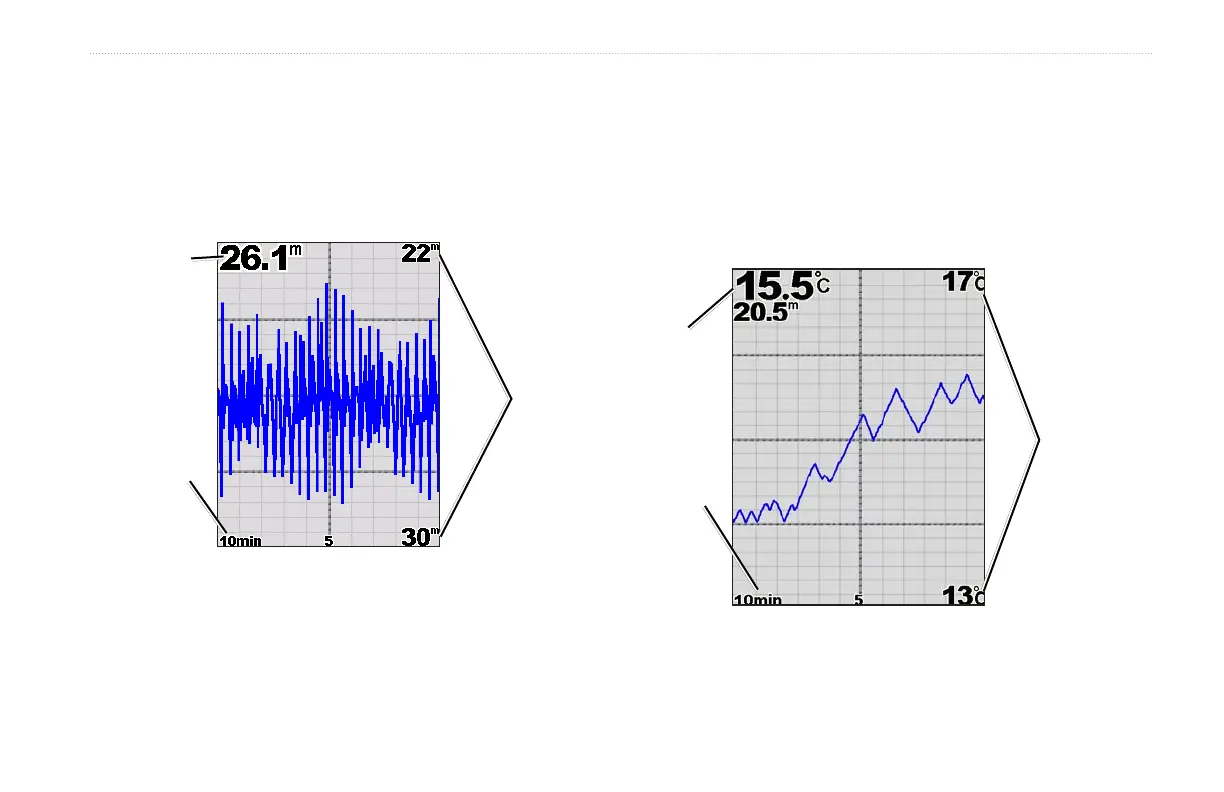
The Depth Log screen keeps a graphic log of depth readings over
time. The present depth is shown in the top-left corner.
From the Home screen, select Sonar > Depth Log.
Press MENU to set the duration and the scale for the log.
Depth
range
Depth
Time
elapsed
Depth Log
The depth appears along the right side, and the time elapsed appears
along the bottom. The graph scrolls to the left as information is
received.
Understanding the Temp Log Screen
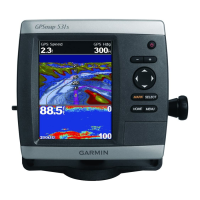
If you are using a temperature-capable transducer, the Temp Log
screen keeps a graphic log of temperature readings over time. The
current temperature and the depth are shown in the top-left corner.
From the Home screen, select Sonar > Temp Log.
Press MENU to set the duration and the scale for the log.
Temperature
range
Time
elapsed
Temp
and
depth
Temp Log













 To Next Page