14 GPSMAP 700 Series Owner’s Manual
Charts and 3D Chart Views
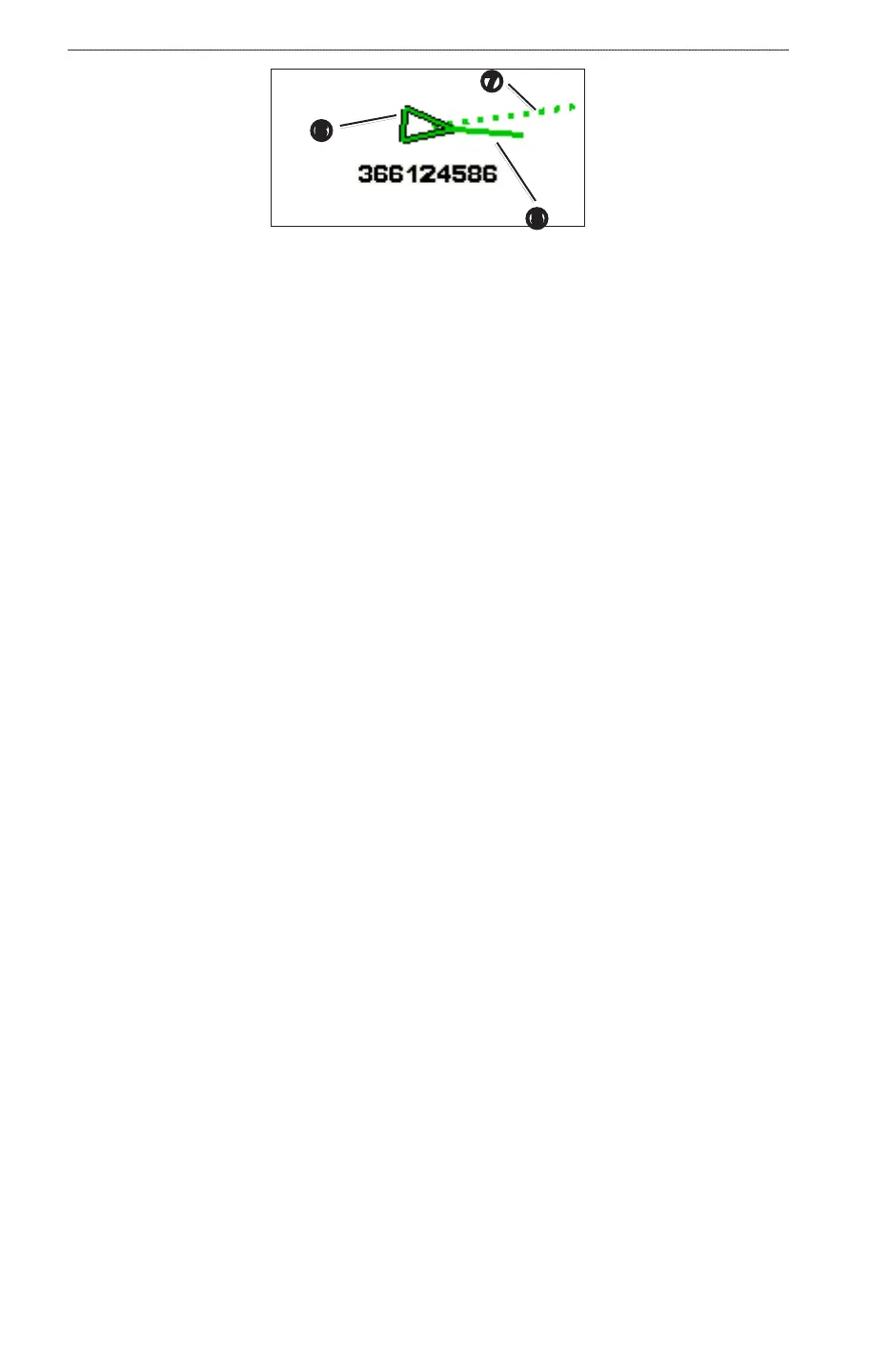
➎
➐
➏
Target with Projected Course and Heading
Turning Off AIS Reception
AIS signal reception is turned on by default.
From the Home screen, select > > > .
All AIS functionality on all charts and on all 3D chart views is disabled. This includes AIS vessel targeting
and tracking, collision alarms that result from AIS vessel targeting and tracking, and information about AIS
vessels.
Enabling AIS-SART Transmission Test Alerts
In order to avoid a large number of test alerts and symbols in crowded areas such as marinas, AIS-SART test
alerts ignored by default. To test an AIS SART device, you must enable the chartplotter to receive test alerts.
From the Home screen, select > > .
Showing AIS Vessels on a Chart or on a 3D Chart View
AIS requires the use of an external AIS device and active transponder signals from other vessels.
You can congure how other vessels appear on a chart or on a 3D chart view. The display range congured
for one chart or one 3D chart view is applied only to that chart or to that 3D chart view. The details, projected
heading, and trails settings congured for one chart or one 3D chart view are applied to all charts and to all 3D
chart views.
: The Mariner’s Eye 3D chart is available if you use a BlueChart g2 Vision SD card. The Fishing chart
is available if you use a BlueChart g2 Vision SD card or a BlueChart g2 SD card, or if your built-in map
supports Fishing charts.
1. From the Home screen, select .
2. Select , , , or .
3. Select > > .
4. Complete an action:
• Select to indicate the distance from your location within which AIS vessels appear.
Select a distance or select .
• Select > to show details about AIS-activated vessels.
• Select , enter the projected heading time for AIS-activated vessels, and select .
• Select to show the tracks of AIS vessels, and select the length of the track that appears using a
trail.
Activating a Target for an AIS Vessel
1. From the Home screen, select .
2. Select , , , or .
3. Touch an AIS vessel.
4. Select > .
Viewing Information about a Targeted AIS Vessel
You can view the AIS signal status, MMSI, GPS speed, GPS heading, and other information that is reported
about a targeted AIS vessel.
1. From the Home screen, select .
2. Select , , , or .










 To Next Page