20 GPSMAP 700 Series Owner’s Manual
Charts and 3D Chart Views
Using Tracks
See “Tracks” (page 30).
Showing Other Vessels
See “Conguring the Appearance of Other Vessels” (page 50).
Showing Navaids
From the Home screen, select > > > > .
Showing Overlay Numbers
See “Overlay Numbers” (page 48).
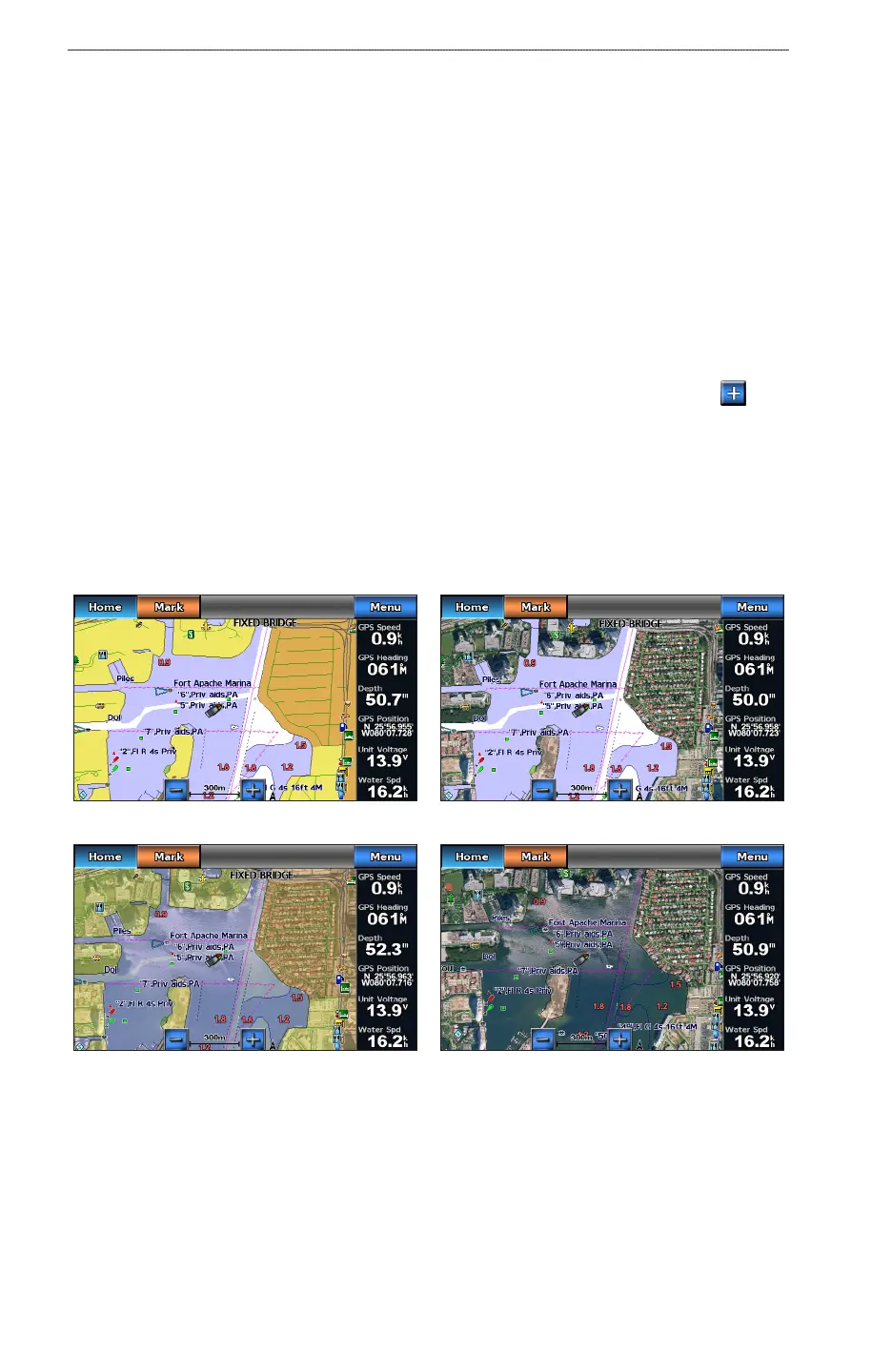
Showing Satellite Imagery on the Navigation Chart
You can overlay high-resolution satellite images on the land or on both land and sea portions of the Navigation
chart when using a preprogrammed BlueChart g2 Vision data card.
: When enabled, high-resolution satellite images are present only at lower zoom levels. If you cannot
see high-resolution images in your BlueChart g2 Vision region, you can zoom in further by pressing . You
also can set the detail level higher by changing the map zoom detail (page 8).
1. From the Home screen, select > > > > .
2. Complete an action:
• Select to show standard chart information on the water, with photos overlaying the land.
• Select to show photos on both the water and the land at a specied opacity. Use the
slider bar to adjust the photo opacity. The higher you set the percentage, the more the satellite photos
cover both land and water.
Land Only Photo Overlay
Photo Map at 100%Photo Map at 50%
Photo Overlay Off
Viewing Aerial Photos of Landmarks
Before you can view aerial photos on the Navigation chart, you must turn on the Photo Points setting
(page 11).
Preprogrammed BlueChart g2 Vision data cards contain aerial photographs of many landmarks, marinas, and
harbors. Use these photos to help orient yourself to your surroundings or to acquaint yourself with a marina or
a harbor prior to arrival.










 To Next Page