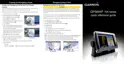
GPSMAP 700 Series Owner’s Manual 27
Navigation
3. Complete an action:
• Touch a location on the chart.
• Touch and drag the screen to pan to a new location. Touch a location on the chart.
4. Select .
5. If necessary, you can name the waypoint and provide other information about it. Select the waypoint on the
right side of the screen and select .
• Select , enter the name, and select .
• Select and select a symbol.
• Select , enter the depth, and select .
• Select , enter the water temperature, and select .
• Select , enter the comment, and select .
Marking and Navigating to an MOB Location
When you mark your present location as a waypoint, you can designate it as a man overboard (MOB) location.
Complete an action:
• From any screen, select > .
• From the Home screen, select .
An international MOB symbol marks the active MOB point and the chartplotter sets a course back to the
marked location using the Go To feature.
Viewing a List of all Waypoints
From the Home screen, select > > .
Editing a Saved Waypoint
1. From the Home screen, select > > .
2. Select a waypoint.
3. Select .
4. Complete an action:
• Select , change the name, and select .
• Select and select a new symbol.
• Select , change the depth, and select .
• Select , change the water temperature, and select .
• Select , change the comment, and select .
Creating a New Waypoint from the Waypoints List
1. From the Home screen, select > > > .
2. Complete an action:
• Select to create a new waypoint by entering grid coordinates.
• Select to select a new waypoint on the chart.
• Select to create a new waypoint at your present location.
Moving a Saved Waypoint
1. From the Home screen, select > > .
2. Select a waypoint.
3. Select > .
4. Indicate a new location for the waypoint:
• Select to move the waypoint while viewing a chart, touch a new location on the chart, and
select .
• Select , move the waypoint, and select .





 To Next Page