55 232001840G(08)
Link
/
DLink
Page
The Link / DLink Page allows you to set, arrange, and remove loaded jobs to and from a job
queue for processing. Use the directional keys to cycle through your loaded jobs, then simply
press the <F2 (Link)> key to add a file to the job queue. The job queue will be set in a sequential
order based on the order you link the files. To remove a job from your job queue, press the <F4
(DLink)> key.
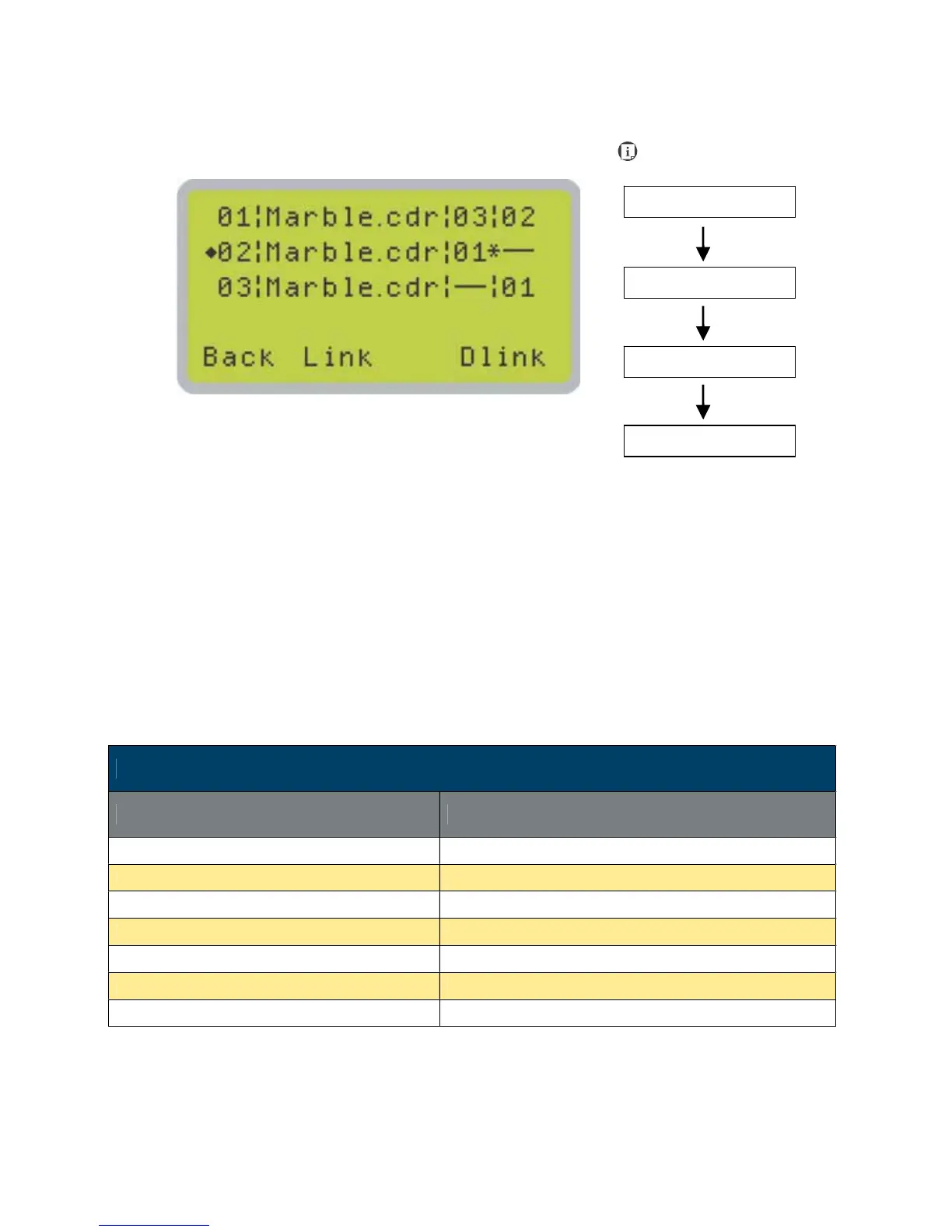
The first column field (before the file name) displays the job number. The sequence for your job
queue is displayed in the two columns to the right of your file names. The first column to the right
of your job file name displays the job number of the previous file in the job queue sequence. The
second column after the file name displays that job’s next file in the job queue sequence. First
and last jobs in the job sequence you set will have a (---) in the first and second columns
respectively. So according to the image above, the job queue sequence has been set to be
processed in this order: 03:Marble.cdr J 01:Marble.cdr J 02:Marble.cdr.
Link / DLink Page
Relevant Buttons Function
F1 (Back) Back to previous page
F2 (Link) Add the currently-selected job to the job queue
F4 (DLink) Remove the currently-selected job from the job queue
U / V Directional Scroll through the menu selections
Start / Stop Back to Main Work Page
Auto Focus Initiate the auto focus function
S / T Manual Focus Buttons Manually adjust the height of the work table (Z-axis)
Main Work Page
Functions Page
Navigating to this page:



 To Next Page