GE Multilin F35 Multiple Feeder Protection System 4-17
4 HUMAN INTERFACES 4.3 FACEPLATE INTERFACE
4
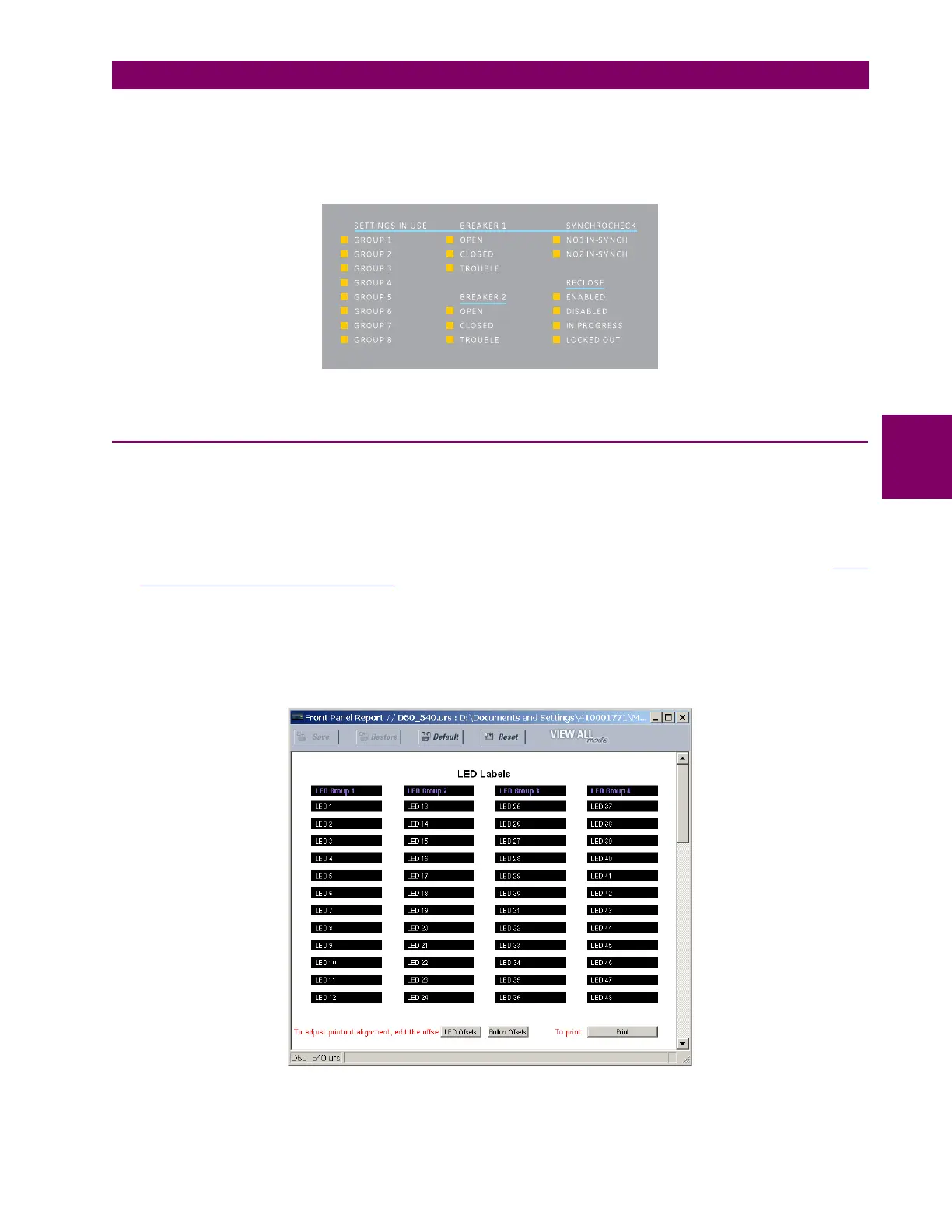
The relay is shipped with the default label for the LED panel 2. The LEDs, however, are not pre-programmed. To match the
pre-printed label, the LED settings must be entered as shown in the User-programmable LEDs section of chapter 5. The
LEDs are fully user-programmable. The default labels can be replaced by user-printed labels for both panels as explained
in the following section.
Figure 4–21: LED PANEL 2 (DEFAULT LABELS)
4.3.3 CUSTOM LABELING OF LEDS
a) ENHANCED FACEPLATE
The following procedure requires the pre-requisites listed below.
• EnerVista UR Setup software is installed and operational.
• The F35 settings have been saved to a settings file.
• The F35 front panel label cutout sheet (GE Multilin part number 1006-0047) has been downloaded from http://
www.GEindustrial.com/multilin/support/ur and printed.
• Small-bladed knife.
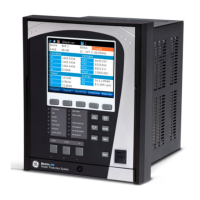
This procedure describes how to create custom LED labels for the enhanced front panel display.
1. Start the EnerVista UR Setup software.
2. Select the Front Panel Report item at the bottom of the menu tree for the settings file. The front panel report window
will be displayed.
Figure 4–22: FRONT PANEL REPORT WINDOW
3. Enter the text to appear next to each LED and above each user-programmable pushbuttons in the fields provided.


 To Next Page