1-6 F35 Multiple Feeder Protection System GE Multilin
1.3 ENERVISTA UR SETUP SOFTWARE 1 GETTING STARTED
1
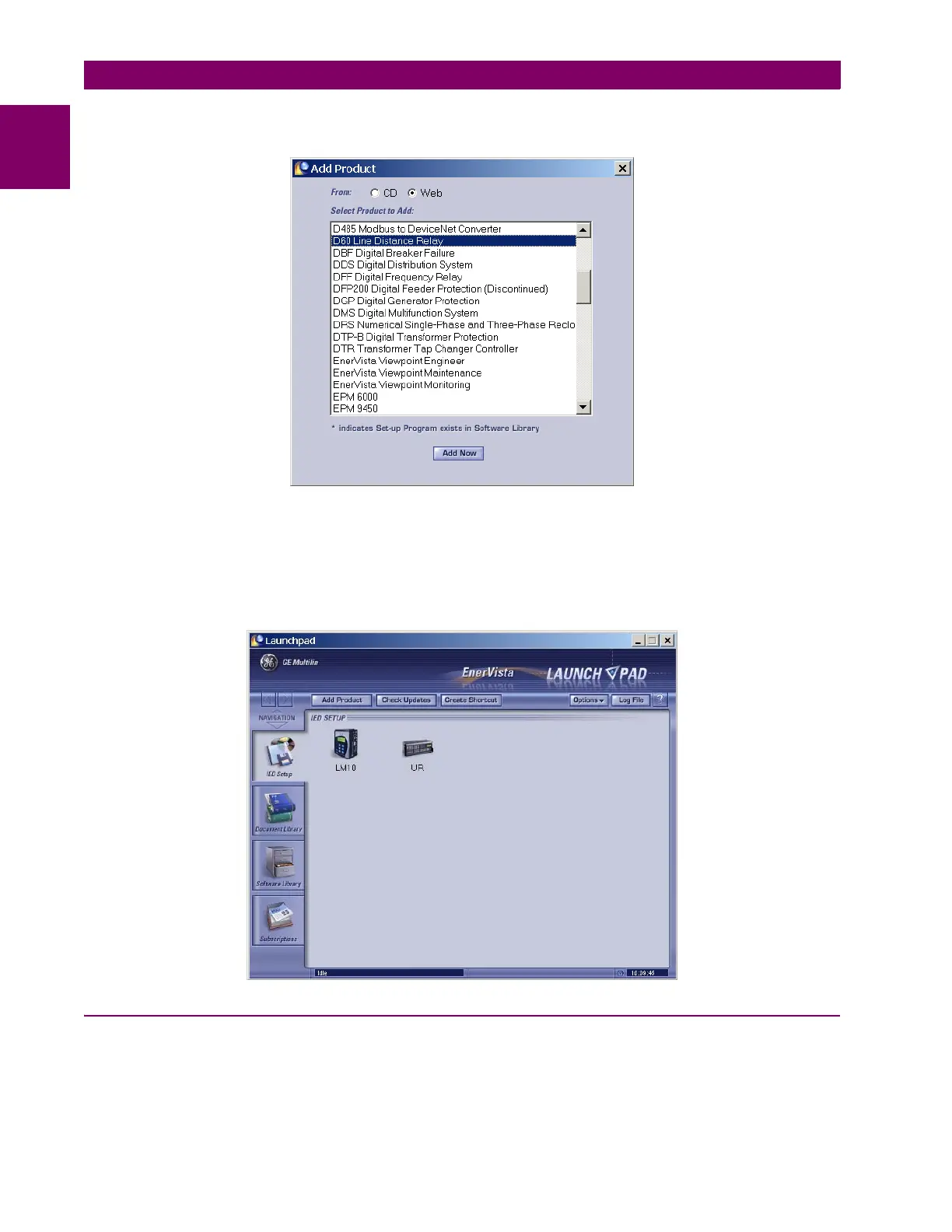
release, or select “CD” if you do not have a web connection, then click the Add Now button to list software items for
the F35.
6. EnerVista Launchpad will obtain the software from the Web or CD and automatically start the installation program.
7. Select the complete path, including the new directory name, where the EnerVista UR Setup will be installed.
8. Click on Next to begin the installation. The files will be installed in the directory indicated and the installation program
will automatically create icons and add EnerVista UR Setup to the Windows start menu.
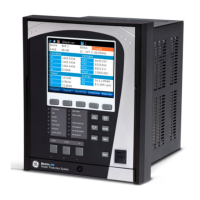
9. Click Finish to end the installation. The UR-series device will be added to the list of installed IEDs in the EnerVista
Launchpad window, as shown below.
1.3.3 CONFIGURING THE F35 FOR SOFTWARE ACCESS
a) OVERVIEW
The user can connect remotely to the F35 through the rear RS485 port or the rear Ethernet port with a PC running the
EnerVista UR Setup software. The F35 can also be accessed locally with a laptop computer through the front panel RS232
port or the rear Ethernet port using the Quick Connect feature.


 To Next Page