6868 69
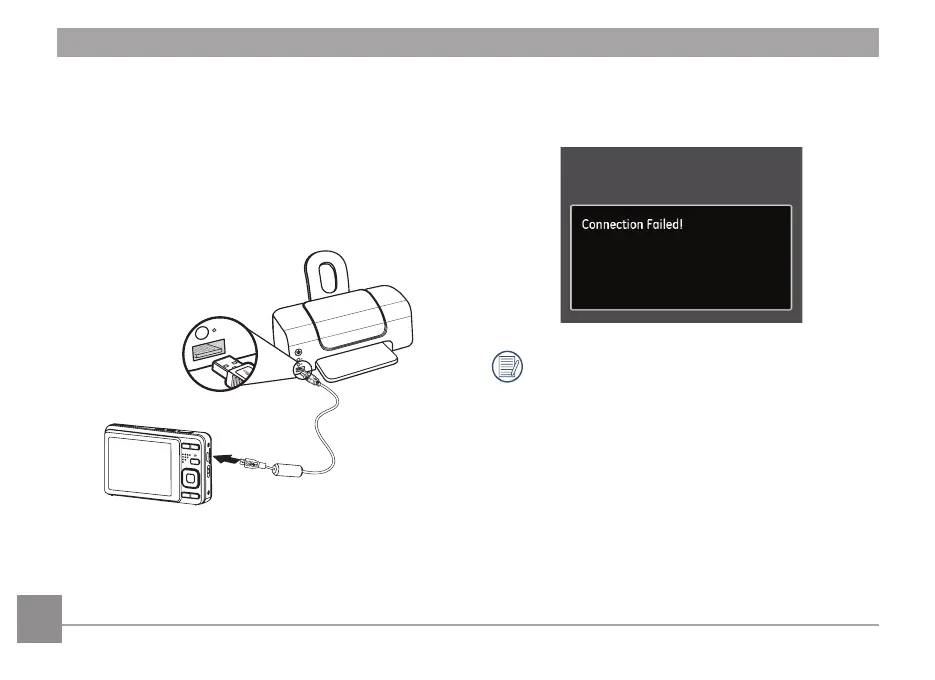
Connecting the Camera and Printer.
1. Make sure both the camera and printer are turned on.
2. Connect one end of the supplied USB cable to the USB port
on your camera.
3. Connect the other end of the cable to the USB port on the
printer.
If the camera is not connected to a PictBridge compatible
printer, the following error message will appear on the LCD
screen.
The above error message will also appear if the USB
mode is set incorrectly, in which case you should
disconnect the USB cable, check the USB mode settings,
ensure that the Printer is turned on, and then try
connecting the USB cable again.


 To Next Page