32
Eraser
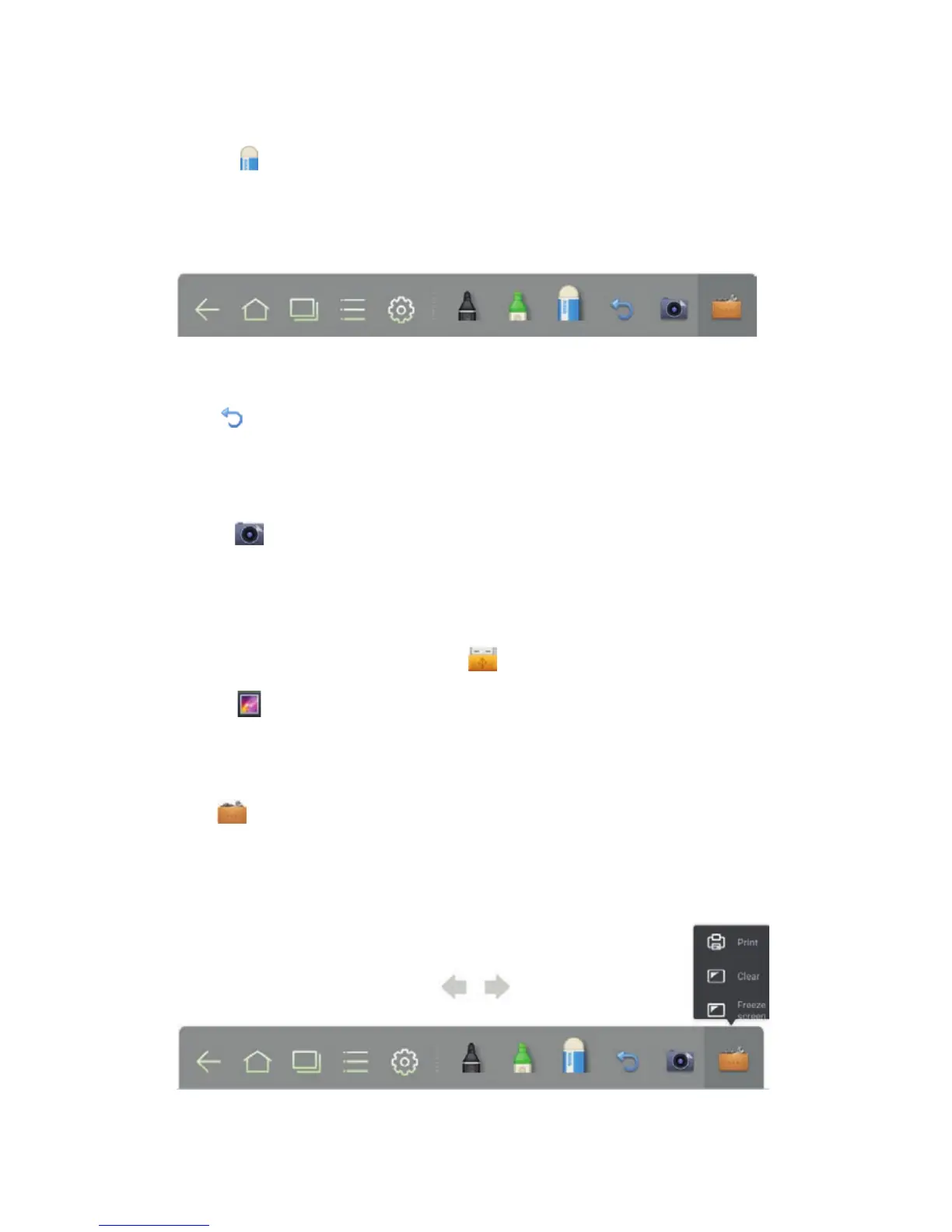
Two methods are available to erase written errors or content as follows:
•
Click to select the eraser, and then you can use it to erase the content on
the whiteboard.
•
Use five fingers to touch the screen and a circle is displayed indicating the
scope for erasing. Move the circle to erase the content you wrote.
Cancel
Click
to cancel operations.
Screen Capture
The following two methods are used to capture screen:
•
Click to capture current content on the whiteboard and save it as an image
in Screenshots directory. (The toolbar is not captured in the image.)
•
Press CAPTURE on the remote controller to save current content on the
whiteboard as an image in Pictures > Screenshot directory in the file manager.
You can open the directory by two ways:
•
Go back to the home page and click on the toolbar to enter the file
manager. In the system file, find and click the Screenshots folder to check.
•
Click in application programs to enter the image browsing interface. In the
system file, find and click the Screenshots folder to check.
Print, Clear and Freeze Screen
Click
, Print, Clear and Freeze screen are displayed. Click Print to print
current content on the whiteboard. Click Clear to clear all current content on the
whiteboard. Click Freeze screen to capture the current screen and zoom in,
zoom out and annotate on the frozen screen.
4 TOOLBAR INTRODUCTION


 To Next Page