General Dynamics Itronix 72-0146-001
GD8200 User Guide
Display
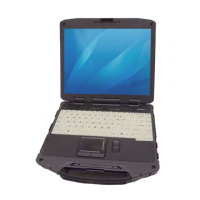
The GD8200 features a 13.3-inch, XGA, sunlight-viewable, color
display with an integrated touchscreen. You can start programs
and input data on the touchscreen using an approved pen
(stylus) that comes with the computer. The Colorvue™
Transmissive display technology uses a built-in backlight for
easy reading in most ambient light conditions. DynaVue
®
II
display technology provides improved outdoor visibility and
even works well in sunlight.
CAUTION To avoid damaging the display, do not slam it
when you close it. Also, do not place any object on top of the
computer when the display is closed.
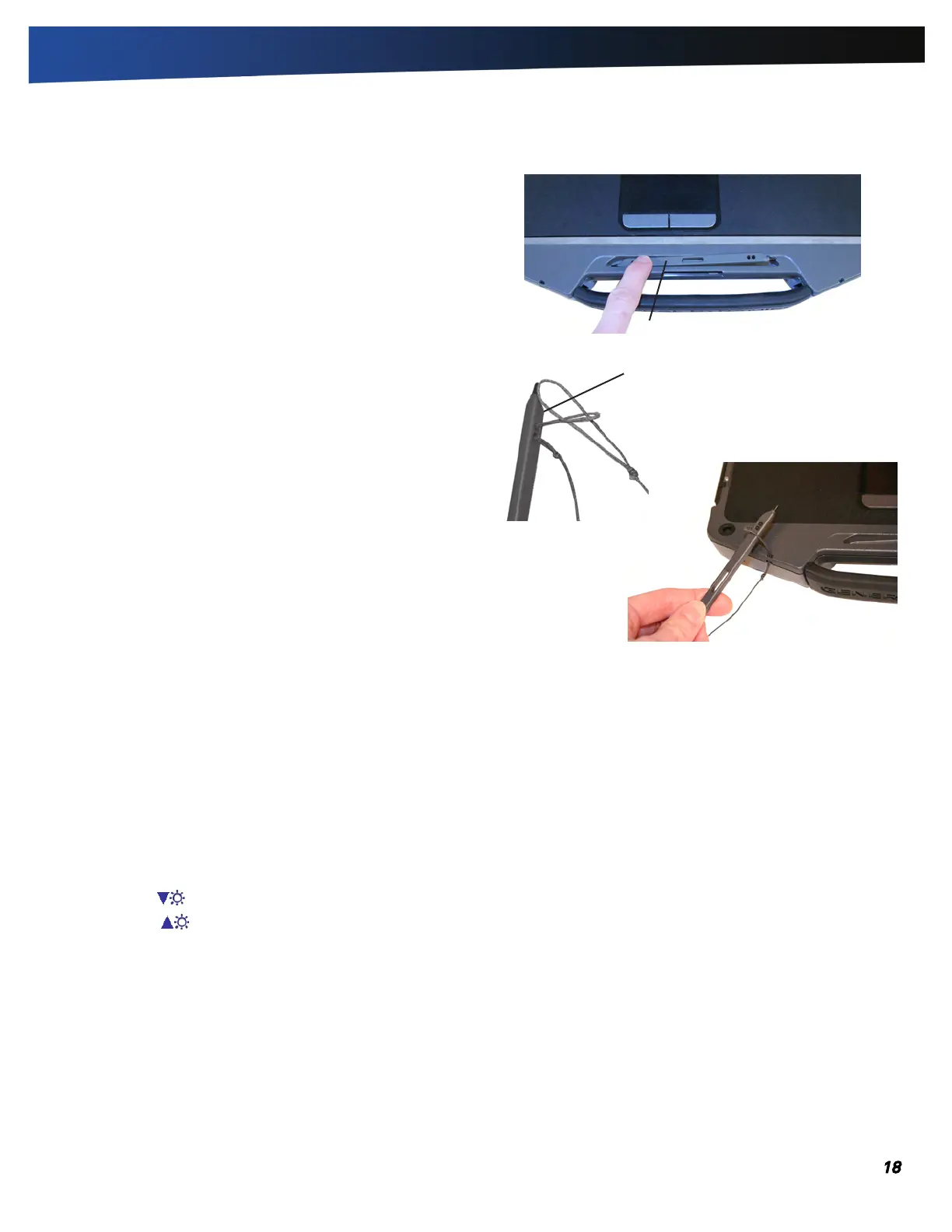
Install the Stylus Tether
1. Insert one tether loop through one of the holes on the end of
the stylus, then pull it back through the adjacent hole.
NOTE The holes in the stylus are notched on one side and
smooth on the other. Feed the tether through the smooth side
first, so that it lies inside the notch when finished.
2. Insert the free end of the tether through the loop and pull the
slack back through the loop to secure the stylus.
3. Repeat these steps with the other end of the tether to attach it
to one of the tether slots on the front on your computer.
Calibrate the Touchscreen
1. Press down on one side of the stylus to remove it from its slot
below the Touchpad.
2. From the Start menu select All Programs, HIDeGalaxTouch.
3. Select 9 Points Linearization from the HIDeGalaxTouch dia-
logue box.
4. Use an approved stylus and follow the instructions provided to
complete touchscreen calibration.
5. Click OK to save the new settings and click OK again to begin
using your computer.
Adjusting Display Brightness
Press FN + F6 to decrease display brightness
Press FN + F7 to increase display brightness
Adjusting Display Resolution
Windows
®
7:
1. Click on the Start button and then on Control Panel.
2. Under Appearance and Personalization, click on Adjust
Screen Resolution.
3. Use the slide bar to adjust the resolution.
NOTE Using a lower resolution than the screen designation
will reduce the area of the display.
Press down to remove stylus
Getting Familiar With Your Computer
smooth side


 To Next Page